Add work to a student's portfolio
A student's portfolio fills from two directions: you put in what you want to keep, and the student sends their own work from the tablet. Nothing is visible to parents until you have approved it.
Capture a photo or a drawing yourself
- Open capture from the class.
- Pick the student, or several students if the same photo goes to the whole group.
- Take the photo with "Take a photo", or choose "Drawing" to use the canvas.
- Tap "Save and continue".
LinoClass confirms with "Capture saved!" and "The capture has been added to the student's portfolio."
A drawing belongs to one child. If you selected the whole group, LinoClass tells you: "A drawing belongs to one student. Pick a single student to use the canvas."
Approve what a student sent
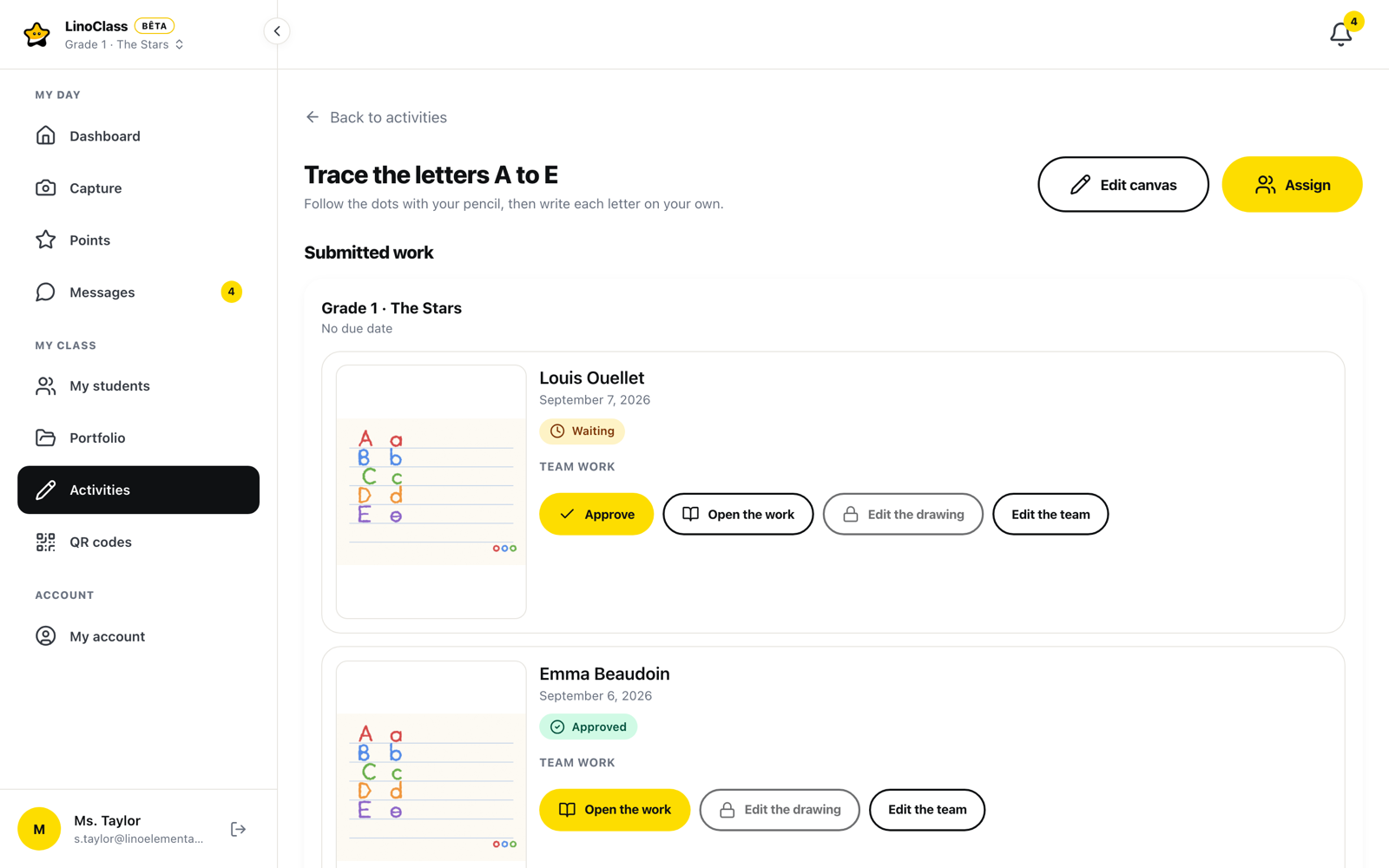
Work a student sends in arrives marked "Awaiting approval". It stays invisible to parents for as long as it carries that mark.
- Open the work in the portfolio or in the class feed.
- Tap "Approve".
The item then reads "Approved and shared with the parents". That tap is what publishes it: until you make it, you are the only one who sees the work.
When saving does not go through
Each of these messages has one precise cause, and none of them means the work is lost.
"The class storage is full"
The free plan has a storage limit. Photos and drawings stay free, whatever the plan. To lift the storage limit you need the Pro plan.
"Video and audio recording is part of the Pro plan"
Video and sound need the Pro plan. Photos and drawings work on every plan. On the student's side the message is written for them: "Videos and sounds need the Pro version. Ask your teacher. Photos and drawings always work!"
"Parental permission"
This child's parent has not allowed that kind of content, or no answer is on file yet. The message tells you where to look: "Check the parental permissions in Settings, under Parents." Tap "See the permissions" to go straight there.
"This file is too large"
Record a shorter clip. Length, not quality, is almost always the cause.
"The audio recording could not start"
The tablet did not grant microphone access. Check the microphone in the tablet's settings, then try again.
Frequently asked questions
Do parents get a notification?
They see the work once it is approved. Approving is what shares it.
Can one photo be saved to several students?
Yes, on the Pro plan. On the free plan you capture one student at a time.
Can a student delete their own work?
No. What a student sends reaches you and waits for your decision.