What the student sees in "Class feed"
The announcements you publish for parents also show up for your students, on a screen of its own: "Class feed". This page describes that screen in the browser, so you know what the student is looking at when they bring it up. The student can only read. They cannot comment, react or delete anything.
Open the feed
On their home screen, the student taps the "Class feed" row, below "My activities". It carries the line "Messages from your teacher". The row is there for every student, whatever your plan.
A student signed in with a home code finds the same row and the same feed at home. Give a student a home code explains that code.
To go back to their home screen, the student taps the arrow at the top left, next to the title.
What an announcement shows
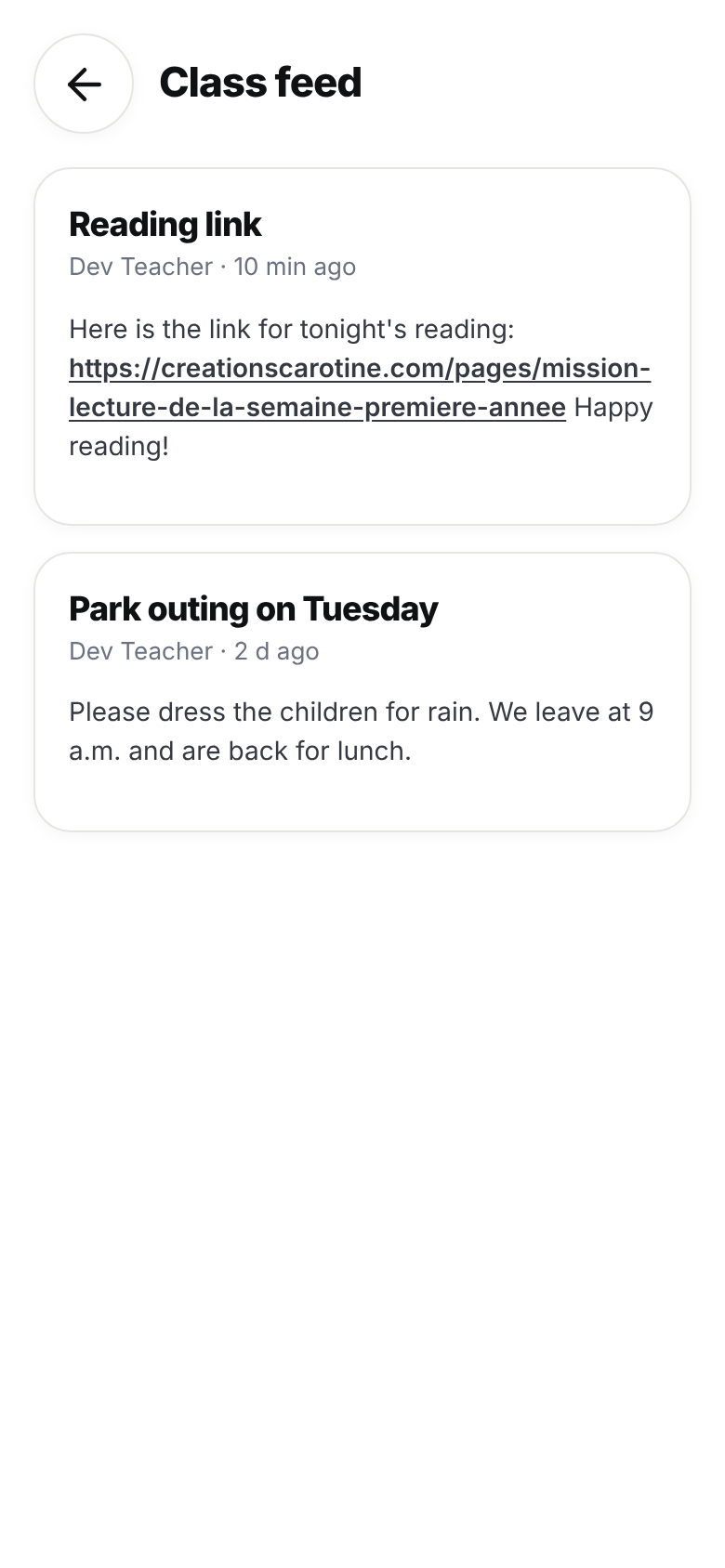
Announcements are listed from newest to oldest. Each card looks like the one in your class feed and gives:
- the announcement's title;
- your name and the date it was published;
- the attached pictures, above the text;
- the announcement's text;
- the other attachments, below the text.
The date is relative, as in your feed: "Just now", then in minutes, hours and days. After a week, the card shows the day and month.
A long text shows folded to eight lines. The student taps "Show more" under the text to read all of it, then "Show less" to fold it again. A web address written in the text becomes a link that opens in a new tab.
The student taps a picture to see it full screen. A PDF opens the same way, in the viewer. A video plays inside the card. Any other file opens in a new tab.
The feed loads 20 announcements at a time. When there are more, the "Show more" button at the bottom of the page loads the next ones.
When an attachment does not open
When the viewer cannot show a PDF, it reads "This PDF cannot be shown here." with an "Open in a new tab" button. The student taps that button to read the PDF in the browser.
When a picture or a file does not show at all, first check that the tablet has a network. Then have the student go back to their home screen and open "Class feed" again.
Which announcements the student sees
The student's feed holds your announcements only. The work, photos, observations and comments in your class feed are not there.
- An announcement sent to the whole class appears for every student.
- An announcement sent to a group or to a few students appears only for those students. The others do not see it. The list is fixed when you publish, so a student added to the group later does not see the announcements already sent to it.
- A scheduled announcement appears for the student on the chosen date, not before.
- An announcement you delete disappears from their feed.
- An announcement that was flagged and waits for your review stays out of their feed. Review flagged work or a flagged message explains how to let it through.
How to write and target an announcement is covered in Send an announcement to parents.
When the feed stays empty
The student sees Lino and the message "Nothing new in the feed yet". That message shows in several cases.
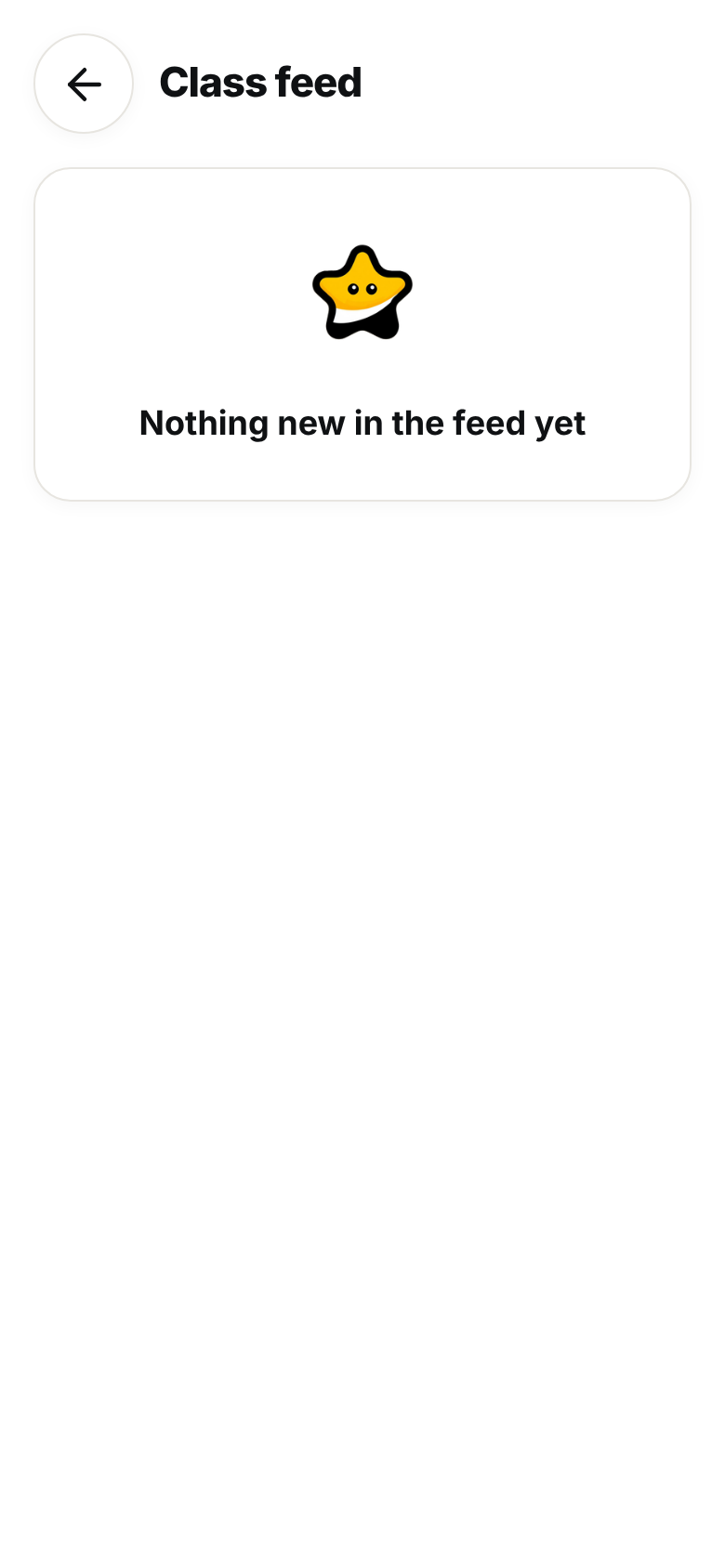
- You have not yet published an announcement for the whole class, or for a group or students they belong to.
- Your announcement is scheduled and its date has not come yet.
- Announcements are turned off for your school. The student's feed is then always empty, even if announcements were published before. See When announcements are turned off for your school.
- The feed could not load, for example when the tablet lost its network. The screen shows no error, only the same message. Check the connection, then have the student go back to their home screen and open "Class feed" again.
If one announcement is missing for a single student, find its card in your feed. A badge naming a group or a few students means the announcement went to those students only. To reach the student, write a new announcement.