Create an activity and prepare its sheet
An activity is a sheet you prepare and the child fills in on the tablet. You create it in two steps: a short form, then the sheet itself, in the canvas editor. You find it afterwards in "Activities", under "My activities".
Fill in the formFree plan: 50 one-page activities. Pro plan beyond that.
- In "Activities", tap "New activity".
- Type the "Activity name". It is the only required field. The "Create activity" button stays grey while it is empty.
- Add a "Description (optional)". The child sees it on their card, under the name.
- Tap "Record instructions" if you want to say the instructions out loud. The button changes to "Stop (0:05)", with the time running. Tap it to finish. The line "Instructions recorded" confirms. The child will have a "Listen" button on their card.
- Under "Activity image (optional)", tap "Add an image or a PDF". An image becomes the card's cover. A PDF becomes the sheet itself: every page of the PDF becomes a page of the activity. Page 1 is the cover.
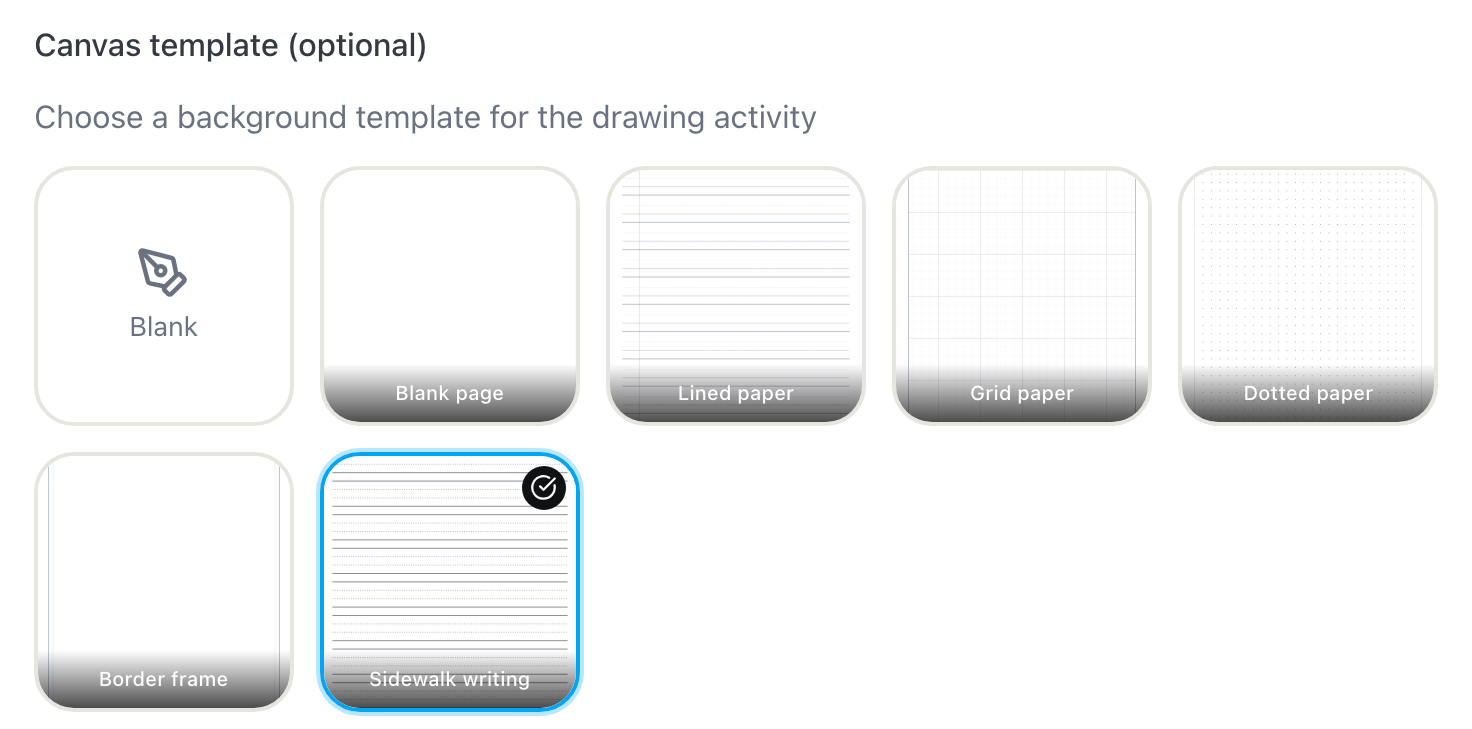
- Under "Canvas template (optional)", tap the paper the child will have under their strokes. "Blank" is chosen by default.
- Add "Tags (optional)", for example "Writing" or "Numbers". They filter the list.
- The "Add to my library" box is already ticked. The activity also goes in your library, and you place it in another class with "Use". Untick it if it is only for this class. The page Keep activities in the library explains what the box changes.
- Tap "Create activity". The button shows "Creating...".
LinoClass opens the canvas editor right away, on this activity's sheet.
The papers on offer are "Blank page", "Lined paper", "Grid paper", "Dotted paper", "Border frame" and "Sidewalk writing". An imported image or PDF replaces the paper: the imported sheet is the background, and the paper's lines are not drawn under it.
"Blank" puts no paper at all: the sheet is a whiteboard. "Blank page" is a portrait sheet, "A plain sheet, no frame", with a thin line on its edge so the child can see where it stops. "Border frame" also draws a frame inside the page, which shrinks the space the child can draw in. Choose it only if you want that frame.
The sidewalk writing lines
"Sidewalk writing" is the trottoir from Quebec exercise books. Each band has four lines, evenly spaced: a dotted line at the top, two solid lines in the middle, a dotted line at the bottom. The bands follow each other with no gap, as on the paper sheet. The sheet has no letters to trace. Give the word to write in the "Description (optional)", which the child reads on their card, or say it with "Record instructions". The zones are taller than on paper, so a six-year-old's finger fits on a tablet.
When the form refuses
- "Please select an image or a PDF.": the chosen file is neither an image nor a PDF.
- "The image must not exceed 5 MB." and "The PDF must not exceed 20 MB.": the file is too heavy. Shrink it before trying again.
- "This PDF could not be read. Try an image.": LinoClass could not open the PDF. A photo or a screenshot of the sheet works.
- "You have reached the free plan's activity limit": the free plan counts 50 activities per account. The message adds "Your 50 activities stay in place, open and assignable. Upgrade to Pro to create more." The "Upgrade to Pro" link sits under the message.
- "Multi-page activities are a Pro plan feature": the imported PDF has more than one page. On the free plan, an activity fits on one page. The message says "The free plan is limited to one page per activity. Upgrade to Pro to build multi-page activities, like a little book."
While a PDF is being read, the frame shows "Reading the PDF...", then "Page 3 of 12...". Wait for it to finish before tapping "Create activity".
Prepare the sheet in the canvas editor
The editor opens on the activity's sheet, with the same paper and the same tools the child has on the tablet. At the top, "Edit canvas" and the activity's name. At the bottom, the toolbar: "Move", "Pencil", "Eraser", "Shapes", "Letters", "Colours", "Stickers" and "Add".
- An activity with no paper and no PDF is a whiteboard. It takes the shape of your screen.
- An activity with a paper keeps its page, in portrait.
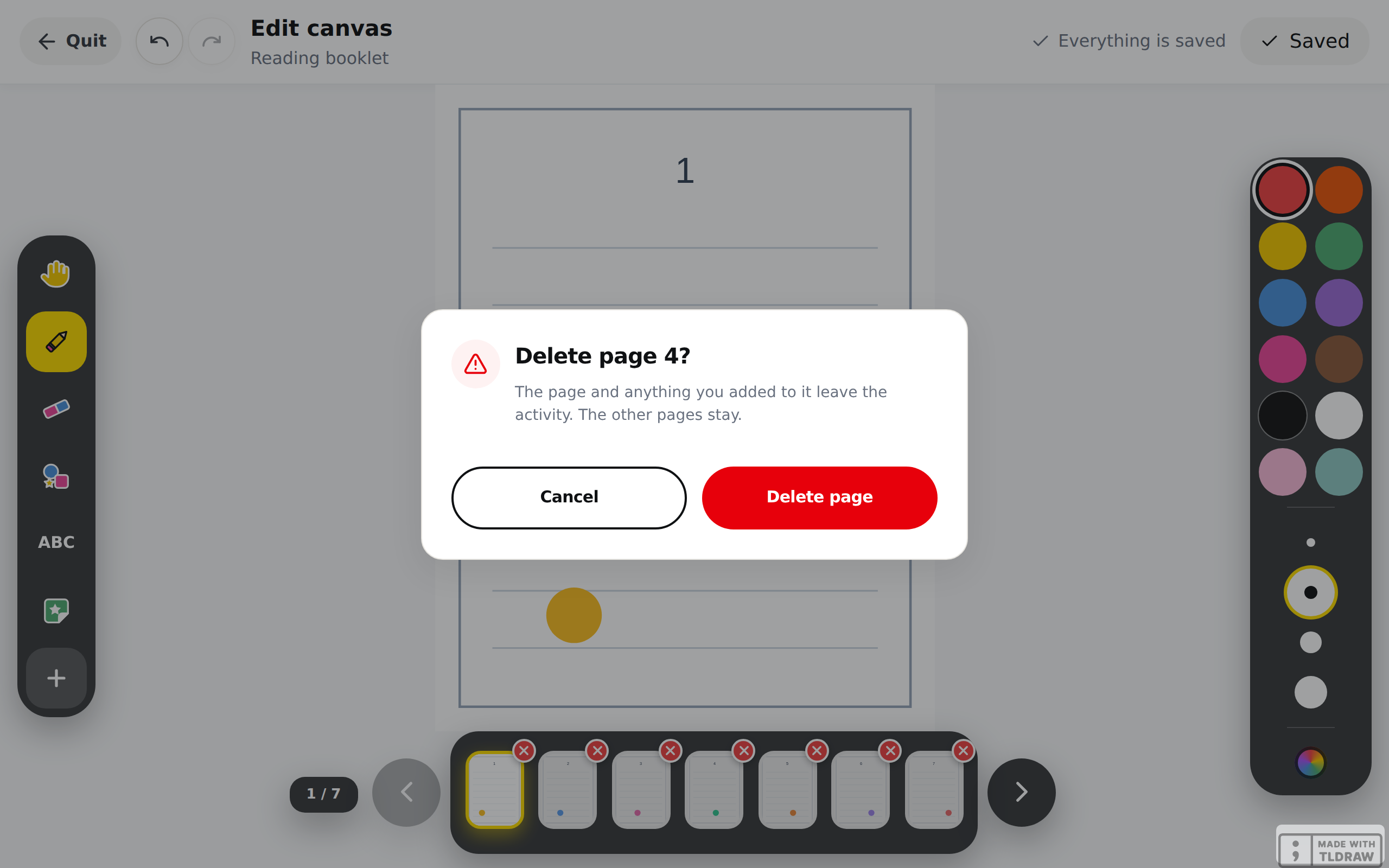
- An activity imported from a PDF shows the page. A PDF of several pages adds a strip of thumbnails, with the page count, for example 3 / 12. Tap a thumbnail to change page.
The sheet stays on screen. You can get closer to a corner, but not drag the page out of view. What you save here becomes the card's picture in "Activities". It is your preview of the activity, as you left it.
Delete a page of an imported booklet
A page of the PDF is not needed. You remove it from the strip of thumbnails. Every thumbnail carries a small red x in its top right corner. That x exists only in your editor: on the tablet, the child never has it.
- Tap the red x on the page's thumbnail. Tapping the thumbnail itself turns the page and deletes nothing.
- LinoClass asks "Delete page 4?" and adds: "The page and anything you added to it leave the activity. The other pages stay."
- Tap "Delete page". The button shows "Deleting..." while the server answers.
The window closes and the count drops by one, for example from 4 / 7 to 3 / 6. If the deleted page was the one on screen, the editor moves to the neighbouring page. Deleting is also a save: the button at the top right shows "Saved", and unsaved strokes on the other pages are sent at the same time. You do not need to tap "Save" afterwards.
The strip of thumbnails, and the x with it, exist only on a booklet of two pages or more. An activity always keeps at least one page.
Remove pages before you assign the activity. A child who has already started keeps their own pages; after the deletion, their strokes may end up under another page of the booklet.
If the deletion fails, the window stays open. Tap "Cancel", then "Quit", confirm "You have unsaved changes. Are you sure you want to leave?", then "Open activity" and "Edit canvas": the booklet comes back as it is on the server, with the page. Then start again.
Save
At the top right, a word says where you are: "Everything is saved" at rest, "Unsaved changes" from your first stroke. The button follows the same state.
- Tap "Save". The button shows "Saving...".
- It changes to "Saved" for two seconds, then stays that way. You can tap it again: it saves again.
Every "Save" also redraws the card's thumbnail in "Activities". The card shows your sheet as you left it, not the paper template. On a booklet, the page open at the moment you tap "Save" becomes the thumbnail. A page with no stroke at all does not change the card. An activity never saved in the editor keeps its cover image, its page 1 or the paper's picture. If the thumbnail cannot be made, the sheet is saved anyway and the card keeps its previous picture.
To leave, tap "Quit", at the top left. You go back to the "Activities" list. If there are unsaved strokes, LinoClass first asks "You have unsaved changes. Are you sure you want to leave?"
Put a photo, a video or a voice on the sheetFree plan: photo only. Pro plan beyond that.
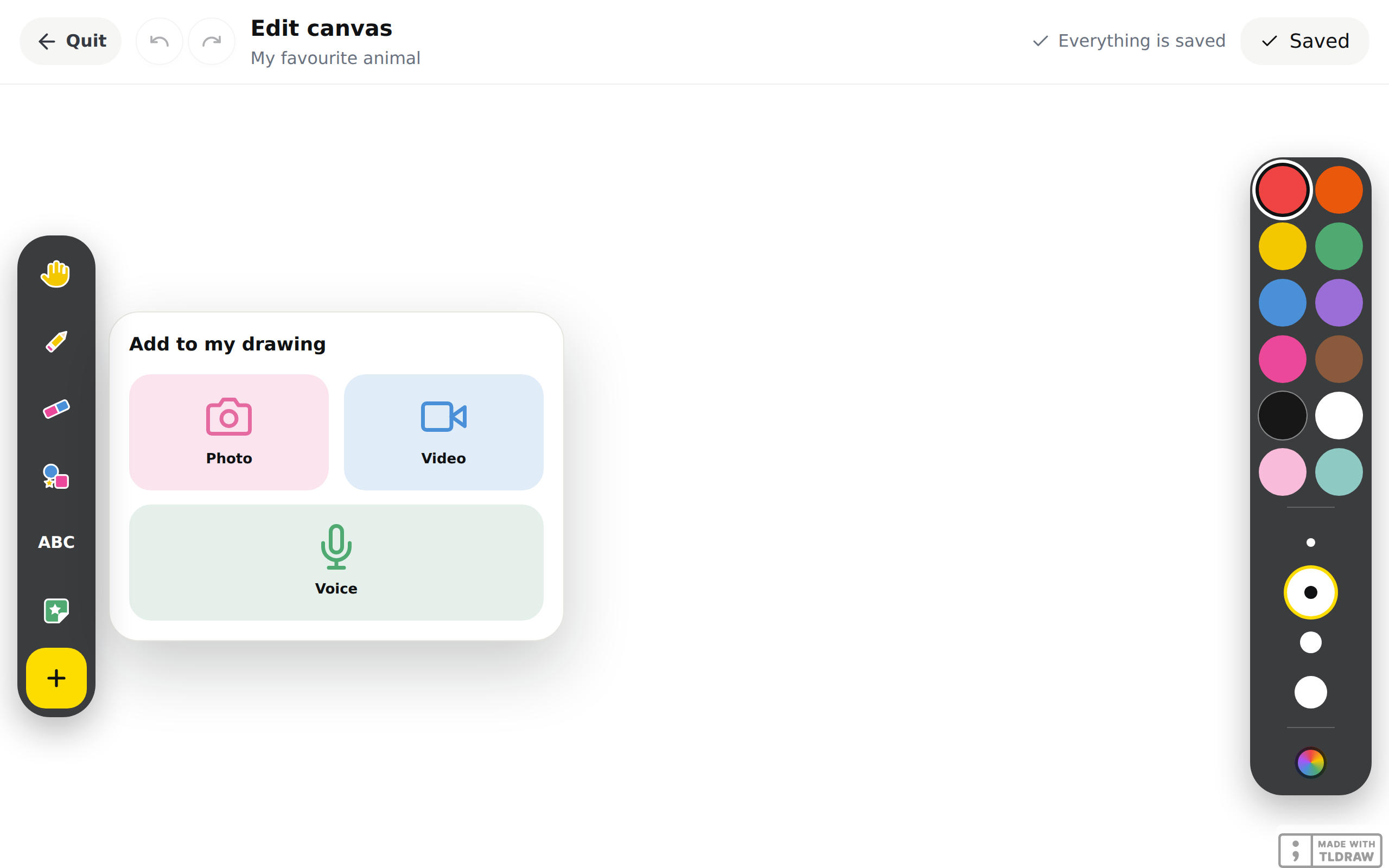
The last button in the bar, "Add", opens the "Add to my drawing" panel. "Photo" opens the camera. "Video" and "Voice" record. The photo, the video or the player lands on the sheet, next to your strokes, and is saved with it.
On the free plan, the panel holds "Photo" only. "Video" and "Voice" need the Pro plan. If you drag a video or audio file onto the sheet anyway, a band under the header explains: "Video and sound are a Pro plan feature", then "The free plan allows photos on the canvas. Upgrade to Pro to add video and recorded instructions." The file is not placed.
When saving does not go through
If saving fails, the button goes back to "Save" and the words "Unsaved changes" stay up. Your strokes are still on the sheet. Tap "Save" again.
If a band says "Multi-page activities are a Pro plan feature", the sheet has more than one page and the class is on the free plan. Trying again will not change that. The band carries the "Upgrade to Pro" link.
The card in "Activities"
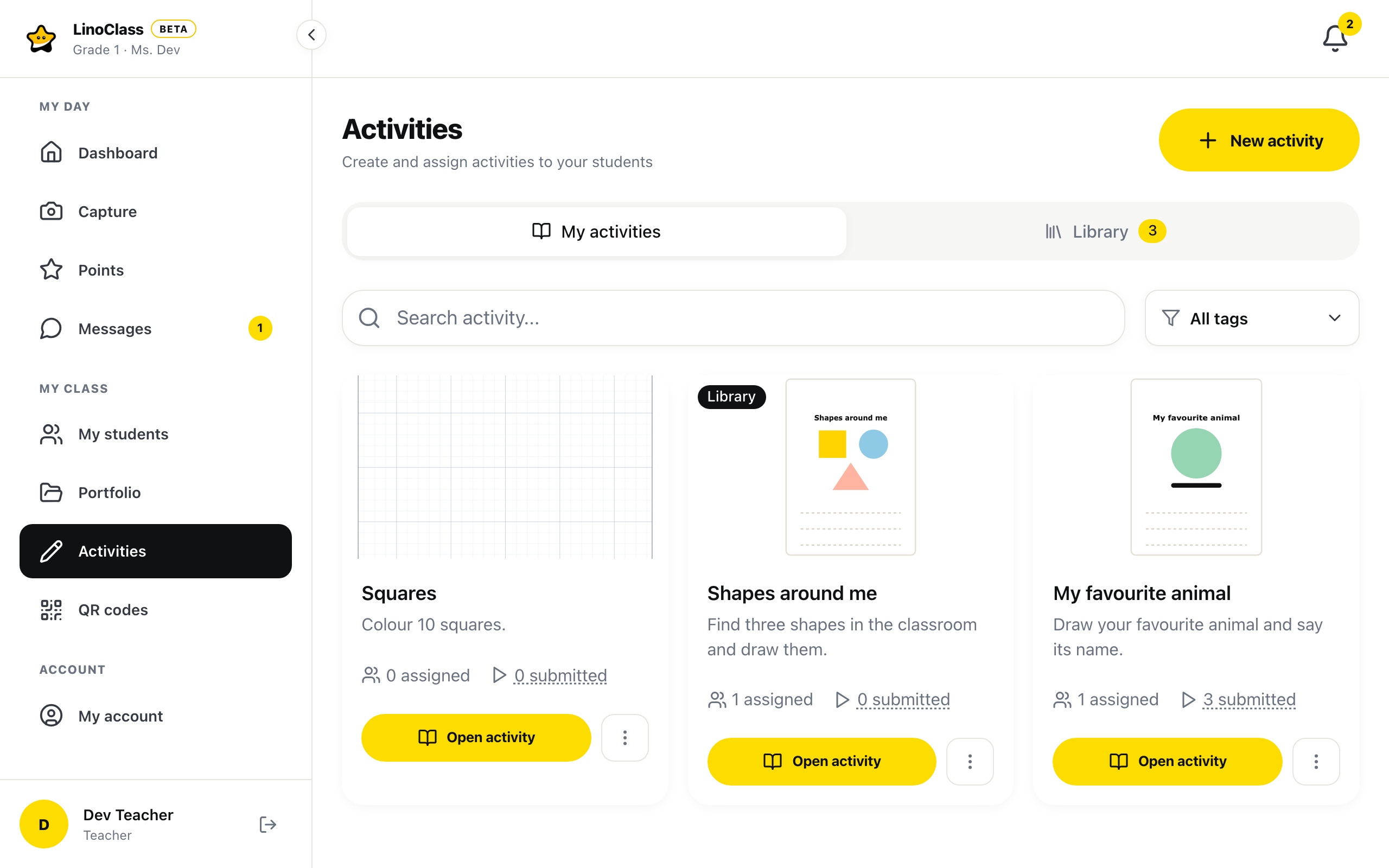
Every activity in the list is a card. At the top, a wide picture shows the activity. Below it, the name, the description and up to three tags; the rest are counted, for example +2. A grey line counts "1 assigned" and "3 submitted". Tap "3 submitted" to open the activity's page. At the bottom, the "Open activity" button and, to its right, the three-dot button, "Activity options".
What the picture shows
The picture is your sheet as you left it at the last "Save" in the canvas editor. The whole page is shown, not cropped: the title at the top and the instruction line at the bottom stay visible. A whiteboard drawn on a wide screen fills the card.
While the sheet has never been saved in the editor, the card shows the cover image you added, otherwise page 1 of the imported PDF, otherwise the picture of the chosen paper. An activity with none of those shows a crossed-out image icon.
Two pills can sit on the picture: "Library" on the left, for an activity from your library, and "12 pages" on the right, for a booklet.
The card's menu
Under "My activities", "Activity options" opens a menu of six lines: "Assign", "Edit", "Duplicate", "Add to library" or "Remove from library", "Archive activity", then, under a rule, "Delete". Under "Library", the menu is different; the page Keep activities in the library describes its lines.
When the card is at the bottom of the screen, the menu opens upward, above the button, so its six lines stay visible. It closes when you tap elsewhere, when you scroll the page or with the Escape key.
Edit an activity
On the activity's card, the three-dot button opens "Activity options". Tap "Edit". You get the form back, with the name, the description, the voice instructions, the paper, the tags and the "Add to my library" box.
The image or the PDF cannot be replaced here. Under "Activity image (optional)", the page says "The content is edited in the canvas editor." For a PDF, the page count comes first, for example 12-page worksheet. Tap "Save changes". LinoClass confirms with "Changes saved!", then "View my activities" or "Continue editing".
To go back to the sheet, open the activity with "Open activity", then tap "Edit canvas" at the top of the page.
Frequently asked questions
My activity's card does not show what I drew.
The card updates on every "Save" in the canvas editor, with the page open at that moment. Open the sheet, go to the page you want to show, tap "Save", then go back to the list. A page with no stroke at all does not change the card.
The card's menu only shows "Assign" and "Edit".
The full menu has six lines, down to "Delete". Near the bottom of the screen, it opens upward, above the button.
The red x is not on the thumbnails.
It exists only in your canvas editor, on a booklet of two pages or more. On the tablet, the child never has it. Open the activity, tap "Edit canvas" and look at the strip of thumbnails.
I want an activity with several pages.
Import a PDF of several pages under "Activity image (optional)". Every page of the PDF becomes a page of the activity. On the free plan, an activity fits on one page.
The "Video" button is not in "Add to my drawing".
"Video" and "Voice" are part of the Pro plan. On the free plan, the panel offers "Photo" only. Instructions said out loud go through "Record instructions", in the form, on every plan.
The sidewalk sheet has no letters to trace.
That is on purpose. The sheet reproduces the empty sidewalk lines of the exercise books. Give the word in the "Description (optional)", or say it with "Record instructions", and the child writes it on the bands.
I left the editor and my work is gone.
You answered yes to "You have unsaved changes. Are you sure you want to leave?". Unsaved strokes are not kept. Reopen the sheet with "Edit canvas" and tap "Save" before "Quit".