Keep activities in the library
An activity belongs to the class where you created it. Your library is a separate shelf, yours, the same in every one of your classes. You put on it the activities you want to reuse, then place them in a class when you need them. There is no school library shared between colleagues.
The two tabs
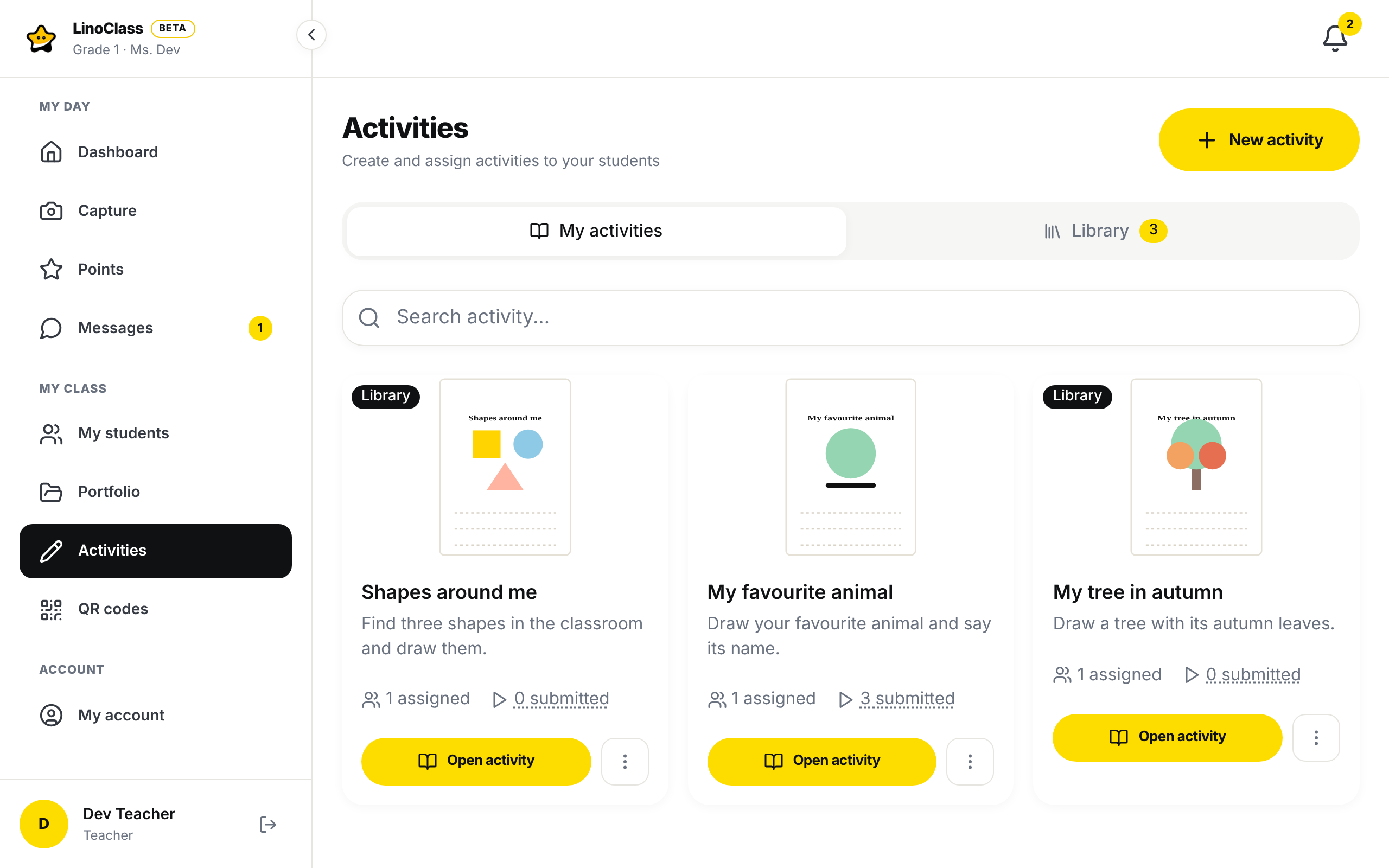
The "Activities" page has two tabs.
- "My activities" shows what is in this class: the activities created here, by you or by a collaborator, the ones you placed here with "Use", and the ones assigned here. Another class has its own list.
- "Library" shows your shelf, the same whichever class is open. The number on the tab is the number of activities on the shelf.
A library activity carries the "Library" badge on its card, in both tabs. Under "Library", the "1 assigned" count and the "3 submitted" count do not appear: they belong to the class, not to the shelf.
Put an activity in the library
When creating, the "Add to my library" box in the form is already ticked. The line under it says "It will stay in your library to reuse in another class. Otherwise it stays in this class." Leave it ticked and the activity stays in the class where you created it, and it is on the shelf too. Untick it for an activity you will only use in this class.
When you edit an activity, the box shows where it stands: ticked if the activity is on the shelf, empty if not.
For an existing activity, under "My activities", open "Activity options" on the card and tap "Add to library". The number on the "Library" tab goes up by one. The same menu then offers "Remove from library": the activity leaves the shelf and stays in this class.
If the change fails, LinoClass shows "Error updating activity" and the card does not change.
Place a library activity in a class
An activity on the shelf is not in another class's "My activities" until you place it there.
- Open the class that should receive it.
- Tap the "Library" tab.
- On the card, tap "Use". The button shows "Adding", then the card shows "In this class". A band confirms, with the activity's name, that it is now in "My activities".
"Use" places the activity itself in the class. A change in its form or on its sheet shows in every class where it is placed. A card that says "In this class" no longer has a "Use" button: there is nothing to add twice.
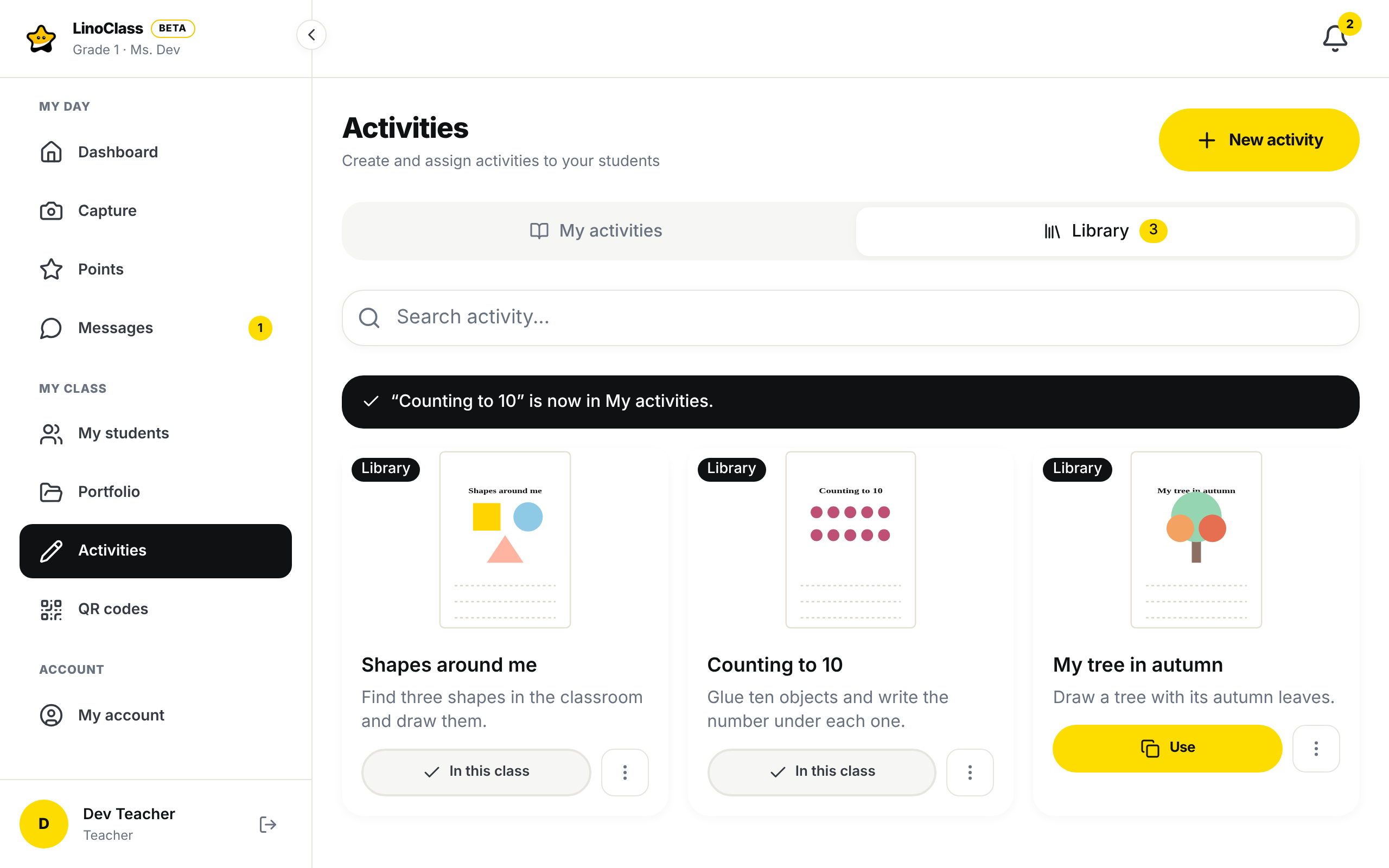
The card's menu, under "Library", also offers:
- "Copy to my activities": creates an independent copy in this class, with the word (copie) at the end of the name. The band says the copy was added to "My activities". Choose the copy when you want to change the sheet for one class only.
- "Assign directly": assigns the activity to this class's students without placing it first. It then appears in "My activities" because it is assigned here.
- "Remove from this class", on a card marked "In this class": the activity leaves this class's "My activities" and stays on the shelf.
If "Use" fails, LinoClass shows "Could not add the activity to this class. Try again." and the button goes back to "Use". If the copy fails, the message is "Error duplicating activity". A copy refused by the free plan shows the reason instead, for example the free plan's limit of 50 activities: trying again will not change that.
Archive an activity in a class
To take a finished activity off a class's list, archive it. It leaves this class's "My activities" and the to-do list of this class's students. The assignments, the drafts, the work handed in, the portfolios and your library stay.
- Under "My activities", open "Activity options" on the card.
- Tap "Archive activity".
- LinoClass asks "Archive this activity?" and adds "Students in this class will no longer see it or be able to respond. Their work stays in their portfolio." If work from this class is not approved yet, the count is added, for example "3 pieces of work are waiting for your approval."
- Tap "Archive activity" to confirm, or "Cancel".
The card leaves the list, and a band says the activity was archived in this class.
Archiving applies to one class at a time. An activity placed in two classes can be archived in 2e A and stay active in 2e B. Only the person who created the activity can archive or reactivate it. An archived activity still counts toward the free plan's limit.
Find an archived activity
An activity from your library stays on the shelf. Under "Library", its card offers "Use" again. Tap it and the activity comes back into "My activities", and the band says it was reactivated in this class. Under "Library", "Assign directly" also reactivates it in this class.
If a student handed in work on this activity, open that work in the portfolio. The activity's name opens its page. The work handed in can still be read there, and you can still approve it. At the top, a band says "Archived in this class. Students no longer see it." Tap "Reactivate" to put it back in the class. While it is archived, the "Send back to the child" button does not appear on the work, because the child could not see it.
When archiving fails
"Could not archive the activity. Try again." means the activity was not archived. The card stays in the list. If a collaborator created the activity, only she can archive it, and trying again will not change that.
"Could not reactivate the activity. Try again." on the activity's page means it is still archived. Tap "Reactivate" again. If a collaborator created the activity, only she can reactivate it, and trying again will not change that.
Take a library activity out of this class
Under "Library", a card marked "In this class" has "Remove from this class" in its menu. The activity leaves this class's "My activities" and stays on the shelf, with its "Use" button.
This removal is refused while the activity is assigned here. LinoClass then shows "This activity is assigned in this class. Remove the assignment before returning it to the library." The activity has not moved. For an assigned activity, use "Archive activity" under "My activities" instead.
"Could not return the activity to the library. Try again." is a passing error. The card is still there; open the menu again.
Duplicate
Under "My activities", "Duplicate" creates a copy in this class, with the word (copie) at the end of the name. The copy is not on the shelf, even if the original is. It appears at the top of the list. If the copy fails, LinoClass shows "Error duplicating activity".
Delete everywhere
"Delete", at the bottom of the menu, removes the activity for good. LinoClass asks "Are you sure you want to delete this activity?" and adds "To take it off the list while keeping the students' work, archive it instead." For a library activity, the question adds "It will be removed from every class and from your library." Under "Library", the menu has its own "Delete", with the same effect. Confirm with "Delete". The students' handed-in records disappear from the activity's page; their portfolio items remain.
To take an activity out of a single class, use "Archive activity" or "Remove from this class" instead.
If deleting fails, LinoClass shows "Error deleting activity" and the card stays.
Frequently asked questions
I no longer see my other class's activities.
That is on purpose. Each class has its list. To find an activity here, put it in the library from the other class with "Add to library", then place it here with "Use".
An activity disappeared from "My activities" but I did not delete it.
It was probably archived in this class, or removed from this class. Look under "Library". If it is there with the "Use" button, tap "Use" to put it back in the class. If it is not on the shelf and a student handed in work on that activity, open that work in the portfolio, tap the activity's name, then "Reactivate".
I tapped "Use" several times. Are there several copies?
No. "Use" places the activity once. After the first add, the card says "In this class" and the button is gone. If you find cards with the word (copie) in the name, they come from "Copy to my activities" or "Duplicate". Delete the extra ones.
Do students keep their work after archiving?
Yes. The activity leaves their to-do list in this class, but their work stays in their portfolio. They can no longer respond to the activity while it is archived.
Can my colleague see my library?
No. The library is yours. A collaborator sees the activities created in the class and the ones you placed there, under "My activities".
The activity is in two classes. Where do I edit its sheet?
Anywhere. An activity placed with "Use" is the same in every class, and the sheet changes everywhere. For a different version in one class, first do "Copy to my activities" in that class.