Assign an activity, and what the child does on the tablet
A created activity is not with anyone yet. You assign it to students; it then appears in "My activities" on their tablet. The child opens it, fills in the sheet and taps "Done". Their work lands in their portfolio, waiting for your approval.
Assign the activity
- In "Activities", on the activity's card, tap "Open activity", then "Assign" at the top of the page. The same "Assign" is in the card's menu, "Activity options".
- Under "Assign to", tap "Whole class", "By group" or "Individually".
- For "By group", tick the groups under "Select groups". For "Individually", tap the students. "Select all" and "Deselect all" are faster for a long list. A band under the list counts: "3 students will receive this activity".
- Under "Available from (optional)", pick the day the activity should appear. "Students will not see it before this date." Without a date, it appears right away.
- Under "Due date (optional)", pick the day the work is expected. The child sees this date on their card.
- Write a "Note for the students (optional)" if you want.
- Tap "Assign". The button shows "Assigning...".
LinoClass confirms with "Activity assigned!" and "The activity was assigned to 22 students." Tap "View activities" to go back to the list. On the card, the "1 assigned" count updates.
An activity can be assigned more than once, for example to the whole class one day, then to a single student later. Each assignment has its own list of work on the activity's page.
Prepare an activity for another day
You prepare the week on Sunday evening and want the activity to arrive Monday morning. Pick the Monday under "Available from (optional)", then assign as usual. The activity enters the child's "My activities" at the start of that day, at midnight, Quebec time. It does not appear the evening before.
The calendar offers no day before today. Picking today is the same as leaving the date empty: the activity appears right away.
"Available from (optional)" and "Due date (optional)" answer two different questions. The first says when the activity reaches the child, the second when the work is expected. You can fill in one, the other or both.
While the chosen day has not come, the activity's page already shows one line per student under "Where each student is at", with "Not started". The chosen date is not shown on that page. It cannot be changed once the activity is assigned.
When assigning does not go through
- Nothing is ticked: the band says "No student selected". The "Assign" button stays grey while no student is chosen.
- Under "By group", if the class has no group, the page says "No groups yet". Tap "Create a group" to make one without leaving the page. On the free plan, that spot shows "Student groups are part of the Pro plan." Choose "Individually" instead.
- If a student cannot see the activity on their tablet, look first at "Available from (optional)": before that date, their list does not show it. Then check, on the activity's page, that their name is under "Where each student is at".
Create a group without leaving the pagePro plan only
The group you need does not exist yet. You make it here, then carry on assigning.
- Under "By group", tap "Create a group". When the class already has groups, this button is the last card in the grid, with a dashed border.
- Type the "Group name", pick a "Group colour", then tick the students in the list. The count of ticked students follows the list's heading. The "Create the group" button stays grey while the name is empty or no student is ticked.
- Tap "Create the group". The button shows "Creating...".
The window closes and the new group is already ticked under "Select groups". All that is left is to tap "Assign". The group also lives in "My account", section "Groups", for the next activities; the page Manage students describes that section.
If creation fails, the window stays open and shows "The group could not be created. Please try again." The name and the ticked students are still there.
What the child sees on the tablet
On their home screen, the child taps "My activities". The list shows one card per activity, with the name, the description and the paper. A pill at the top keeps count, for example "2 to do" and "3 done". The due date shows on the card: "Today", "Tomorrow", or the day of the week with the date, for example Monday, September 21.
- "Listen" plays your voice instructions. The button changes to "Stop".
- "Start" opens the sheet.
- "Continue" replaces "Start" when the child put the activity on hold. For a book, the pill says how many pages are started, for example "2 / 12 pages".
- "Done!" marks an activity that was handed in. "Done with your friends" marks an activity where the child was named as a teammate. A "Make my own" button still lets them make their own version.
If the list is empty, the tablet shows "No activities", "You don't have any activities right now." and "Check back later!"
On the sheet
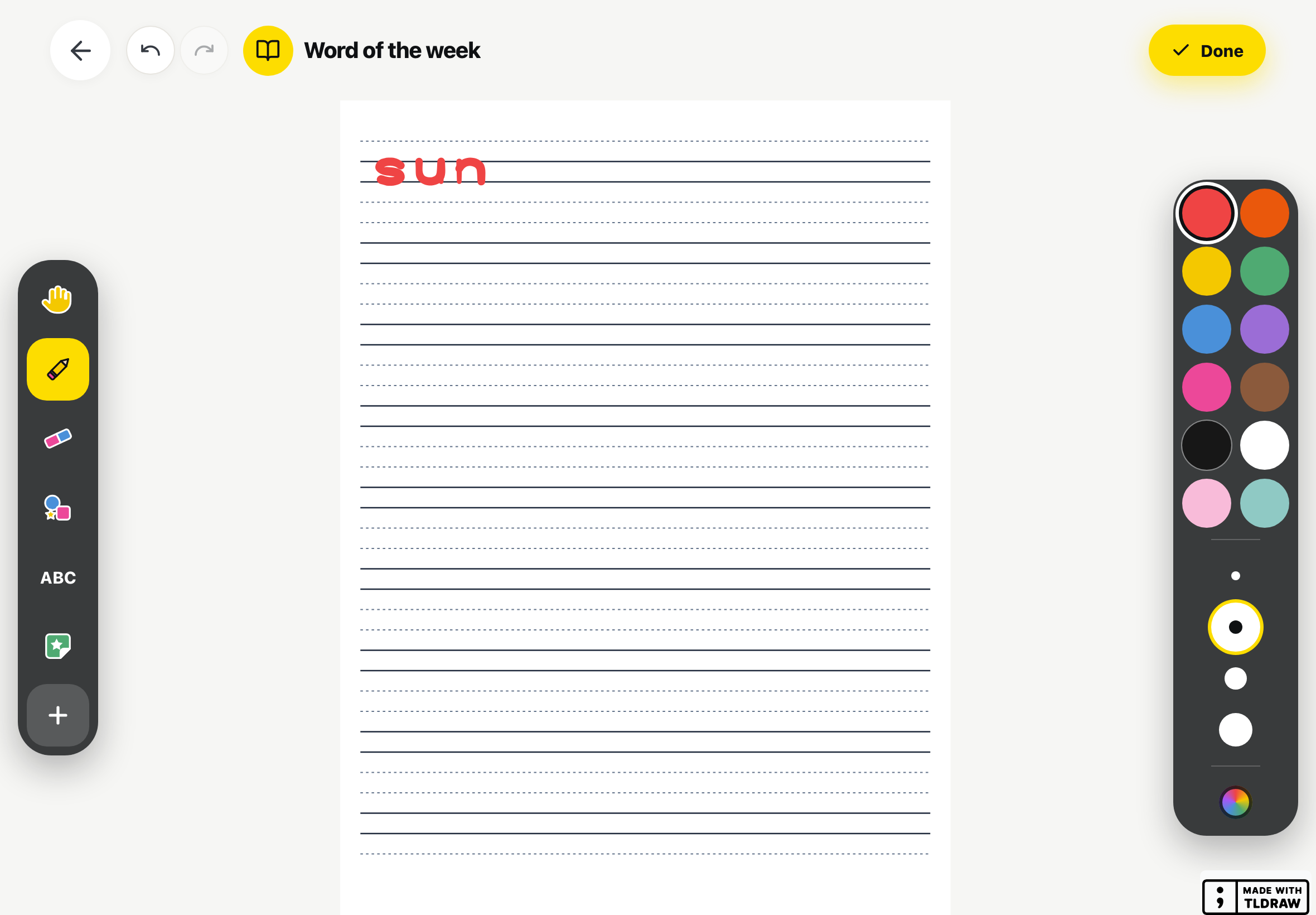
The sheet opens with the activity's name at the top and the "Pencil" already in hand. The tools are the same as in your editor. On a tablet, they form a column on the left: "Move", "Pencil", "Eraser", "Shapes", "Letters", "Stickers" and "Add". A second column, on the right, offers the twelve colours, the four sizes ("Thin", "Medium", "Big" and "Extra large") and the wheel that opens "My colours". On a phone, the tools are at the bottom, with "Colours" as well, and the sizes are in the "My pencils" panel, under "Pencil".
An activity with no paper is a whiteboard, the shape of the screen. An activity with "Sidewalk writing" shows the sidewalk bands: a dotted line, two solid lines, a dotted line, with no letter to trace. The child writes the requested word on the bands, tall letters up to the top dotted line, letters that go down to the bottom one. An activity imported from a PDF shows the page and, for a book, the page number at the top, for example Page 1 of 12. The page thumbnails turn the pages, and a page the child drew on carries a check mark.
Finish, or continue later
When the child taps "Done", at the top right, the screen shows "Saving your work...". If the class list is available, the tablet then asks "Did you work with someone?" and "Tap your friends' names". The child taps faces then the yellow button, for example "All done, with 2 friends!", or taps "No, just me". The green screen says "Well done!" and "Your work is saved!", then the list comes back on its own. The work is already saved before the question: a child who leaves at that point loses nothing.
A sheet with no stroke at all creates no work. "Done" still shows "Well done!", then the list comes back.
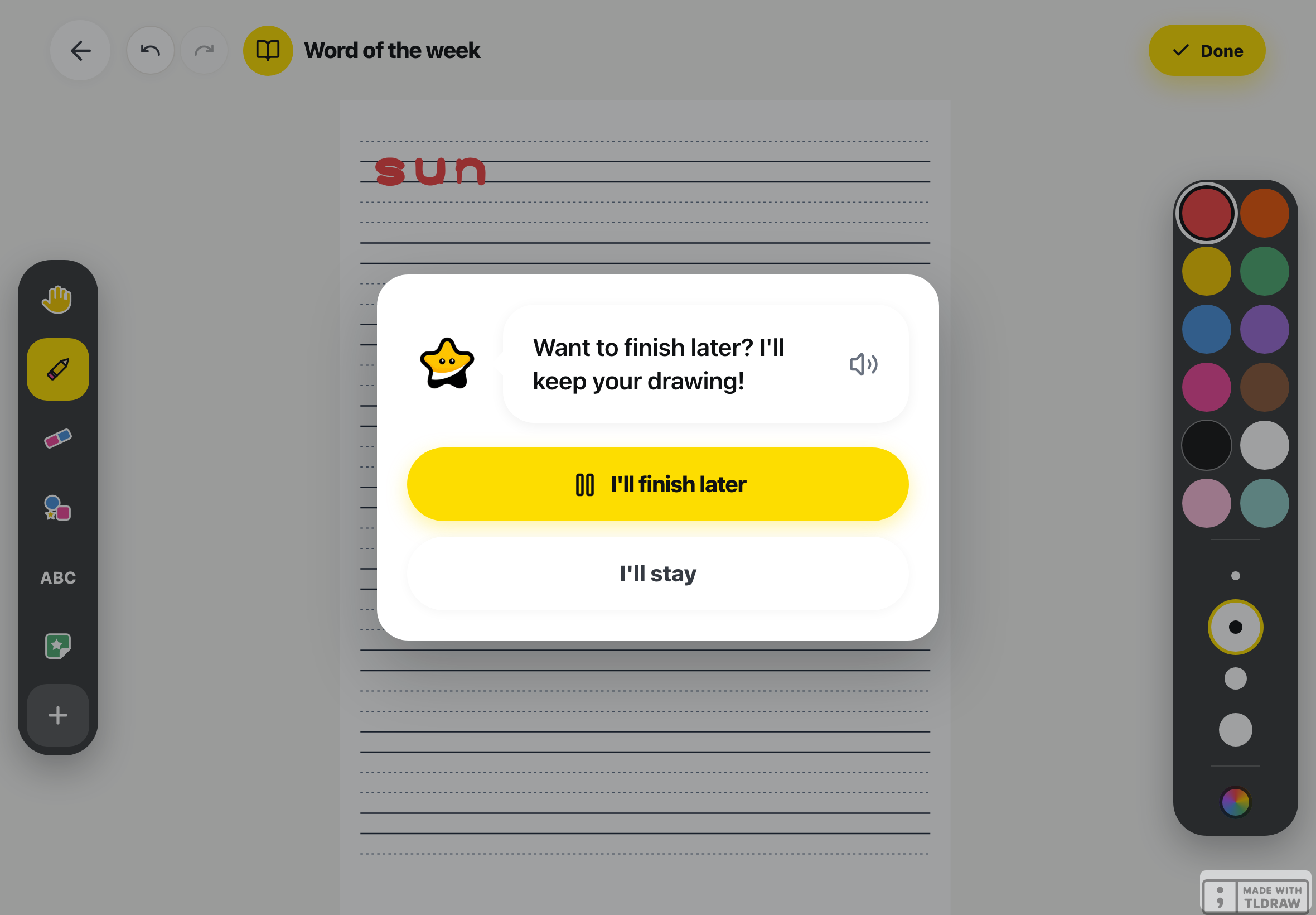
When the child taps the back arrow with strokes on the sheet, Lino asks "Want to finish later? I'll keep your drawing!". Tapping the bubble reads the question out loud. Two big buttons follow.
- "I'll finish later" sends the drawing to the server. The button shows "Keeping your drawing..." during the upload, then the screen says "It's saved! See you later!" and the list comes back. The card now says "Continue", with "In progress" for a single sheet, or the page count for a book, for example 2 / 5 pages. The child can pick it up on any tablet in the class. On the activity's page, on your side, that child moves to "In progress".
- "I'll stay" closes the question and leaves the sheet as it is.
A sheet with no stroke at all skips the question: the arrow goes straight back to the list.
When the child reopens the activity, the tablet compares the drawing kept on the server with its own copy. If the server's drawing is newer than what this tablet sent, it replaces the tablet's copy. Otherwise the tablet keeps its copy, which may hold strokes that were never sent.
If the tablet has no network when the child taps "I'll finish later", the drawing is not sent. The "It's saved! See you later!" screen does not appear, and the list comes back anyway. The drawing stays on that tablet only: the card still says "Start" and, on your side, the student stays "Not started". On the same tablet, the child finds their strokes again by reopening the activity. Once the network is back, they tap the back arrow, then "I'll finish later" again.
In the LinoClass app on iPad or iPhone
In the app, the sheet is kept on the server while the child draws: two seconds after their last stroke, and each time they turn a page of a book. When they reopen the activity, the sheet opens with their strokes, even on another tablet in the class. On your side, on the activity's page, the child moves to "In progress".
When the child taps the back arrow with strokes on the sheet, the app asks the same question, "Want to finish later? I'll keep your drawing!", with "I'll finish later" and "I'll stay". "I'll finish later" waits for the last strokes to be kept, two seconds at most, then the sheet closes. The "It's saved! See you later!" screen does not appear in the app.
With no network, or a slow one, the sheet closes anyway after those two seconds. The strokes made since the last successful upload are then lost; the ones already kept come back the next time the activity opens. If the app cannot read the kept sheet when the child opens the activity, the sheet opens without their strokes and nothing is kept during that session. Nothing on screen says so. If a child finds a sheet without their strokes after starting it, have them tap the back arrow before drawing, then reopen the activity once the network is back.
When the work does not go through
If the upload fails, Lino says "Oops! Your drawing didn't go through. Try again?", with two buttons: "Try again" and "Back to drawing". The drawing is still on the sheet. "Try again" sends the drawing again. A small grey line under the bubble gives the technical cause, for the adult who comes to help.
If the tablet shows "We can't find this activity.", the activity is no longer assigned to this child, or it was deleted. The "Back" button goes to the list.
Frequently asked questions
The child tapped "Done" too early.
Open their work in the portfolio and tap "Send back". The activity returns to their list with their drawing, and the card says "Continue". The page Add a piece of work describes sending back.
Is there a way to assign an activity from the library without copying it?
Yes. Under the "Library" tab, the card's menu offers "Assign directly". The page Keep activities in the library explains the two tabs.
The question "Did you work with someone?" does not appear.
It is asked only when the tablet has the class list. At home, with a single child's QR code, it is not asked. If the list takes too long to load, it is skipped and the work is saved with no team. You can add the teammates yourself with "Edit the team".
Two students have the same activity, but one sees it and the other does not.
You probably assigned "Individually" and missed a name. Tap "Assign" again, choose "Individually" and tick only the missing student.
I picked the wrong day under "Available from (optional)".
The date cannot be changed afterwards. If you assign the activity again to the same students, the child will see two cards for the activity. Both cards open the same sheet. The older one stays to do even after the child has finished. Re-assigning cannot delay a date that is too early. For a date that is too late, assign again with the right date and accept the duplicate card.
The activity assigned for Monday is not on the tablet Monday morning.
Ask the child to go back to the home screen, then open "My activities" again. The list reloads when it opens. Then check, on the activity's page, that their name is under "Where each student is at".