See where each student is at in an activity
An activity's page shows who handed in and who did not. Every student the activity is assigned to has a card there, even one who never opened the activity. You approve work there without going through the portfolio.
Open the activity's page
In "Activities", tap "Open activity" on the card, or the "3 submitted" count under the name. The page carries the activity's name, its description, then the "Edit canvas" and "Assign" buttons. The board starts under the heading "Where each student is at".
Assigning creates one entry per student, even with "Whole class". The page therefore shows one section per child, with their name as the heading. An activity assigned to a single student has one section, with no heading.
Read the board
At the top of each section, a sentence keeps count: "0 of 1 have handed it in" or "1 of 1 have handed it in", with the date "Due on September 21, 2026", or "No due date", and a progress bar. While nobody has handed in, the page adds "Nobody has handed this in yet."
Under "The class at a glance", each student has a card, all the same size: two per row on a phone, up to six on a large screen. The card shows the handed-in work as a picture, then the student's name and a state pill, with its icon and its words. The card's left edge takes the colour of the state.
A student with no work handed in has an empty grey card with a dashed frame that says "Not handed in". That covers the "Not started", "In progress" and "Returned to student" states: the pill says which one. At a glance, a card with a picture means the work came in, and an empty card means it did not.
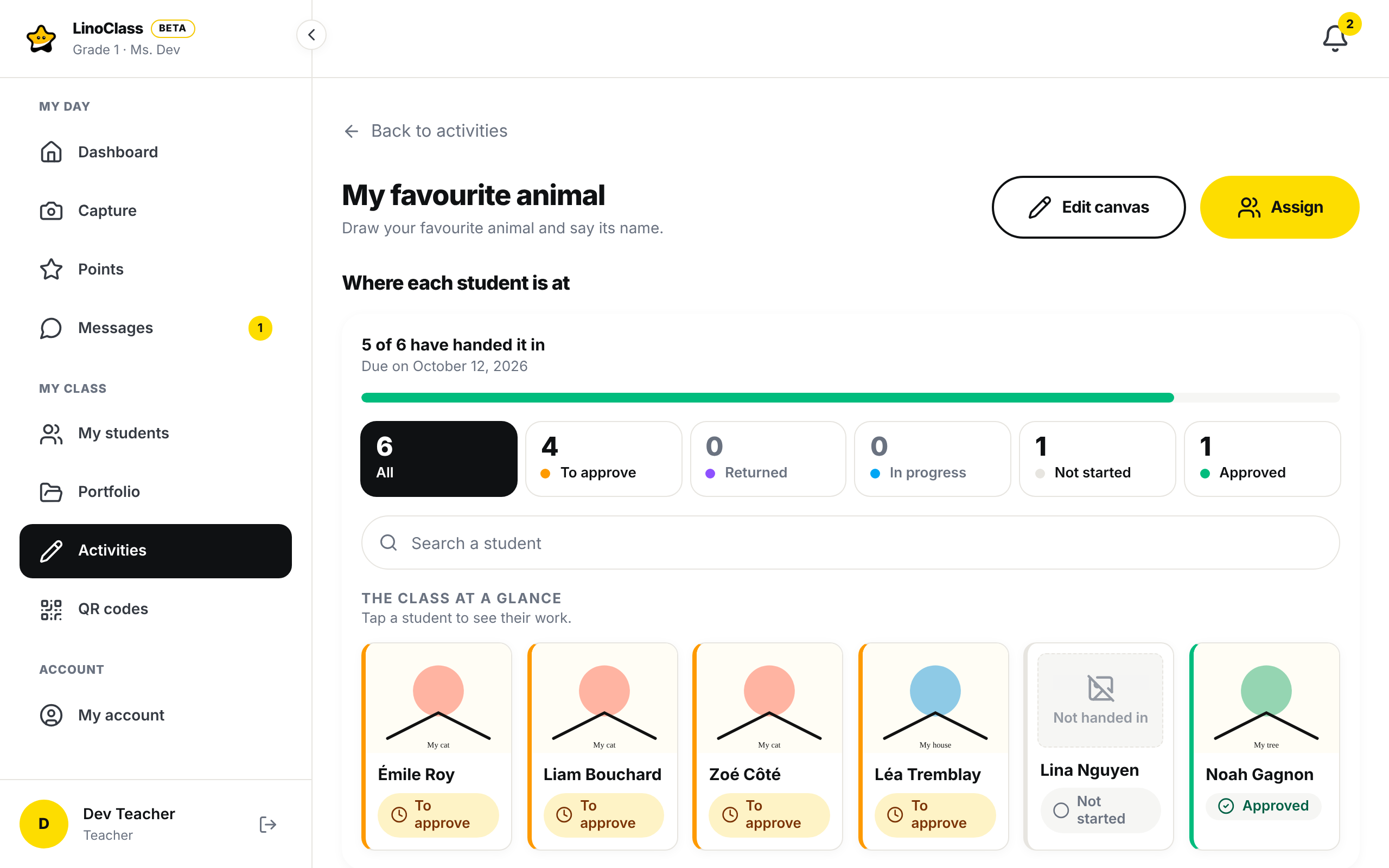
A student is always in one of these five states.
| State | What it means |
|---|---|
| "To approve" | The student handed in their work. It waits for your approval. |
| "Returned to student" | You sent the activity back with "Send back". They have not handed it in again yet. |
| "In progress" | The student tapped "I'll finish later". Their drawing is kept on the server. |
| "Not started" | Nothing came from this student. Their details say "Has not opened the activity yet". |
| "Approved" | The work is approved and shared with the parents. |
The cards run in that order, from the most pressing to the calmest. Among handed-in work, the most recent comes first; the other cards follow the order of the names. A declared teammate takes the state of the author's work: their card shows the same work and follows the author's. Their details say "On a team with" and the author's first name. Their first name also shows under "Team work" in the author's details. "Approve" puts a copy in their portfolio, not on this page.
Filter and search
Above the cards, six counters: "All", "To approve", "Returned", "In progress", "Not started" and "Approved". Tap one. It turns dark and the grid keeps only the cards in that state. "All" brings them all back. A counter at zero stays on screen, so the words are always the same. If the chosen group is empty, the page says "No student in this state."
The "Search a student" field narrows the grid to one name. Accents do not matter: zoe, with no accent, finds Zoé. The counters stay those of the whole class. A name nobody has gives a sentence that says so, with the typed name.
Open a student's card
Tap a student's card. A dark outline goes around it and the student's details open under the grid; the page scrolls to them. There is no second list to go through. Only one student is open at a time: tapping another card replaces the details. Tap the same card again to close them.
For a student who handed in, the details start with a row: the thumbnail of their sheet, their name, "Handed in on September 21, 2026", and their state pill. Tapping that row also closes the details. On a phone, the pill on that row shows only its icon, to leave room for the full name.
Below come the whole sheet, the "Team work" row with the first names, and buttons.
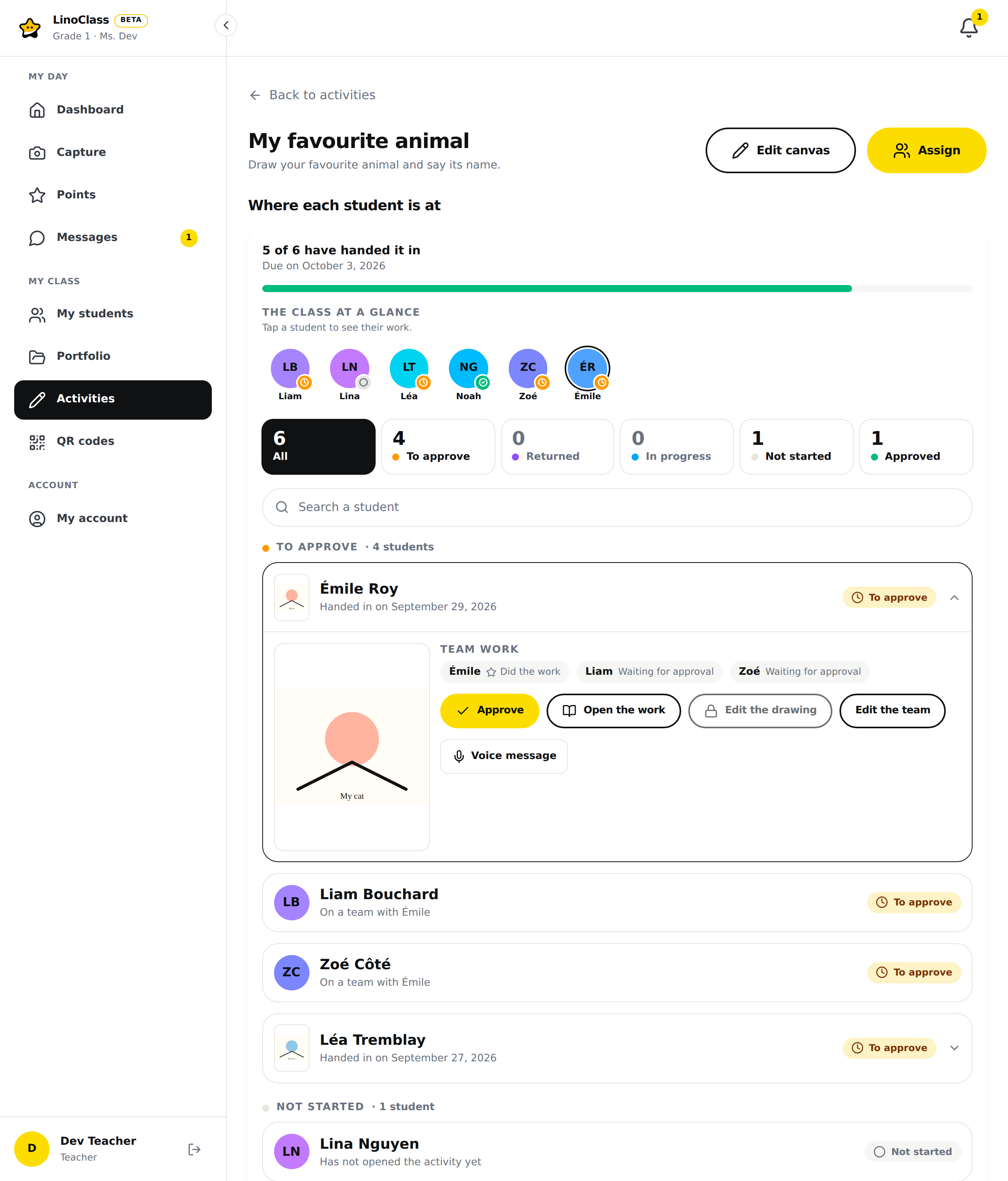
- "Approve" publishes the work to the parents. The button disappears, and the pill and the card change to "Approved". It is also what creates each teammate's copy.
- "Open the work" opens the work's page in the portfolio, with the comments and the download.
- "Edit the drawing" opens the child's drawing in the editor, to annotate it. A drawing handed in before the editor keeps a lock: "This drawing was handed in before the editor existed. There is nothing to reopen."
- "Edit the team" opens the class list to tick. The page Add a piece of work describes the team.
- "Voice message"Pro plan only records a word for the child, on the Pro plan.
For a book, the details end with "All pages", with the count of pages filled in out of the total pages in the book. Each page carries its number, for example "Page 3", and a page the child did not touch carries "blank".
For a student with no work handed in, the details are a single row: their disc, their name, their pill, and one line of explanation. "Started on September 21, 2026" for a drawing on hold, "3 of 12 pages started · September 21, 2026" for a book, "Returned on September 21, 2026" after a send-back, or "Returned on September 21, 2026 · picked up again, 3 of 12 pages" when LinoClass kept the child's pages at the return, with the count of pages that had content.
When the page does not load
"Could not load the submitted work." means the page did not receive the list. Tap "Back to activities", then reopen the activity.
"You do not have access to this class's submitted work." means your account is neither the teacher nor a collaborator of this class. Ask the class's teacher to add you as a collaborator.
If "Approve" fails, LinoClass shows "Could not approve this work. Try again." and the pill stays "To approve".
Frequently asked questions
A team of two handed in, but the card says "1 submitted".
The card counts pieces of work, not children. A team of two that hands in a single drawing is one piece of work: the card says "1 submitted".
A student is "Not started" even though they drew.
Their drawing stayed on the tablet. They tapped neither "Done" nor "I'll finish later". Ask them to reopen the activity on the same tablet and tap one of the two.
I want to see a student's sheet without opening it.
For a drawing or a photo, the picture on their card shows the whole page, with nothing cropped. You can already tell a blank sheet from a filled one there.