Name the dock tools for a student
In the canvas dock, each slot shows a small object: a pencil with its eraser, a real eraser, a sticker peeling off. A five-year-old recognises the object before reading the word. This page names each object with the word LinoClass uses, so you can tell a student to tap the yellow pencil and they find the right slot. The page Find your way around the canvas tools describes what each panel contains.
The same objects appear on the student's tablet, in the browser, and on your own sheet opened from "Quick capture".
What each slot shows
On an iPad or a computer, the dock is a column on the left edge, top to bottom. On a phone, it is a row at the bottom of the screen, left to right. The order is the same.
- "Move": an open yellow hand, fingers up. It is Lino's hand.
- "Pencil": a yellow pencil, tilted, with its wooden tip and a small pink eraser at the end.
- "Eraser": a two-colour eraser, pink on one side and blue on the other, slightly tilted.
- "Shapes": a blue circle, a pink square and a yellow star, packed into the same slot.
- "Letters": the letters ABC, in white. It is the only slot with letters.
- "Stickers": a green sticker with a white star, one corner peeling up.
- "Colours": a colour wheel. On an iPad or a computer, this slot is not in the dock; the wheel sits at the bottom of the crayon column, on the right edge.
- "Add": a plus sign, on a slot slightly lighter than the others. The slot only exists where there is something to add.
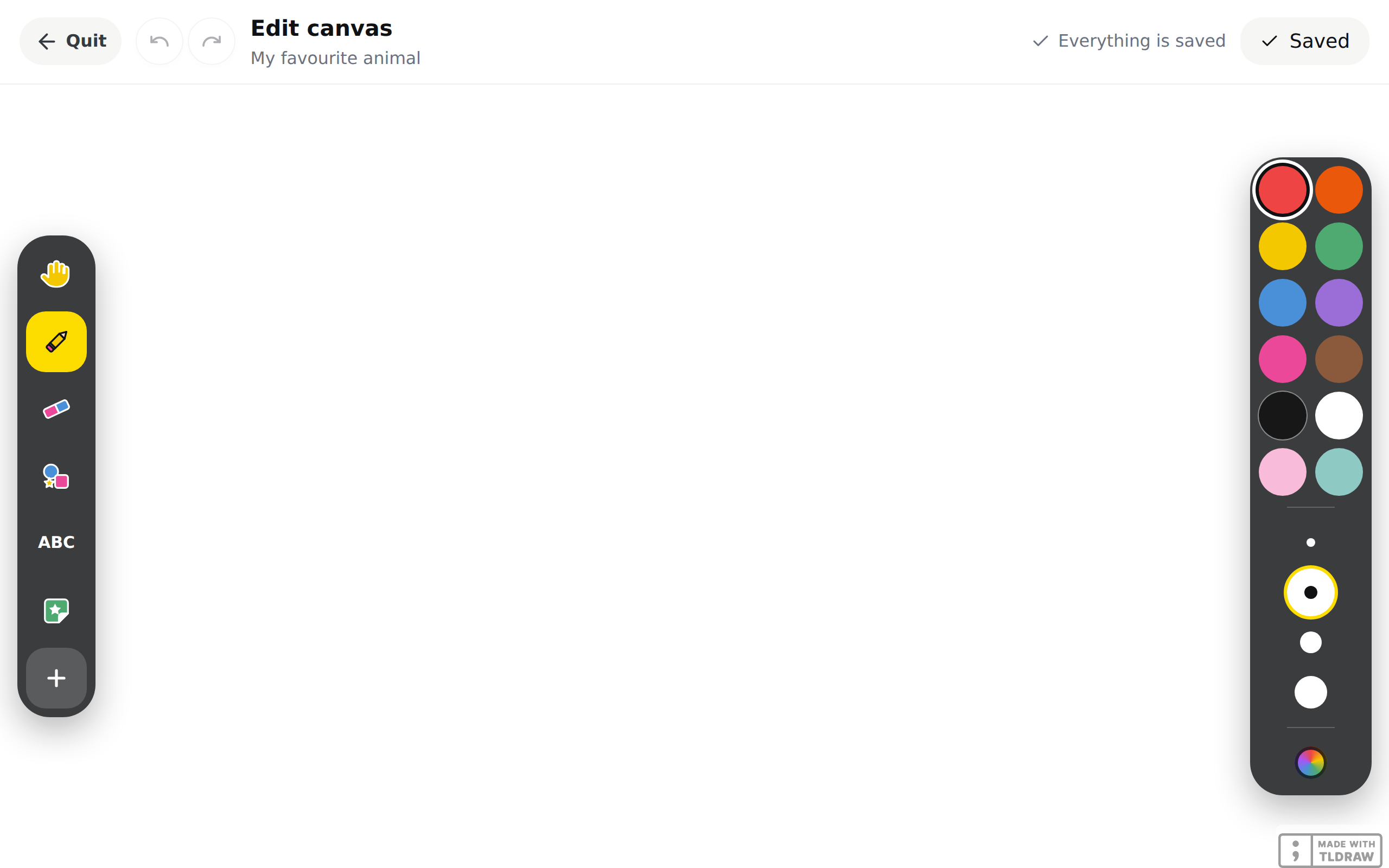
Only one slot is yellow at a time. On the yellow slot, the object keeps its colours; only its outline goes from white to black. The pencil stays yellow, the eraser stays pink and blue, and ABC turns black. If a student no longer knows which tool they have in hand, point to the yellow slot.
With a child who cannot read yet, name the object. Tell them to tap the yellow hand for "Move", the pink and blue eraser for "Eraser", the small green sticker for "Stickers", and ABC for "Letters".
When the tablet shows an error card instead of the canvas
In the LinoClass app on the iPad, the canvas is a page that loads from the Internet when the student taps "Drawing" or opens an activity. If the page cannot load, the tablet shows a card instead of the sheet. Nothing was drawn, so nothing is lost.
The card has a crossed-out wifi icon and the sentence "An unexpected error occurred. Please try again.", with a "Retry" button. Under the card, a "Cancel" button takes the student back to their home screen, or to their activity list.
- Check that the iPad is connected to the school wifi.
- Tap "Retry". The sheet loads again.
- If the card comes back, tap "Cancel", wait a minute, then tap "Drawing" again.
The same card appears when the wifi is down and when the LinoClass server does not answer. In both cases, the student always has a button to go back.
On your own iPad, the same crossed-out wifi icon and the same sentence appear, without a card, with only "Retry". This button reloads the sheet.
A sentence with "Back" instead of the card
When you reopen a drawing from a portfolio, the page can load without the drawing. The screen is then light, with a sentence in the centre and a "Back" button below it. The sentence gives the cause.
- "Can't connect. Check your network.": the wifi dropped between opening the page and loading the drawing. Tap "Back", then try again.
- "Your session has expired. Go back to the app and sign in again.": sign in to your account again.
- "This drawing can't be found." or "You don't have access to this drawing.": the drawing no longer exists, or this account has no access to it. Tap "Back".
- "This drawing can't be edited", with "It was created before this feature was added.": this drawing is older than the canvas. It stays in the portfolio, but it no longer opens on the sheet.
While loading, the "Back" button is already there, under the spinning wheel. If loading takes too long, you can go back without waiting.
A blank sheet, with no top bar and no dock
An all-white sheet, without the "Back" arrow at the top and without the dock, means the app did not recognise the error. This happens with an older version of the app. Close the app, open it again, then update it. Recent versions show the error card instead.
Frequently asked questions
The student cannot find the eraser.
Tell them to tap the pink and blue eraser, the third slot in the dock. The slot turns yellow and the "My eraser" panel opens.
The pencil stopped drawing and the yellow slot is the hand.
The student has "Move" in hand, often after placing a sticker. Tell them to tap the yellow pencil. The pencil slot turns yellow and the stroke comes back.
The dock objects look different in the browser and in the app.
They are the same drawings, in the same place. Only the size changes with the screen.
The student tapped "Cancel" on the error card. Did they lose their drawing?
No. The card appears before the sheet opens. There was nothing to lose yet.