Take a photo, a video or a sound of a student
"Capture", in the LinoClass sidebar, opens the "Quick capture" screen. This is the screen you open in class, with the child in front of you: you choose who, you tap a tile, the camera or the microphone opens, and the capture goes into the student's portfolio. From a student's page, the same screen opens with that child already selected.
Choose the studentsFree plan: 1 student at a time. Pro plan beyond that.
Under "For which students?", the top row shows the class cards: the child's photo, or their initials on their colour, and their first name. Swipe the row to see the whole class.
- Tap a student's card. It stands out, larger than the others.
- On the Pro plan, tap other cards to add children. The same photo will go into each of their portfolios. Tap a selected card to remove it.
- On the free plan, only one card stays selected at a time. Tapping a second child replaces the first.
While no card is selected, the screen says "Select a student to start capturing". Once a child is selected, a card shows them under the row, with the words "Student portfolio". With several children, the card stacks their faces, lists their first names and counts the portfolios, for example Added to 3 students' portfolios.
Choose the capture typeFree plan: photo, drawing, note. Pro plan beyond that.
Under "Capture type", five tiles: "Photo", "Video", "Audio", "Drawing" and "Note". Tapping a tile opens the camera, the recorder, the sheet or the form at once. There is no second button.
The five tiles stay on screen under the camera, the recorder or the form. To go from a photo to a video, tap "Video" directly: no need to tap "Cancel" first. A photo, a video or a sound you have not confirmed yet is not sent when you switch tiles. Locked tiles stay locked there too, and "Drawing" only opens with a single child selected.
- "Photo" and "Drawing" work on every plan.
- On the free plan, "Video" and "Audio" carry a lock and do not respond. A card under the tiles explains it: "Pro plan feature", then "Video, audio and capturing several students at once are part of the Pro plan. Photos are always free." On a computer or in the browser, an "Upgrade to Pro" button follows. In the app on the iPad, that button does not exist.
- "Drawing" opens a blank sheet in the child's name. With several children selected, the tile does not open and LinoClass says so: "A drawing belongs to one student. Pick a single student to use the canvas." The page Find your way around the canvas tools describes the sheet.
- "Note" opens the form for a written observation, one per selected child. The page Write an observation describes it.
The plan that counts is the classroom's. A collaborator in a Pro class sees the "Video" and "Audio" tiles unlocked, even if their own account is free.
Take a photo
- Tap "Photo". The rear camera's picture shows in a black frame. A wheel turns while the camera opens.
- To use the front camera, tap "Switch camera", the grey button to the right of the pink one. Tap it again to go back to the rear camera. The button stays greyed out while the wheel turns.
- Tap the round pink button, "Take a photo". The picture freezes.
- Tap the green check, "Confirm photo", to send it. The grey arrow, "Retake photo", reopens the camera. The X on the pale red disc, "Cancel", closes the camera without sending anything.
While it uploads, the screen shows "Saving...".
Send a photo you already took
The last grey button, "Choose from library", opens the device's photos. The image you pick goes straight into the selected students' portfolios, without the "Confirm photo" step. One image goes out at a time. The button is not there once a photo is taken; tap "Retake photo" to get it back.
A chosen image cannot exceed 20 MB. Beyond that, LinoClass refuses the upload and says "This file is too large. Try a shorter recording." Pick a lighter image, or take the photo with the camera.
Record a videoPro plan only
- Tap "Video". The camera shows.
- Tap the round button, "Start recording". A blinking dot and the elapsed time appear in the corner of the picture.
- Tap the square, "Stop recording". The video plays back in the frame, with its playback controls.
- Tap the green check, "Confirm video", to send it, or the arrow, "Retake video", to start over.
A video cannot exceed 24 MB, about one minute. Beyond that, LinoClass refuses the upload and says "This file is too large. Try a shorter recording."
Record a soundPro plan only
- Tap "Audio". A yellow panel says "Tap the microphone to record".
- Tap the round button, "Start recording". Bars move and the elapsed time shows. The only microphone on the screen is the button.
- Tap the square, "Stop recording". A player replaces the bars so you can listen back.
- Tap the green check, "Confirm", to send, or the arrow, "Retry", to record again.
A sound cannot exceed 20 MB. The same message about a file that is too large shows beyond that.
After the capture
LinoClass confirms with "Capture saved!" and "The capture has been added to the student's portfolio." With several children, the sentence counts the portfolios, for example Added to 3 students' portfolios. Each child gets their own copy.
Two buttons follow. "View portfolio" opens the class grid, with the capture already in place. "Capture again" keeps the same students and goes back to the tiles.
A photo, a video or a sound you capture yourself is approved as soon as it is saved, and the child's parents see it without you tapping "Approve". It does not go to your class feed: you find it in the child's portfolio. A "Note" needs no approval. To take back a capture that went to the wrong child, open the work's page and tap the "Delete" bin. The page Add work to a student's portfolio describes the work's page, and how to approve what a student sends in.
Parental permission
A child's parent can refuse photos, videos or sounds. The row of cards shows it before you film.
- The child's card is greyed out and carries a black crossed circle. A line under the row explains it: "Greyed out: the parent has not allowed this type of content for that child." The card cannot be selected for that type.
- The refusal applies to one type at a time. A child refused for video can still be selected for a photo. If you switch tiles with a child already selected, the row updates.
- With several children selected and one of them refused, a card under the row names the child: "Not saved for: {name} (permission refused)." The first name replaces {name}. The capture still goes to the others, and the named child is left out.
- If every selected child is refused, the card says "{name}'s parent has not allowed this type of content. Pick another type, or check the consent report." and the camera does not open.
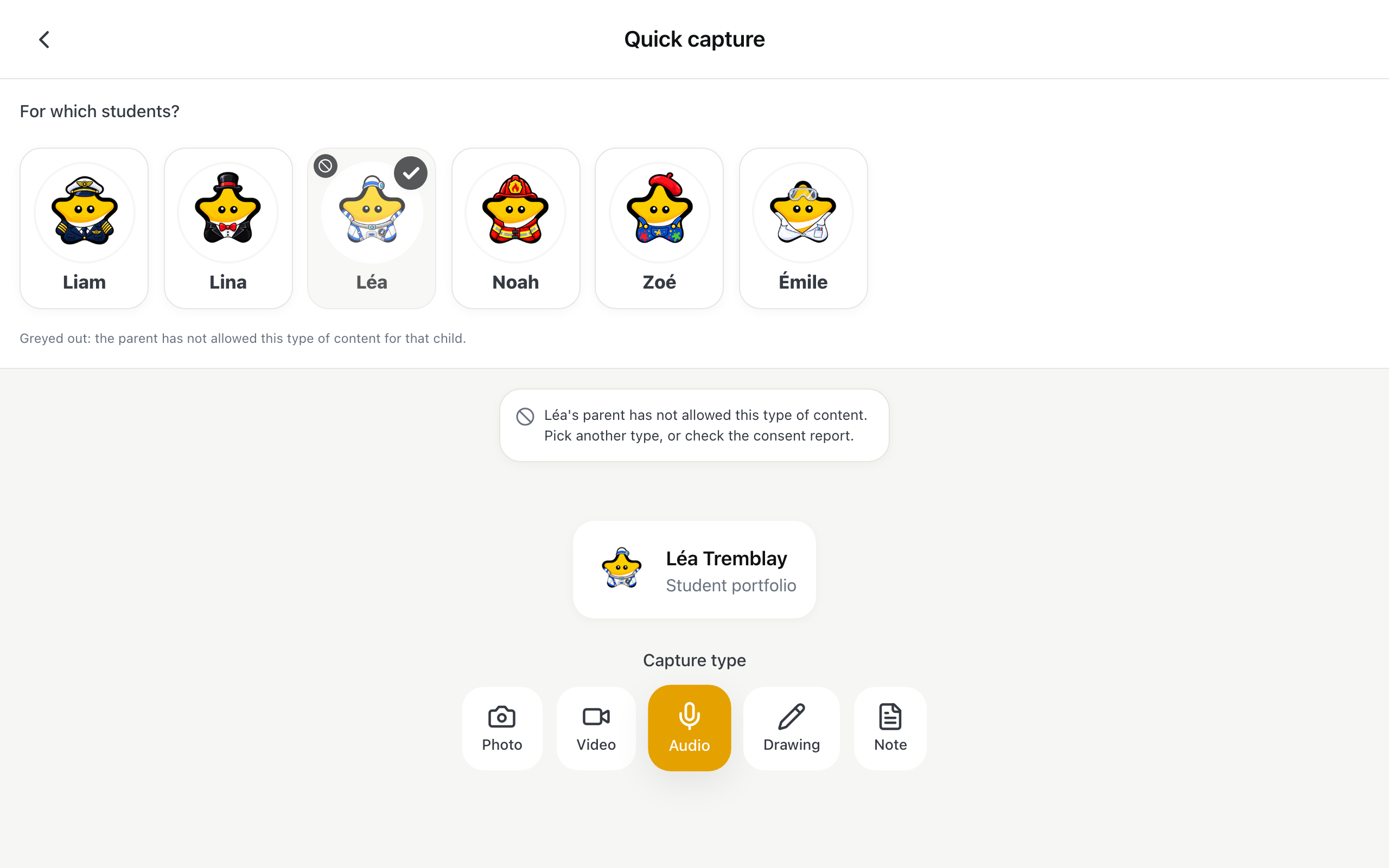
No parent is asked for a drawing or a note, and those two tiles stay open for everyone.
When the capture does not save
Every refusal arrives in a dialog with a title, a sentence and "Close". Nothing is written to the portfolio while the dialog is there. After "Close", the same students stay selected. If the screen went back to the tiles, tap the tile again to redo the capture.
"Video and audio recording is part of the Pro plan"
The sentence below: "Photos and drawings stay free. Upgrade to the Pro plan to record videos and sounds." An "Upgrade to Pro" button follows. You see this dialog when LinoClass could not check the classroom's plan, or when the plan changed since the page opened. Normally, the tile already carries its lock.
"Your class storage is full"
The sentence below: "The free plan has a storage limit. Upgrade to the Pro plan for unlimited space." Trying again changes nothing: the free plan has reached its storage limit. The captures already in the portfolio stay where they are.
"Group capture is a Pro feature"
The sentence below: "Saving one photo to several students at once is part of the Pro plan. You can still capture one student at a time." This dialog appears when the screen believed the class was on the Pro plan and the server says otherwise, for example on a tab left open since yesterday. Reload the page, then pick a single child.
"Parental permission"
The dialog says why, then offers "See the permissions", which opens the classroom's consent report.
- "This child's parent has not allowed this kind of content. Check the parental permissions in Settings, under Parents."
- "No parental consent is on file for this child.": the parent has not answered yet.
- "We could not check parental consent just now. Try again in a moment.": the check did not go through. Try the capture again.
"This file is too large. Try a shorter recording."
Record something shorter. The file did not go out; nothing was saved.
"No sound was recorded. Try again."
You tapped "Confirm" on an empty recording. The same message exists for video: "No video was recorded. Try again." Tap "Retry" and let the recording run before stopping it.
The camera or the microphone will not open
If the browser refuses the camera or the microphone, an "Error" dialog opens with the browser's own sentence. For photo and sound, the round button stays greyed out. On the sound panel, the words "Microphone access denied" replace the invitation to record.
For a photo, "Choose from library" works even when the camera does not open. If the "Error" dialog appears right after "Switch camera", the device may not have a second camera. Close the dialog, tap "Cancel", then "Photo" to reopen the rear camera.
Close the dialog, then check three things.
- No other app is already using the camera. Close it and reopen the tile.
- The browser has permission for this site. On an iPad, the page Let the student take a photo, a video or a sound shows where that setting lives in Safari.
- The iPad itself does not have the camera turned off in Settings, under Screen Time.
If the recording does not start once the camera is open, the "Error" dialog shows the browser's sentence. When the browser gives none, LinoClass says "The video recording could not start. Check the camera and try again." or "The audio recording could not start. Check the microphone and try again."
"An error occurred"
The network dropped during the upload, or the server did not answer. LinoClass retries twice on its own when the connection has just dropped. If the dialog stays, close it, check the network, then redo the capture.
When the screen does not show the tiles
If the class has no students yet, the screen says "No students in this classroom" and "Add your students first so you can capture their portfolios." The "Add students" button leads to the class list. The page Manage students explains how to add them.
If you are a collaborator and the screen says "This class is paused", the owner's Pro plan has ended. Nothing is deleted, and access comes back as soon as the plan is renewed. "Back to my classes" returns you to your list.
Frequently asked questions
Can I send a photo I took earlier with the iPad?
Yes. Tap "Photo", then "Choose from library", and pick the image. It goes out at once, with no confirmation step, and arrives "Awaiting approval" like a photo taken on the spot.
Can I save the same photo for several students?
Yes, on the Pro plan. Tap each card under "For which students?", then the tile. One photo goes out, and each child gets their own copy in their portfolio. On the free plan, you save one student at a time.
The "Video" and "Audio" tiles carry a lock.
The class is on the free plan. The card under the tiles says so: "Pro plan feature". Photos, drawings and notes stay open.
A student's card is greyed out.
Their parent refused this type of content. Switch tiles, for example "Photo" instead of "Video", or check the consent report in "My account", under "Parents".
The photo I took does not show in the grid.
Wait for the "Capture saved!" dialog before leaving the screen. If you saw it and the grid shows nothing, reload the page.
Do I have to approve my own captures?
No. A photo, a video or a sound you take yourself is approved and shared with the parents as soon as it is saved. What a student sends from the tablet still waits for your "Approve".