Find your way around the canvas tools
The canvas has the same dock for the student and for you: on the student's free drawing, on an activity page, on your sheet opened from "Quick capture" and on a drawing you edit. The words are the child's, because the same dock is used on their tablet. This page describes what each button does, so you can guide a student without taking their tablet.
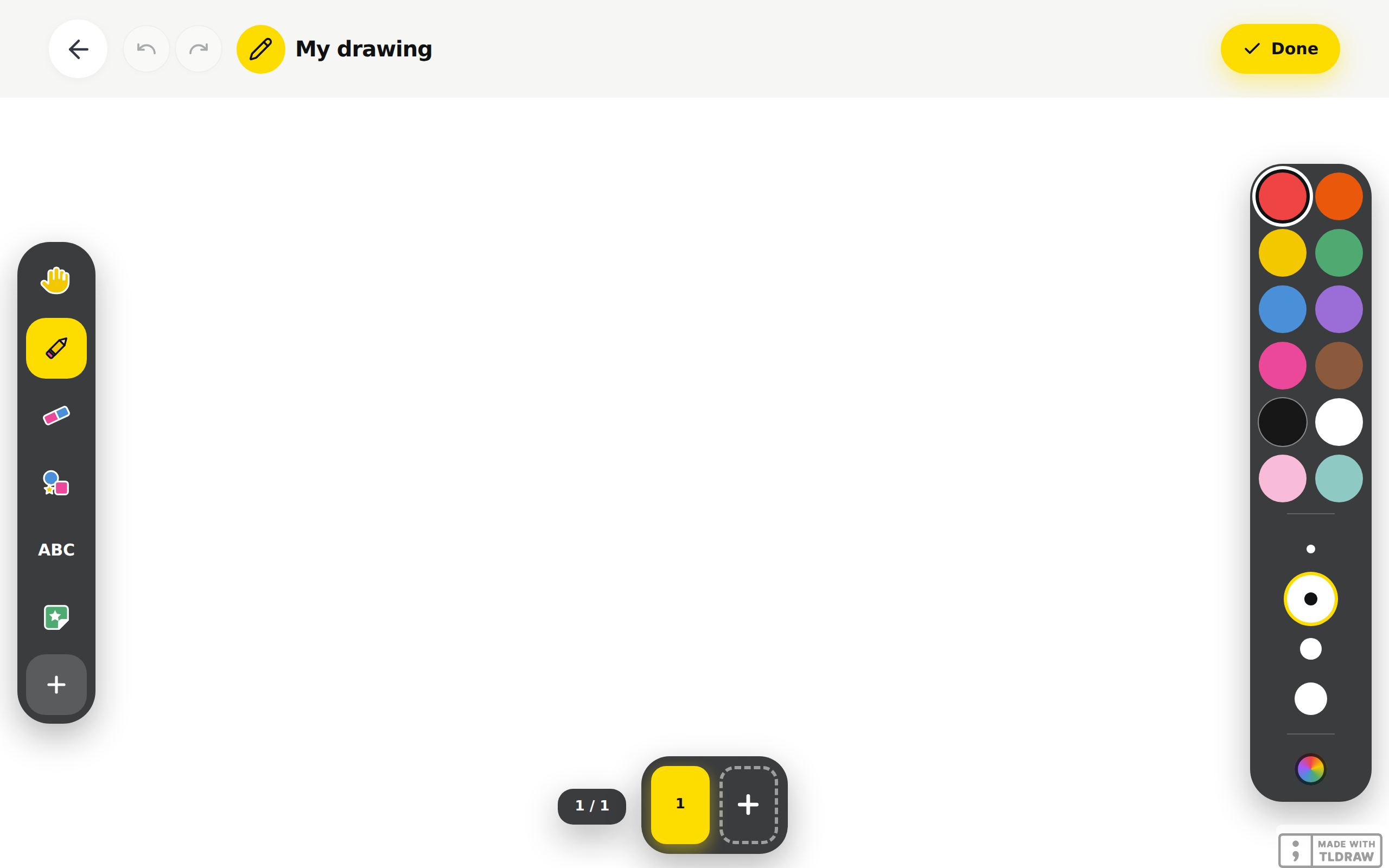
At the top, the page bar keeps the "Back" arrow, "Undo" and "Redo". On the student's side, the yellow button on the right is "Done": it saves and closes. On a phone, that button is a plain check, with no word. On your side, that button is called "Save"; the page Draw and edit a drawing on the canvas describes what it does.
The dock
The dock is a dark plate floating over the sheet. On a phone, it sits at the bottom of the screen, left to right. On an iPad or a computer, it is a column on the left edge, top to bottom, in the same order.
- "Move", a hand: to touch what is already drawn, without drawing.
- "Pencil" opens "My pencils".
- "Eraser" opens "My eraser".
- "Shapes" opens "My shapes".
- "Letters", written ABC, opens "My letters".
- "Stickers" opens "My stickers".
- "Colours", a colour wheel, opens "My colours". On an iPad or a computer, this slot is not in the dock: the colours are on the right edge.
- "Add", a plus sign, opens "Add to my drawing". The slot only exists where there is something to add.
Tapping a tool picks it up and opens its panel. Tapping the same tool a second time closes the panel; the tool stays in hand. Only one panel is open at a time. On a phone, the panel opens above the dock; on an iPad or a computer, it opens beside the column. Tapping "Move" closes any open panel.
Only one dock slot is yellow. It is the one whose panel is open, or, when nothing is open, the tool in hand. If the pencil stops drawing, look at the yellow slot: it is often "Move" that took over, for example after placing a sticker.
The panels
"My pencils"
Five strokes, each with a real preview: "Pencil", "Marker", "Paintbrush", "Chalk" and "Highlighter". Below, four sizes: "Thin", "Medium", "Big" and "Extra large".
"My eraser"
"Magic eraser" removes a whole shape with one touch; the panel says so: "Touch a shape and it disappears!". "Erase everything" clears the sheet. LinoClass first asks "Are you sure?" and warns: "Your whole drawing will disappear. We will not be able to get it back." The child taps "Yes, erase everything" or "No, keep my drawing". After a yes, "Undo", at the top, brings the drawing back.
"My shapes"
Eight shapes: "Circle", "Square", "Triangle", "Star", "Heart", "Line", "Arrow" and "Curve". Below, "Outline" or "Filled". The child chooses, then draws the shape on the sheet with a finger.
"My letters"
Under "My handwriting", three scripts: "Print", "Funny" and "Cursive". Under "Letter size", the sizes. The child taps the sheet where they want to write, then types the text with the keyboard.
"My colours"
Twelve crayons, from red to teal, with white and black. Under "Magic rainbow", a slider: the finger slides along it and the colour follows, for a shade that is not among the twelve. Under "My latest colours", the colours already used in this session, most recent first. That list empties when the canvas closes.
"My stickers"
Sixteen pictures can be placed on the sheet. They are a star, a heart, a sun, a rainbow, a flower, a butterfly, a cat, a dog, an apple, a balloon, a smile, a rocket, a tree, a fish, a cloud and a crown. Once placed, a sticker moves and grows like a shape.
"Add to my drawing"Free plan: photo only. Pro plan beyond that.
For the student: "Photo", and "Video" and "Voice" on the Pro plan. "Gallery" and, on a free drawing, "My paper" exist only in your own editor, not on the student's tablet. "My paper", at the bottom of the panel, changes the background: "Blank", "Lined", "Grid" or "Dots". The page Add work to a student's portfolio describes that panel and its messages.
The crayons on the edge of the screen
On an iPad or a computer, a column on the right edge carries the twelve crayons, the four sizes and the colour wheel. One tap is enough; there is no panel to open. On a phone, on the student's free drawing and on your sheet opened from "Quick capture", eight crayons sit above the dock, for the child who cannot yet read a panel's title.
Those crayons are only out for a tool that uses them: "Pencil", "Shapes" and "Letters". With "Move" or "Eraser" in hand, the column and the row are put away. The sheet does not move: it keeps the column's space, so it does not slide under the child's finger at every change of tool. Tapping a crayon while the eraser is in hand puts the pencil back in hand.
Touch what is already drawn
With "Move" in hand, the child touches a shape, a sticker, a word or a photo. Three buttons appear under it: "Bigger", "Smaller" and "One more", which makes a copy. A red X in the corner, "Remove", takes the item away. The finger moves it. Those buttons exist so the child does not have to pinch a tiny corner.
The pages of a book
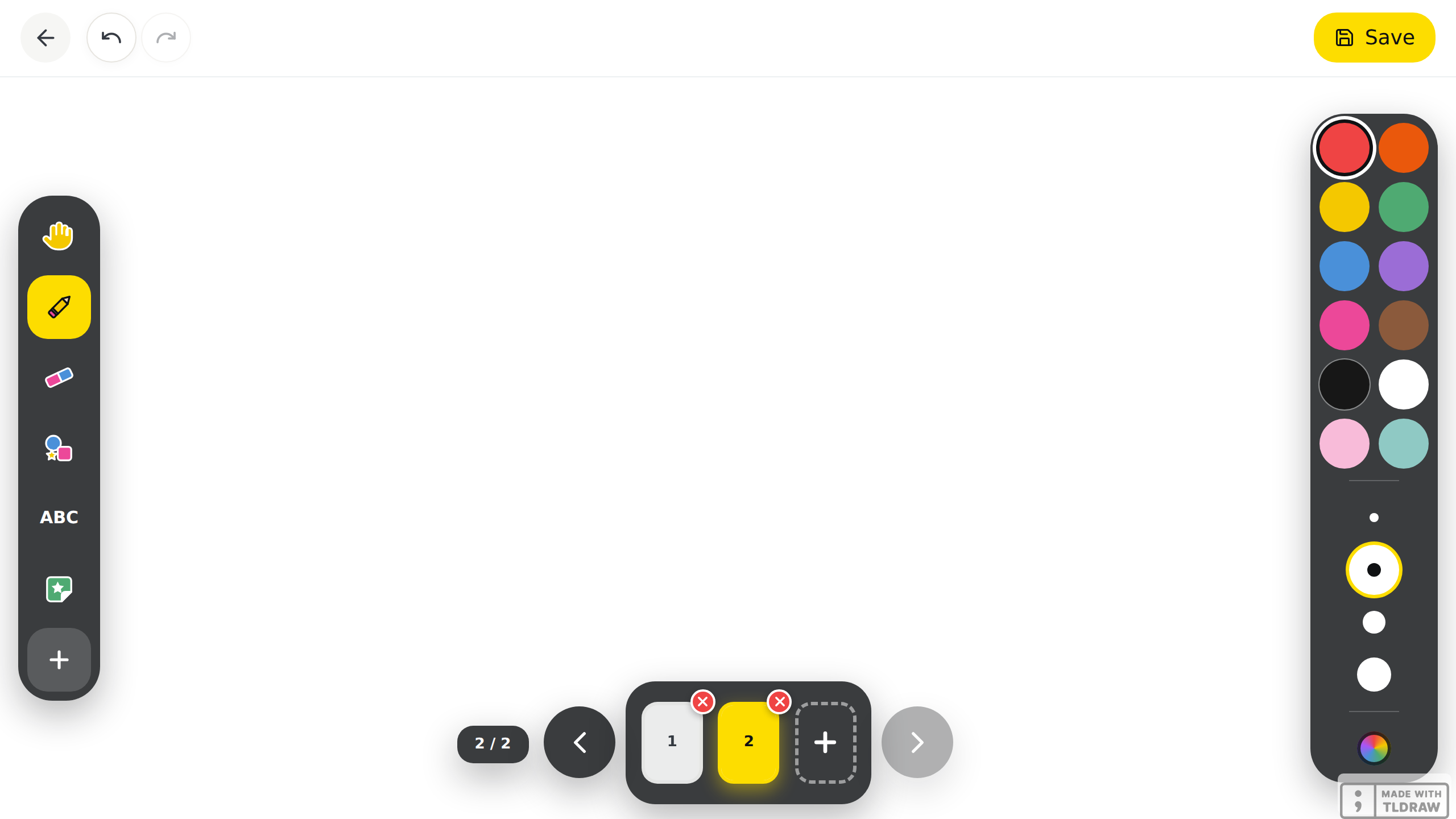
An activity with several pages shows its pages under the sheet, on a plate the same colour as the dock. On an iPad or a computer, the bar is centred at the bottom, between the tools column and the crayons column: the count, for example 3 / 7, the "Previous page" arrow, the thumbnails, the "Next page" arrow. On a phone, the count sits above the strip of thumbnails, itself above the dock.
- Tap a thumbnail to go to that page. For a screen reader, each thumbnail is named with its page number.
- On a phone or an iPad, the bar hides while a panel is open, so the two do not stack. Close the panel to see it again.
- On a phone held sideways, or in a wide but short computer window, the pages form a column on the right edge instead, with the count above.
A free drawing with a single page has neither a count nor thumbnails, except on the Pro plan, where the "Add a page" slot is enough to bring up the bar: see below. In your activity editor, the same bar also removes a page; the page Create an activity describes it.
Adding pages to a drawing (Pro plan)Pro plan only
On the Pro plan, the same bar can appear even on a free drawing that is still a single page: on your side from "Quick capture", or on the student's own free drawing. A slot with a plus sign, always last in the strip, is called "Add a page". Tapping it creates a new page, ready to draw on. The drawing then becomes a little book, each page with its own thumbnail, updated while the child draws.
- The "Add a page" slot only exists on the Pro plan. On the free plan, it does not appear.
- A drawing can hold up to thirty pages. Past that count, the "Add a page" slot disappears.
- A page is deleted with the same red X as an activity book. LinoClass first asks "Delete page 2?". The warning says, on your side, "The page and what is drawn on it leave the drawing. The other pages stay."; on the student's side, "This page and what you drew on it will go away.". The button to confirm is "Delete page". While a single page remains, the X does not appear.
- If the class's Pro plan ends before an added page is saved, "Save" keeps the drawing and its already saved pages, but warns: "Adding pages to a drawing is part of the Pro plan. This drawing has pages that were not there when it was last saved, and they were not saved. Remove them to save the rest."
When a tool is missing or does not respond
- The colours disappeared: the hand or the eraser is in hand. Tap "Pencil", the crayons come back.
- The "Colours" slot is not in the dock: you are on an iPad or a computer. The colours are in the right column.
- The "Add" slot is not there: this canvas has nothing to add. On the free plan, "Video" and "Voice" are missing from the panel, and "Photo" is always there.
- The pencil stops drawing: the yellow slot is on "Move". Tap "Pencil".
- The page thumbnails are hidden: a panel is open. Tap the tool again to close the panel.
- An old drawing no longer has quite the same colours: the canvas colours changed, and a reopened drawing takes the new ones. The old grey shows as brown. The image already saved in the portfolio has not changed.
Frequently asked questions
The student erased everything by mistake.
Tap "Undo", at the top, while the canvas is still open. Once "Done" is tapped, the drawing is saved as it is.
The panel hides the drawing.
That is expected on a phone, where the panel floats over the sheet. Tap the tool a second time, or "Move", to close it.
Where is the colour the student chose?
On an iPad, the chosen crayon is ringed in the right column. On a phone, it is in the row above the dock, or in "My colours".
Do I have the same tools as the student?
The toolbar is the same, in the same order. Two things differ on your side: the top button is called "Save" and does not close the canvas, and the "Add to my drawing" panel also gives you "Gallery" and "My paper", which the student does not have.