Draw and edit a drawing on the canvas
The canvas is the same for you and for the student: the tool dock, at the bottom of the screen on a phone and on the left edge on an iPad or a computer, "Add to my drawing" and "My paper". You open it in two ways. The "Drawing" tile in "Quick capture" starts a new drawing; the page Add work to a student's portfolio describes that start. The "Edit drawing" button, on a drawing's page, reopens a drawing that already exists, yours or the student's.
Reopen an existing drawing
- Open the drawing from "Portfolios" or from the class feed.
- In the bottom-right corner of the drawing, tap "Edit drawing".
- The canvas opens with the drawing as it was saved. Draw, erase, add whatever you like.
- Tap "Save", at the top right. The button reads "Saving...", then "Saved".
- Tap the "Back" arrow, at the top left, to return to the drawing's page.
If strokes are left unsaved, LinoClass asks "Leave without saving?" and adds "Your changes will be lost." Tap "Leave" to go without keeping them, or "Cancel" to stay on the canvas.
Each "Save" keeps a version of the drawing. On the drawing's page, a line under the child's name says who edited it and when. Deleting the work deletes those versions too; the "Delete this item?" dialog says so.
A collaborator has the button on the students' drawings and on their own, not on a drawing a colleague added. A parent never has it.
"This drawing can't be edited"
On a drawing made before the canvas existed, the button is greyed out and carries a padlock. Hovering over it shows "This drawing can't be edited". If an old link opens the canvas anyway, the screen says the same thing, adds "It was created before this feature was added." and offers "Back". That drawing stays in the portfolio as it is; it cannot be reopened.
The sheet
Your new drawing, started from "Quick capture", is a white board the shape of your screen, minus the dock: landscape on a laptop, portrait on a phone. That shape is decided once, when you open the sheet, and it stays the same on every device you reopen the drawing on.
A student's drawing also takes the shape of the screen it was started on: landscape on an iPad held sideways, portrait on a phone. It reopens at that shape, on a white desk, in your editor. Only a drawing made before this change keeps an upright sheet surrounded by the grey desk: that is normal, and nothing is cut off.
"My paper", at the foot of the "Add to my drawing" panel, changes the board's background: "Blank", "Sidewalk lines", "Grid" or "Dots". The choice is saved with the drawing. A drawing that answers an activity has no "My paper": the activity's page is already its paper. LinoClass's page templates are white, with their lines and dots.
The dock's tools
The dock carries, in order: "Move", "Pencil", "Eraser", "Shapes", "Letters", "Stickers" and "Add". "Undo" and "Redo" sit beside the "Back" arrow, at the top. On a phone, the dock sits at the bottom of the screen, left to right, and a "Colours" slot joins it. On an iPad or a computer, the dock is a column on the left edge, top to bottom, and the colours and stroke sizes sit in a column on the right edge.
Each tool, except "Move", opens its panel: "My pencils", "My eraser", "My shapes", "My letters", "My stickers", "Add to my drawing". On a phone, the panel opens above the dock; on an iPad or a computer, it opens beside it. The words are the student's, because the dock is theirs.
In "My eraser", "Magic eraser" removes a whole shape with one tap. "Erase everything" clears the sheet. LinoClass first asks "Are you sure?" and warns: "Your whole drawing will disappear. We will not be able to get it back." Tap "Yes, erase everything" to clear, or "No, keep my drawing" to change nothing. "Undo", at the top, brings the drawing back.
"Add" opens "Add to my drawing": "Photo", "Gallery", and "Video" and "Voice"Pro plan only on the Pro plan. The page Add work to a student's portfolio describes that panel.
How the drawing shows up afterwards
In the "Portfolios" grid, each tile carries a small dark chip in its bottom-left corner: the child's photo, or their initials on their colour, their first name and the date. The same photo appears on the student chips above the grid. The chip covers only the words it carries; the rest of the drawing stays visible.
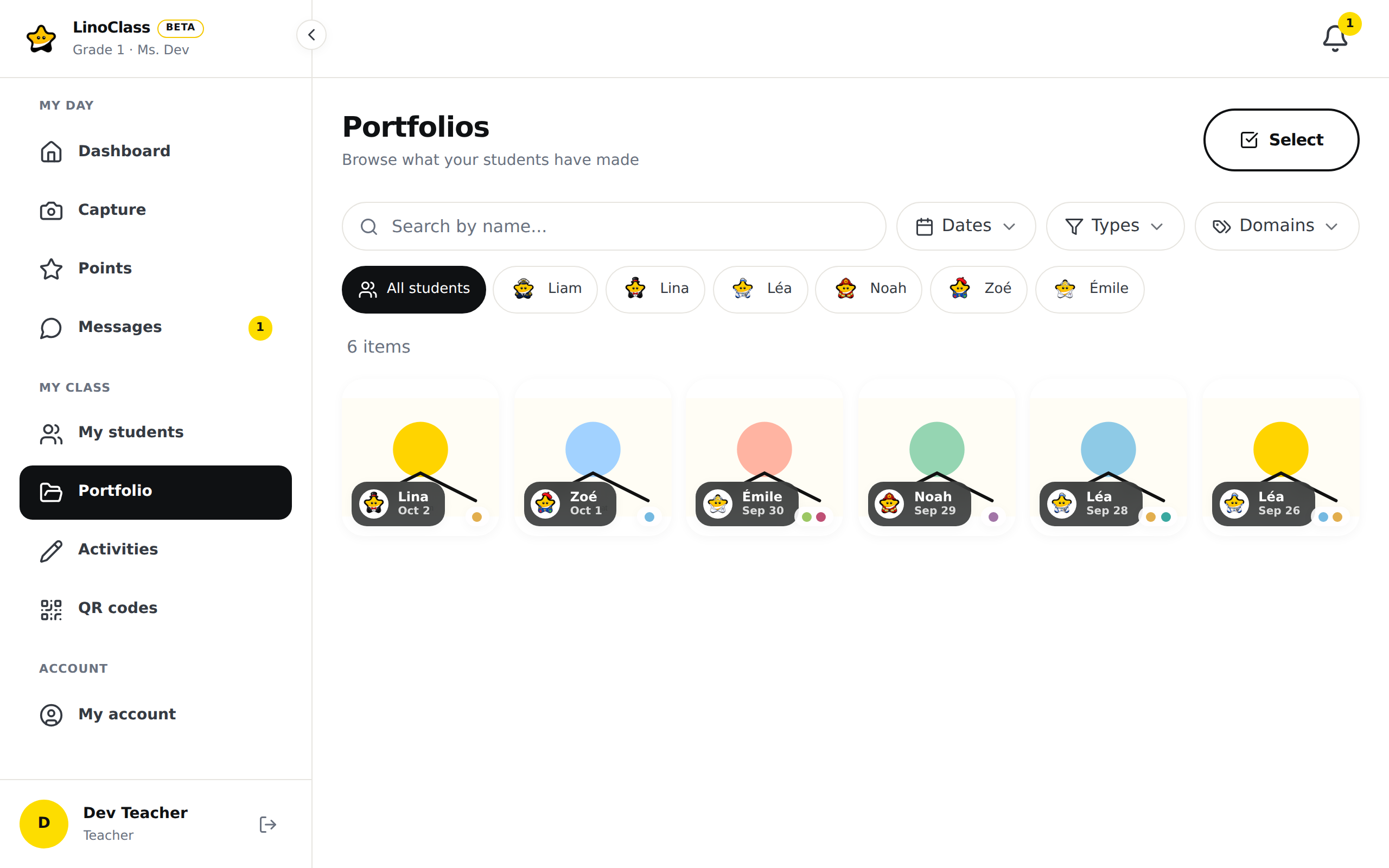
A drawing is always shown whole, on a white background: in the grid, on the work's page and in the class feed. A landscape drawing gets white bands above and below, never a crop. Its thumbnail is made at the shape of its sheet.
For parents, the tile's chip carries the date, then the activity's name or "Team". For the student, the tile carries the type and the date; the page What the student sees in their portfolio on the tablet describes it.
When the canvas does not open or does not save
If the canvas does not open, the screen shows the cause and a "Back" button.
- "You don't have access to this drawing.": this drawing is not in one of your classes.
- "This drawing can't be found.": it was deleted, or the link is incomplete.
- "Can't connect. Check your network.": the tablet or computer did not reach LinoClass. Try again once the network is back.
- "Your session has expired. Go back to the app and sign in again.": sign in again, then reopen the drawing.
If saving fails, a band under the header shows the cause and the "Save" button stays active. Your strokes are still on the canvas.
- "Saving failed. Try again.": tap "Save" again.
- "Your class storage is full. The drawing was not saved.": trying again changes nothing. The free plan has reached its storage limit, and the Pro plan has none.
- "Your session has expired. The drawing wasn't saved. Go back to the app and sign in again.": the strokes from this session are not saved. Sign in again, reopen the drawing and redo them.
Frequently asked questions
My drawing is landscape and the student's is portrait.
Each drawing takes the shape of the screen it was started on. Yours has the shape of your screen, the student's has the shape of their tablet or phone.
How to make a portrait drawing from a computer.
The shape is decided when the sheet opens. Start the drawing on a phone or on a tablet held upright. You can reopen it on the computer: it keeps its shape.
The student's drawing has grey bands on both sides on my screen.
That is a drawing made before the September 2026 change: its upright sheet sits on the grey desk. The drawing is not cut off. In the grid and on the work's page, it is shown whole on a white background.
Can I edit a student's drawing?
Yes, with "Edit drawing" on its page. Their sheet keeps its shape. Each save keeps a version, and the drawing's page says who edited it and when.
The thumbnail in the grid does not show my latest strokes.
The thumbnail is remade at every "Save". If the button reads "Saved" and the grid still shows the old thumbnail, reload the page.
The tile's chip shows initials, not the photo.
The child has no photo in "My students". As soon as they have one, the grid uses it on the tile and on their filter chip.