Tag work with the developmental domains
The developmental domains are observation markers. They are the five domains of the Québec Preschool Cycle Program, in the Ministry's colours. Every entry of a portfolio, photo, drawing, video, sound or written observation, can carry one or several. You then filter by domain, on the "Portfolios" page and on each student's page.
The five domains are Physical and Motor Development, Emotional Development, Social Development, Language Development and Cognitive Development. LinoClass lets you neither rename nor delete them.
Turn on the domains in the class
- Open "My account", then "Level and domains".
- Under "Class level", choose "Preschool (ages 4 and 5)". The other choices are "Cycle One (Grades 1 and 2)" and "Other".
- LinoClass confirms with "Level saved. The five developmental domains were added to the class." The five domains show right under, each in its colour, with the link "See the program on Québec.ca".
Only the classroom's lead teacher can change the level. A collaborator sees the level, with "Only the classroom owner can change the level." If LinoClass shows "The level could not be saved. Please try again.", the level did not change. Go back to step 2.
Add your own labels
If your school has turned on custom labels, the "Class labels" section appears under the domains. You can create up to 12 per class. A garden project is a good example.
- Tap "Add a label".
- Type the "Name".
- Pick a "Colour" from the palette. None of the palette colours is a domain's colour, so a label can never be taken for a domain.
- Tap "Create".
A label is renamed with "Rename". To take it out of new work without losing it on old work, archive it: it then carries "Archived". Deleting is more drastic, and LinoClass warns you: "It will be removed from every entry that carries it. Archive it instead to keep it on existing entries."
When the class has its 12 labels, the "Add a label" button is disabled. Archived labels count in the 12. To create another one, delete one.
Tag a piece of work
- Open the work from "Portfolios" or from the student's page.
- In the "Developmental domains" block, tap a domain to add it. Tap it again to remove it.
Each tap is saved at once. If LinoClass shows "The domains could not be saved. Please try again.", the domain was not saved. Tap it once more.
The block is absent while the class has no domains and no labels.
For a written observation, the domains are chosen in the form, before saving. The page Write an observation describes it.
Tag several pieces of work at once
The same step for a whole outing or a whole week is done from "Portfolios".
- Tap "Select" at the top of the page. A box appears on every tile.
- Tick the work. "Select all" ticks everything the filters show. That button stays grey while work is still to be loaded and you filter by several students, several types, a date range or a name. Tap "Load more" first.
- Tap "Domains". The "Domains of the selection" dialog counts the ticked work and offers two groups, one under the other: "Add", then "Remove".
- Choose, then tap "Apply".
LinoClass confirms with the number of entries updated, and the coloured dots on the tiles change. Tap "Done" to return to the normal grid.
A selection is limited to 100 pieces of work. Past that, the dialog refuses with "Select fewer to change their domains." If LinoClass shows "The domains could not be changed. Please try again.", nothing changed. Your selection is still there, tap "Apply" again.
Find the work of one domain
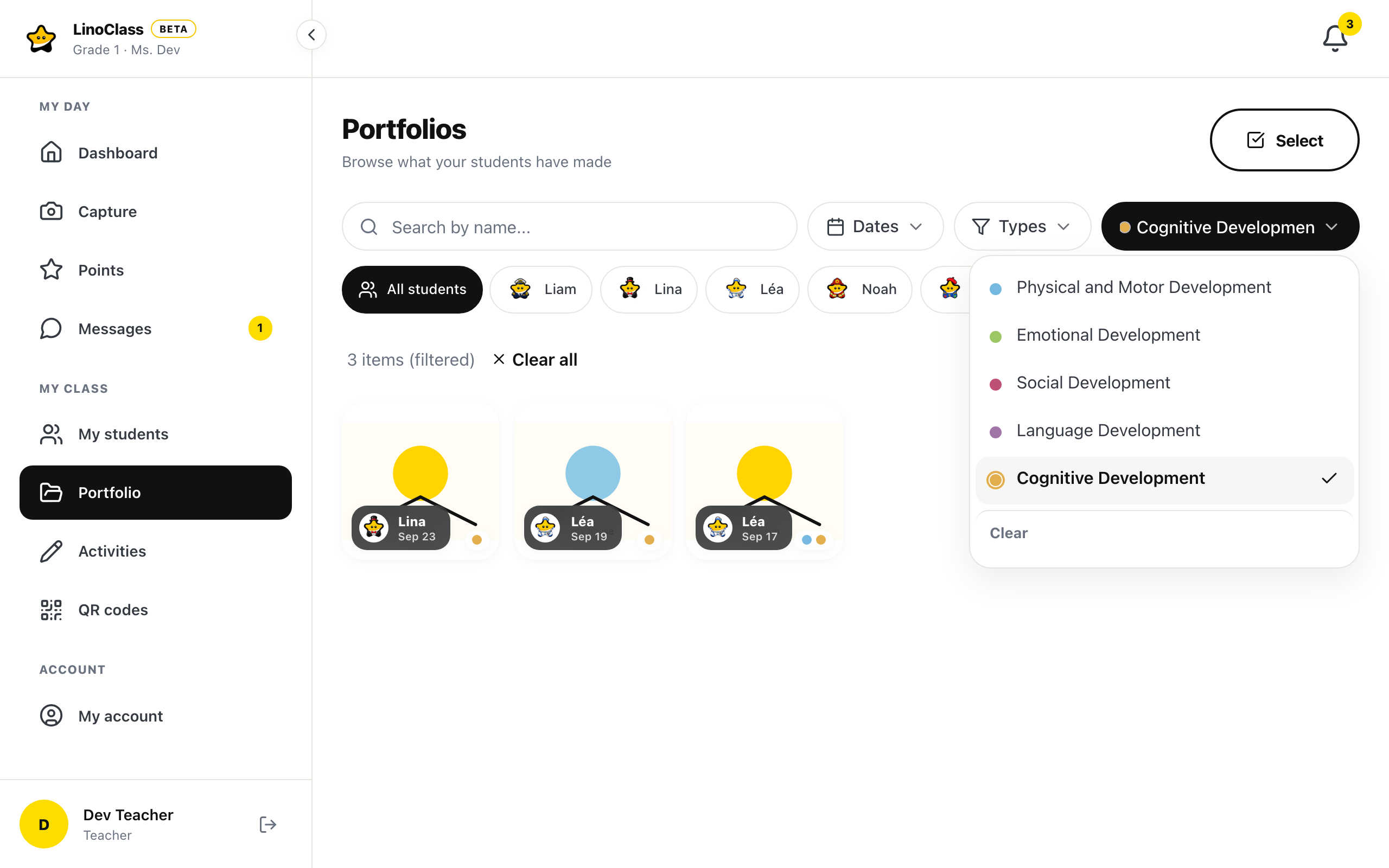
On every tile, small coloured dots say which domains the work carries.
On "Portfolios", tap the "Domains" pill in the row of filters. The list of domains opens: tick one or more. The pill then shows the chosen domain's name, or how many are chosen, for example "2 domains". "Clear", at the bottom of the list, removes this filter. "Clear all", on the results line, removes every filter at once.
On a student's page, the coloured bar shows each domain's share in the chosen period, and its legend is a filter. The page Follow a student through the year explains that view.
What families see
By default, families do not see the domains. The domains stay within the teaching team. If your school has chosen to show them to families, the "Level and domains" page tells you so with "Families see the domains on their child's portfolio (a setting of your school)."
In that case, the family sees the coloured dots on the tiles, a filter by domain with "All domains", and the domains on each work's page. Under the filter row of the "Portfolio" page, one sentence explains: "Domains are the teacher's observation markers, not results." Students never see the domains on the tablet.
Frequently asked questions
Can a piece of work carry several domains?
Yes, as many as you want, domains and class labels together.
The class is set to "Other". Do labels still work?
Yes, if your school has turned on custom labels. They are created and applied the same way, without the five domains.
Archive or delete a label?
Archiving takes it out of the choices for new work and keeps it on old work. Deleting erases it everywhere, on every work that carried it. When in doubt, archive.