Read and react to a piece of work in the class feed
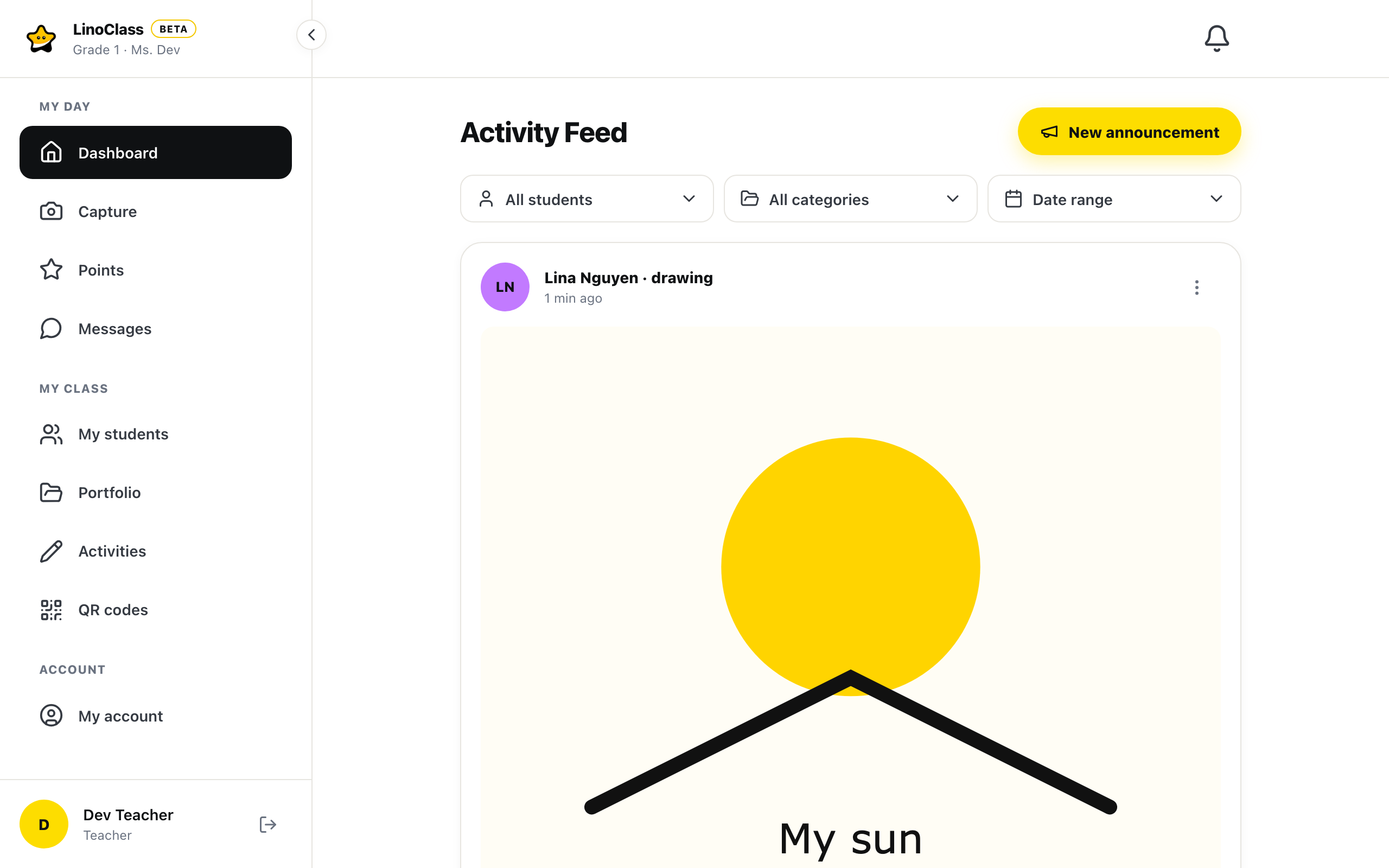
This page describes what a work's card shows in the class feed and how to react to it, with a heart, a thumbs up, a comment, a tag or an approval. The class feed is the "Activity Feed" page. For you, it is "Dashboard" on a computer and "Home" on a phone. For a parent, it is their "Home". Every piece of work has a card there.
A work's card
At the top of the card, the child's sticker, or their initials on their colour, then their name and the type of work on one line, for example Zoé Tremblay · drawing. The grey line under it says when the work arrived, for example 2 h ago. A category given with "Tag" shows on that same line, in a yellow pill.
Work handed in by a student leaves your feed as soon as you approve it. It stays in their portfolio and in the parents' feed. A photo you added yourself arrives already approved and shared: it does not go to your feed. You find it in the student's portfolio.
The content follows, depending on the type.
- A photo or a drawing shows whole, with nothing cropped off. Tapping the picture opens the work's page.
- A video shows a still frame with a play button in the middle, and "video" written under it. Tapping the frame opens the work's page, where the video plays.
- A sound plays inside the feed. The next section describes the player.
A written observation has no card in this feed. It stays on the student's portfolio. The page Write an observation describes how to read and correct it.
Under the content sit two pills, the heart and the thumbs up. When the work has comments, a third pill gives their number. Then comes the action row, and last the comments.
Play a recording in the feed
A sound has no picture. In its place, the card shows a player.
- At rest, the player reads "Audio recording" with the length on the right, for example 0:42.
- Tap the round yellow button to listen. The time takes the place of the words, for example 0:07 / 0:42. The same button pauses; playback resumes where it was.
- Drag along the bar to move forward or back in the recording.
The arrow to the right of the player opens the work's page, with the comments and the "Approve" button. The round button plays the sound without leaving the feed.
If the player reads "The recording could not be played", the file did not load and the round button no longer responds. The arrow still works: open the work's page and try to play the sound there.
Give a heart or a thumbs up
The two pills under the content are the same for you and for the parents.
- Tap the heart or the thumbs up. The pill turns yellow and the count goes up by one.
- Tap it again to take your reaction back. The pill turns grey again.
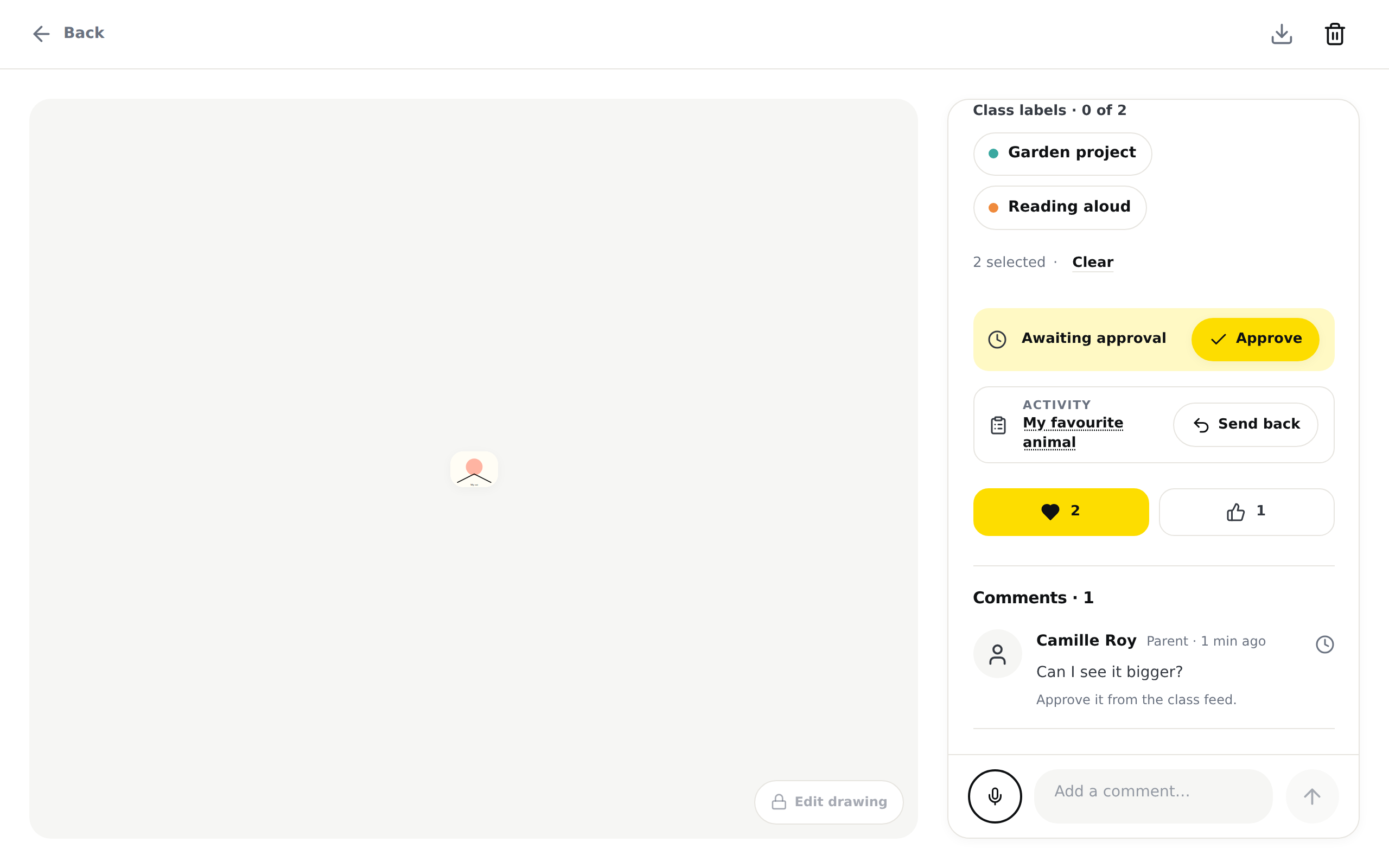
The same two pills are on the work's page, for you and for the parent, between the "Awaiting approval" strip and the comments. It is the same reaction: a heart given on the page is the heart the feed shows, and the other way round.
A school that has turned parent comments off removes the pills from the parents' feed. On the work's page, they stay. The student cannot react: their page on the tablet has no pill.
If the pill turns grey again right after your tap, LinoClass could not save the reaction. No message appears. Check the connection, then tap it again.
If a work's page has no pills, that work no longer has a post in the feed, for example because the post was deleted. There is nothing to react to.
See who reacted
In the action row of every card in your feed, the eye on the right is called "Who saw it". It opens the "Who saw this post" dialog. The "Hearts" and "Thumbs up" lists name everyone who reacted, you included. When nobody has, the list reads "Nobody yet."
Pro plan only The dialog also shows "Saw it" and "Has not seen it yet": the parents who opened the feed since the post, and the others. That part needs the Pro plan. On the free plan, it carries a padlock. The reaction lists stay open on every plan.
If the dialog reads "The list could not be loaded.", tap "Try again".
The action row
Under the pills, a line separates the action row.
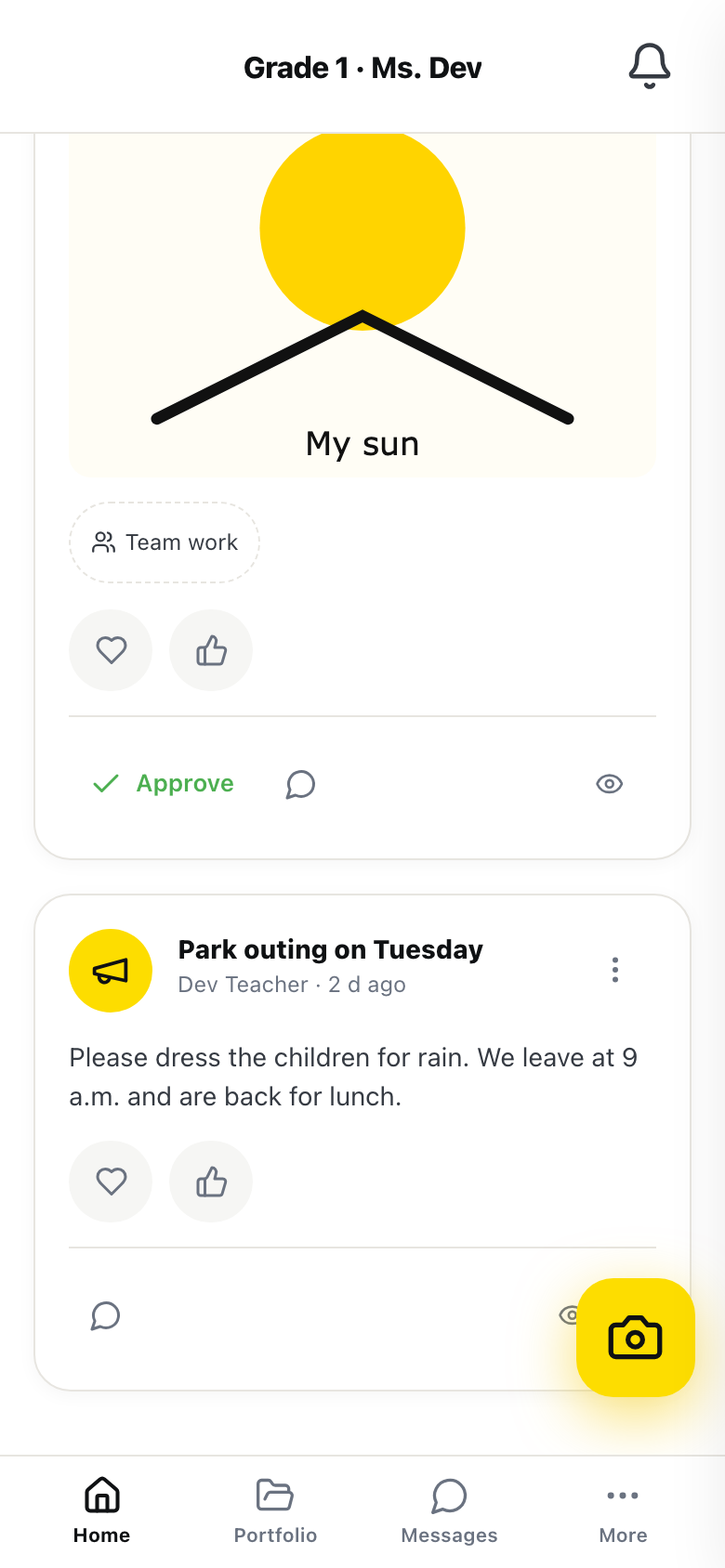
- "Approve", in green, publishes the work to the parents. Once the work is approved, the button reads "Approved", on a pale green tint, and no longer responds.
- "Comment" opens the comment box under the card.
- "Tag" opens the list of your categories. The button exists only if the class has categories. When a category is already set, the button carries its name and stays highlighted. "Remove tag", at the top of the list, takes it off.
- The "Who saw it" eye, on the right.
On a phone, "Comment" and "Tag" are icons without the word, the bubble and the label. "Approve" keeps its word at every width. A category already set keeps its button highlighted, but its name reads on the grey line at the top of the card, not in the row. On a computer or a tablet, the words are there.
A parent has one button, "Comment". They do not have it if the school has turned parent comments off.
After "Approve", LinoClass confirms with "Approved and shared with parents". The card leaves the feed. If approving fails, the message is "Could not approve. Please try again." and the card has not moved. The page Add work to a student's portfolio describes the other places to approve.
A parent's comment awaiting approval
A parent writes under a piece of work. Their comment waits for your decision before anyone else can see it. What each person sees is different.
For the parent, their own comment carries a small grey clock in its top-right corner, and nothing else. On a computer, leaving the mouse on the clock shows "Your comment will be visible once the teacher approves it." The parent sees the same clock in the feed and on the work's page. The clock goes away when you approve.
For you, the comment carries the clock and, under it, "Approve" and "Reject". Above the feed, a band counts what is waiting, for example 1 comment awaiting approval. LinoClass confirms with "Comment approved" or "Comment rejected". If the action fails, the message is "That didn't work. Try again." and the comment keeps its clock. The page Add work to a student's portfolio describes the same step from the work's page.
Frequently asked questions
Where did the observation I wrote go?
A written observation never appears in the class feed. It is your own text, visible only on the student's portfolio. The page Write an observation explains where to find it.
The sound does not play in the feed.
Look at the player. If it reads "The recording could not be played", the file did not load. Tap the arrow on the right to open the work's page and listen from there. If the player reads "Audio recording" with the length, tap the round yellow button, not the bar.
The heart turns grey again on its own.
LinoClass could not save the reaction and took it back. Check the connection, then tap the heart again.
A parent says their comment does not show up.
It is waiting for your decision. For the parent, it carries a clock in its corner. Open the feed, look for the band that counts the comments awaiting approval, then tap "Approve" under the comment.
On my phone, there is no "Comment" word.
On a phone, "Comment" shows as the bubble icon and "Tag" shows as the label icon, without the words. Only "Approve" keeps its word. Open the feed on a tablet or a computer to read the words.
The "Approve" button is there, but it does nothing.
Read the button. If it says "Approved" on a pale green tint, the work is already approved and the button no longer responds.
The page Read the class activity feed describes the rest of this screen, the filters, the "New announcement" button and what happens when the feed is empty.