Read the class activity feed
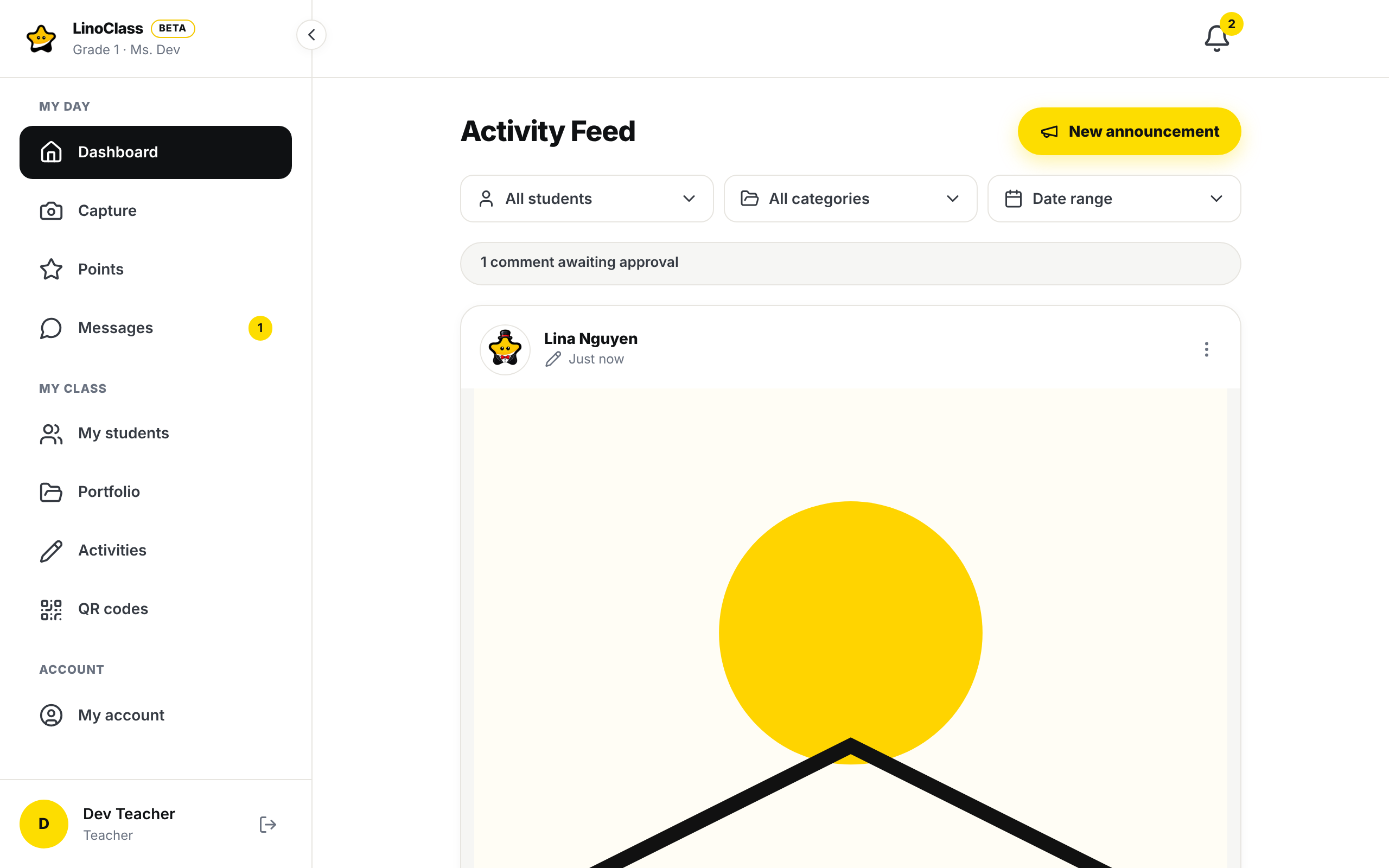
"Dashboard" on a computer and "Home" on a phone open the same screen, the class "Activity Feed". Everything that happens in the class arrives there as cards, newest at the top, except pinned cards, which come first. Parents see the same feed, without the class tools.
What the feed shows
At the top, the "Activity Feed" title and the "New announcement" button. The page Send an announcement to parents describes that button. Under the title, three filters, then the cards.
Each card starts with a face or an icon, a bold line and a single grey line that ends with the time, for example "2 h ago". Two kinds of cards come up most often.
- A portfolio piece: the child's picture, then their name alone, in bold. The grey line starts with a small icon for the type of work: a camera for a photo, a video camera for a video, a microphone for audio, a pencil for a drawing. The work fills the full width of the card. Tapping the photo opens its page.
- An announcement: the megaphone, or your own picture, the announcement title in bold, then your name and the time on the grey line. An announcement marked "Important" has a yellow band on its left edge. An attached file with no preview fits on one line: its name, then its type, for example PDF. Tap it to open it.
A scheduled announcement has a dotted frame. On its grey line, a small clock and the date and time it goes out, in a darker shade, take the place of the time. With a mouse, resting the pointer on that date shows "Parents can't see it yet."
A book of several pages also arrives as one card for the whole book. Swipe the page to turn the pages. With a mouse, two arrows appear on the edges when the pointer is over them, and the keyboard arrows turn the pages too. A single pill, top right, says where you are out of the total, for example 2 / 12; there is no longer a second pill repeating the page count. Tapping a page opens the work.
The card shows 30 pages at most, but the second number stays the book's total: a 40-page book shows 30 / 40 on its thirtieth page. After it, one last page says "+ 10 pages" and "See the other 10 pages". Tap it to open the work and see the rest.
The grey line gathers, separated by dots, what describes the card: the category, the group it is for with its colour dot, or a small person icon and the first names of the students it is for, then the time. A line too long for the card is cut off at the end.
For work, your feed keeps what is waiting for your go-ahead. Approved work leaves your feed, whether the student sent it or you added it yourself. Work you add yourself, such as a photo taken in class, is approved as soon as it is sent. It goes straight to parents and does not appear in your feed. You find it in the student's portfolio. Announcements stay in the feed.
The feed loads in blocks. As you scroll down, older cards load by themselves. When there is nothing left, the last line says "End of feed".
Filter the feed
Three menus sit under the title.
- The first, "All students", shows only one child's cards. Type a few letters in "Search student...", then tap the name.
- The second, "All categories", keeps one category. The same menu creates your categories: tap "Add a category", give it a name, an icon if you like, then "Save". A category can have a parent category.
- The third, "Date range", takes a "From" date and a "To" date. "Clear dates" empties both.
An active filter shows in a darker shade. The "Clear all" line, under the menus, removes every filter at once. If no card matches the filter, the feed shows "No activity in your feed": tap "Clear all" to see everything again.
Act from a card
The bottom of each card is a single row. On the left, the heart, the thumbs up, the speech bubble to comment and the tag to tag. On the right, the send-back arrow, "Approve" and the eye. "Approve" is the only coloured button and the only one with a word. The others are icons; with a mouse, resting the pointer on one shows its name. On a narrow screen, when the row does not fit in the card, it wraps onto two lines.
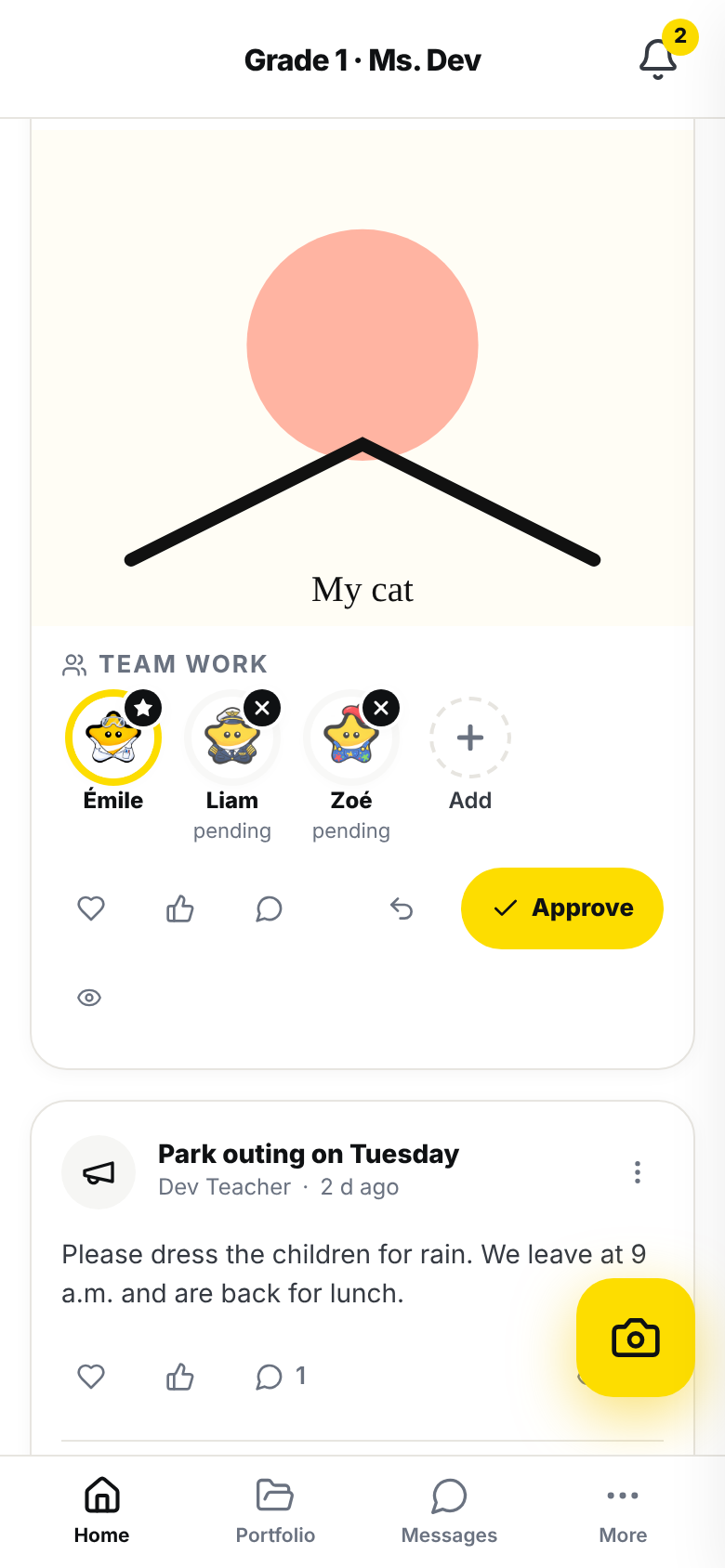
- "Approve" publishes a student's work for their parents. LinoClass confirms with "Approved and shared with parents". The card leaves the feed as soon as you tap "Approve", then that message appears. The work stays in the student's portfolio. An announcement has no such button. Work that is already approved carries a grey check mark instead of the button.
- The back arrow, "Send back", just before "Approve", hands an activity back to the child so they can carry on. The button exists only on work that answers an activity and is waiting for your go-ahead. LinoClass asks "Send the activity back to the child?" and explains "They will find the activity in their list again, with their drawing, and can carry on. This work stays in their portfolio." Confirm with "Send back", or tap "Cancel". The card and its comments leave the feed, then LinoClass confirms with, for example, "Sent back to Lina. The activity is back in their list." A free drawing, a photo you took and work from an activity archived in this class have no such button. The page Keep activities in the library describes archiving.
- The speech bubble, "Comment", opens the "Write a comment..." field under the card. Tap "Send". The number next to the bubble counts the card's comments.
- The tag, "Tag", opens the list of your categories. Tap one: its name shows on the card's grey line. "Remove tag" takes it off. "Tag" exists only when the class has at least one category. If "Tag" is absent, first create a category from "All categories", "Add a category".
- The eye, on the right, opens "Who saw this post". On an announcement it also carries the count of parents who read itPro plan only, on the Pro plan only. On the free plan the eye of an announcement carries a small padlock and still opens "Who saw this post". On a portfolio piece the eye has no padlock, on any plan.
- The heart and the thumbs up are the same reactions parents have.
The three dots, top right of the card, open "Pin to top" and "Delete". On an announcement card they also open "Edit announcement". "Delete" first asks "Delete this post?" and warns that it cannot be undone. Confirm with "Delete permanently". A collaborator can delete what a student or a parent posted, but not a colleague's post.
Pin a post to the top of the feed
An announcement or a piece of work the class should keep in sight can stay at the top of the feed.
- Tap the card's three dots.
- Tap "Pin to top".
The card moves above the others. Above its bold line, a small pin and the word "Pinned" mark it. You and the colleagues who share the class can pin and unpin the same cards.
A class keeps 3 pinned posts at most. The most recently pinned comes first. To take one off, tap its three dots, then "Unpin". The card goes back to its place by date.
Parents also see pinned cards at the top of their feed, with "Pinned", when the card is already meant for them. They cannot pin. With a filter on, only the pinned cards that match the filter stay at the top.
Unpin a piece of work before you approve it. Approved work leaves your feed, even when it is pinned. It then stays at the top of the parents' feed and counts toward the 3, and your feed no longer shows it for you to unpin.
Approve a parent's comment
A parent's comment waits for your go-ahead before it becomes visible. In the feed it shows a small clock in the corner of the comment, then "Approve" and "Reject". When comments are waiting on the page, a line above the cards counts them, for example "1 comment awaiting approval".
LinoClass confirms with "Comment approved" or "Comment rejected". "Reject" first asks "Reject this comment?" and adds "Reject this comment? It will be deleted."
The page Add work to a student's portfolio describes the other places where you approve work or a comment.
When the feed is empty
A feed with no card shows "No activity in your feed" and "Start by creating an activity or publishing an announcement", with two buttons: "Create an activity" and "New announcement". Work sent by a student fills the feed too, until you approve it.
When an action fails
- "Could not approve. Please try again.": the card comes back to its place in the feed, with its "Approve" button. Tap it again.
- "Could not send it back. Try again.": the card stays in the feed and the activity has not gone back to the child. Tap "Send back" again.
- "That didn't work. Try again.": the comment keeps its small clock in the corner, then "Approve" and "Reject".
- "You can pin up to 3 posts per class. Unpin one first.": the class already has 3 pinned cards. Tap "Unpin" on one of them, then pin the new one. If you see fewer than 3 "Pinned" cards in your feed, a pinned piece of work was most likely approved and left your feed.
- "Could not change the pin. Try again.": the card has not moved. Tap "Pin to top" or "Unpin" again.
- "Could not save the category.": the category was not created. When the cause is known, for example a name that is too long, LinoClass writes it instead of this message.
Reload the page to see a card you expect; the bell refreshes on its own. The bell tells you about comments and work handed in; the page Open a notification from the bell describes it.
Frequently asked questions
Where did "Announcements" go?
Announcements are in this feed. The "Announcements" menu entry opened the same screen, so it was removed. "New announcement" is at the top of the feed.
Where are written observations?
A written observation never appears in this feed, for you or for parents. It stays on the student's portfolio. The page Write an observation describes how to read and correct it.
A photo you took is not in the feed.
That is expected. Work you add yourself is approved as soon as it is sent, and approved work leaves your feed. Parents already see it in their feed. Open the student's portfolio to find it. The page Browse the class portfolios shows where it is.
Can I send back work I already approved?
No. Sending back is the other answer to work waiting for your go-ahead: you approve it or you send it back. Approved work leaves your feed, and on its page "Send back" disappears as soon as it is approved. To have the child pick the activity up again, send it back before you approve it. The page Add work to a student's portfolio describes sending back from the work's page.
Do parents see the same cards?
They see the announcements meant for them, their child's approved work and approved comments. They have no filters, no "Approve" and no "Tag". Under each card they have at most the heart, the thumbs up and the speech bubble to comment. The cards you pinned are at the top of their feed too.
A card has a dotted frame.
It is a scheduled announcement. It goes out on the date and at the time written on its grey line, next to the small clock, and parents do not see it before then.