Open your class and switch to another
After you sign in, LinoClass opens your class. If you have several, it shows them first so you can pick one. Once you are in a class, its name stays at the top of the menu, and that name is how you move to another one.
Where you land after signing in
With a single class, LinoClass opens it right away, on its "Dashboard". That is the class activity feed; the page Read the class activity feed describes it.
With two classes or more, LinoClass opens the "My classes" page, with the line "Select a class to continue". Each class is a card: its name, then its school and its number of students, for example "22 students". Tap a card to enter the class.
With no class at all, LinoClass opens "Create your class" directly, the form that creates your first class.
Switch to another class
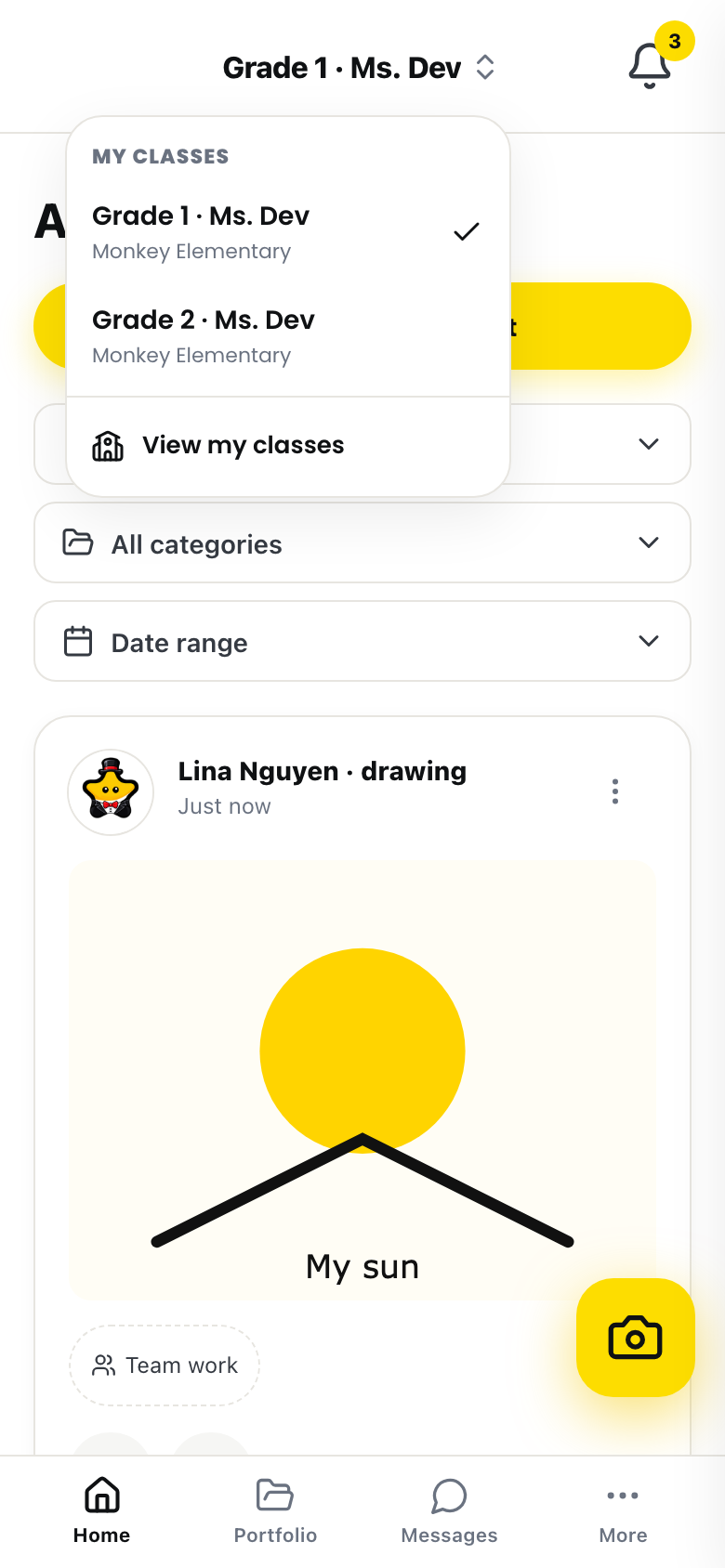
The class name sits at the top of the menu. On a computer, it is under the LinoClass logo, at the top of the left menu. On a phone, it is in the centre of the top bar. If you have collapsed the left menu, the name moves into the top bar of the page; the page Collapse the menu to project the screen explains that.
- Tap the class name. A small double chevron on its right tells you it opens.
- A menu opens under the heading "My classes". Every class is there with its school, and a check mark sits on the one you are in.
- Tap a class. Its "Dashboard" opens.
The last entry of the menu, "View my classes", opens the full "My classes" page. That is also where the button to create a class lives.
With a single class, the name stays plain text. Nothing opens when you tap it, and that is normal: there is no other class to go to. The menu appears on its own as soon as a second class exists, yours or one a colleague invited you into.
Create a new classFree plan: 1 class. Pro plan beyond that.
- Open the "My classes" page: tap the class name, then "View my classes". From "My account", the "My classes" section leads there too.
- Under the list, tap "+ Create a new class".
- The "Create your class" form opens. Fill it in as you did for your first class.
The new class joins the list, and the menu under the class name.
On the free plan
The free plan includes one class. Once you have one, the button does not appear. In its place, a card explains: "You already have your class. Upgrade to Pro to create as many as you need." Its button, "See the Pro plan", opens the plan page. The page Upgrade to Pro and manage your billing describes the rest.
Only the classes you created count. A class a colleague invited you into does not take your spot.
If the button shows anyway and you fill in the form, LinoClass refuses at the end, when it saves: "A second classroom is part of the Pro plan", with the explanation "The free plan is limited to 1 classroom per teacher. Upgrade to the Pro plan to create a combined-grade class or a second group." Nothing was created.
When a class is marked "Paused"
A class marked "Paused", in the list and in the menu, belongs to a colleague whose Pro plan has ended. You can still open it. Instead of the dashboard, LinoClass shows "This class is paused" and a "Back to my classes" button. Nothing is deleted, and access comes back as soon as the plan is renewed. The page Share the class with a colleague describes this case.
Frequently asked questions
"Announcements" is no longer in the menu.
Announcements live in the class feed, which is "Dashboard" on a computer and "Home" on a phone. The "Announcements" entry opened exactly the same screen under a second name, so it was removed. The "New announcement" button is at the top of the feed. The page Send an announcement to parents covers the rest.
The class name does not open.
The menu exists only from two classes up. With a single class, the name is plain text. If you do have two classes and nothing opens, the list has not arrived yet: wait a moment, or reload the page.
The class you created is not in the list.
On the free plan, the second class was not created. The form ended with "A second classroom is part of the Pro plan". Open the "My classes" page: the card there explains the limit, and "See the Pro plan" leads to the plan that removes it.
The menu shows a class that is not yours.
A colleague invited you into their class. It sits in the menu and in the list with its school, like your own, and you open it the same way.