Review flagged work or a flagged message
LinoClass checks the pictures and text posted in the class, that is the portfolio work, announcements, activities, comments, and the photos and messages in Messages. When something looks out of place, LinoClass holds it back and asks you to look. Until you review it, parents cannot see it.
Recognise a flagged item
A flagged item carries an orange badge with a shield, "Needs review". Under the badge, a grey line says "Flagged automatically. Parents cannot see it until you review it.", then two buttons, "Remove" and "Looks fine".
This panel shows up in these places:
- in the class activity feed, at the top of the card for the work, announcement or comment;
- under a comment, in the feed and on a piece of work's page;
- on a piece of work's page, under the picture;
- on an activity's page, in the submitted work;
- in Messages, under the message, inside the bubble.
In the "Portfolios" grid and in a student's portfolio, the thumbnail is blurred and carries only the "Needs review" badge. Open the work to find the two buttons.
Only the class's teachers see the badge, you and the colleagues you share the class with. Parents see neither the badge nor the item.
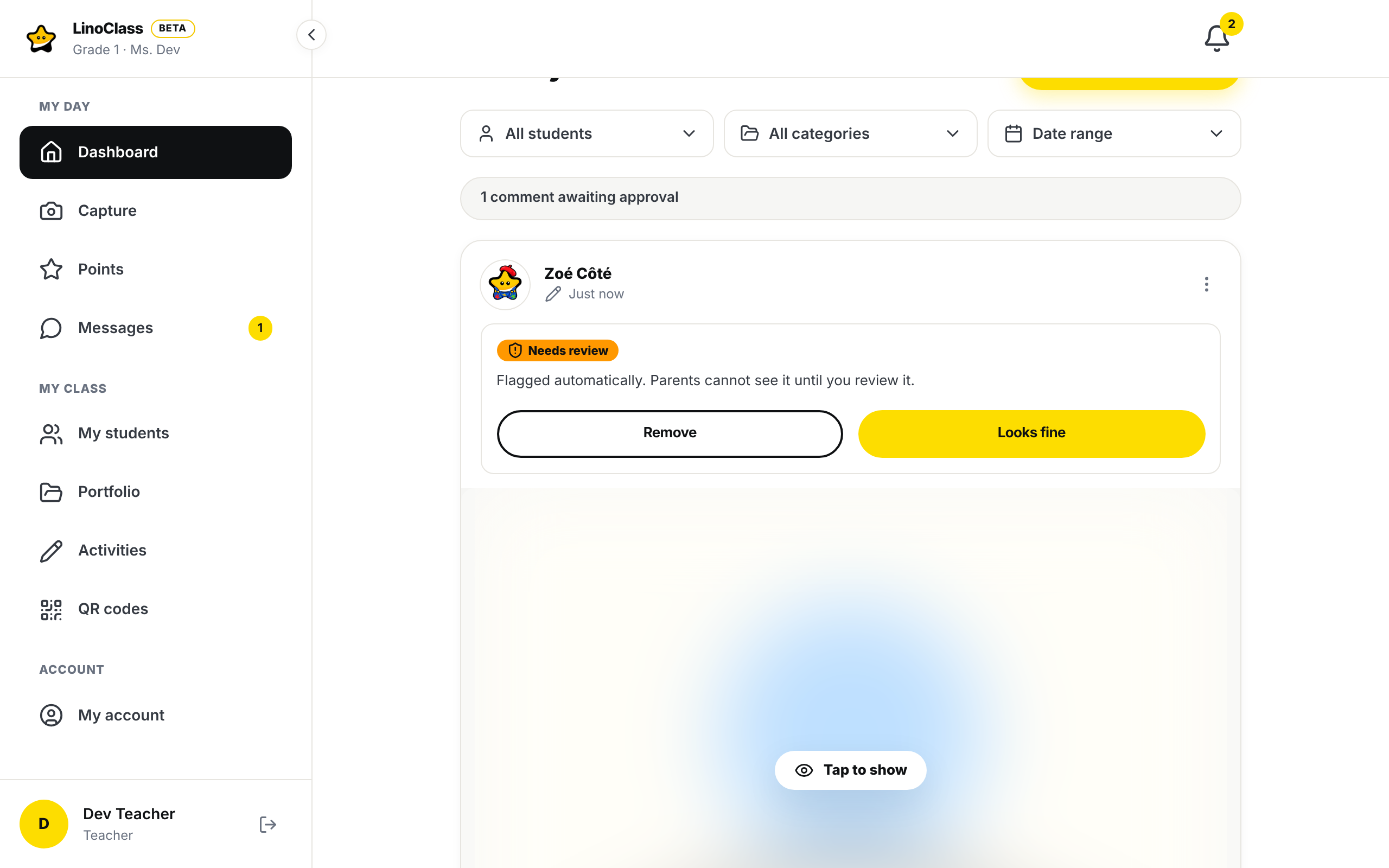
Show a blurred picture
The picture of a flagged item stays blurred until you ask for it. In the middle, a pill with an eye says "Tap to show". Tap it and the picture shows for you, on this screen. It is still flagged, and parents still cannot see it.
You do not have to show it to decide. The text, the student and the date are sometimes enough.
Let an item through
- Look at the item.
- Tap "Looks fine". The button reads "One moment..." while it sends.
The badge goes away and the item is no longer hidden from parents. They see it where they would have seen it without the flag, in their feed, under the work or in the conversation. A student's work that is still waiting for "Approve" still waits for your approval, as before.
When a colleague has already reviewed the same item, "Looks fine" simply clears the badge on your screen.
Remove an item
Tap "Remove". LinoClass uses the usual delete, with its confirmation.
- In the feed, the "Delete this post?" window opens. Tap "Delete permanently".
- In Messages, the "Remove this message?" window opens. Tap "Remove". This is how you remove a parent's message when it is flagged.
A removed item is deleted. It does not come back.
A badge that appeared overnight
LinoClass also checks, at night, what was posted before this check existed. It works between 2 a.m. and 5 a.m. Eastern time, in small batches, and picks up the next night where it stopped. So a piece of work posted weeks ago can carry the "Needs review" badge one morning. Parents no longer see it until you review it.
In Messages, a message flagged while the conversation is open shows its panel at once, without reloading the page.
When it does not work
- "Could not mark it as reviewed. Please try again." shows in the panel, with a red triangle. The item stays flagged and hidden from parents. Check your connection, then tap "Looks fine" again.
- "This message could not be removed. Please try again." shows in Messages. The message was not removed. Tap "Remove" again.
- A parent tells us they cannot see a piece of work. Look for the "Needs review" badge on that work, in the feed or in the student's portfolio. A flagged item stays hidden from parents until you tap "Looks fine".
- The parent who wrote a flagged message still sees it. Their own message stays in their conversation, with no badge. They do not know it is flagged.
- The flag is wrong. The check is automatic and can flag a harmless drawing or sentence. Tap "Looks fine" and the item goes back to its place.