Open a notification from the bell
The bell sits at the top of the screen, on every page of the class. Each row of its panel leads to the thing itself: the conversation, the piece of work or the feed card. A row you opened stays in the panel, and you can come back to it later.
Open a notification
- Tap the bell. The "Notifications" panel opens. The rows sit under two headings, "New" and "Earlier", each with its count.
- Tap a row. LinoClass opens the place concerned, and the panel closes.
Each kind of row has its destination.
- "Sophie sent you a message" opens the conversation with that parent, in "Messages". On a phone, the conversation takes the whole screen, without the tab bar at the bottom. The "Back" arrow, at the top left, takes you to the conversation list. The page Write to parents describes that screen.
- "Sophie commented on Noémie's work" opens the page of that work, on the comment.
- "Sophie's comment is awaiting your approval" opens the comment where you can approve it. On a piece of work, that is the work's page. On an announcement, that is the class feed: the page scrolls to the card, and the card wears a yellow ring for a few seconds.
- "Noémie handed in The animals" opens the work handed in. If the work is not ready yet, for example a booklet of several pages still being saved, the row opens the child's page.
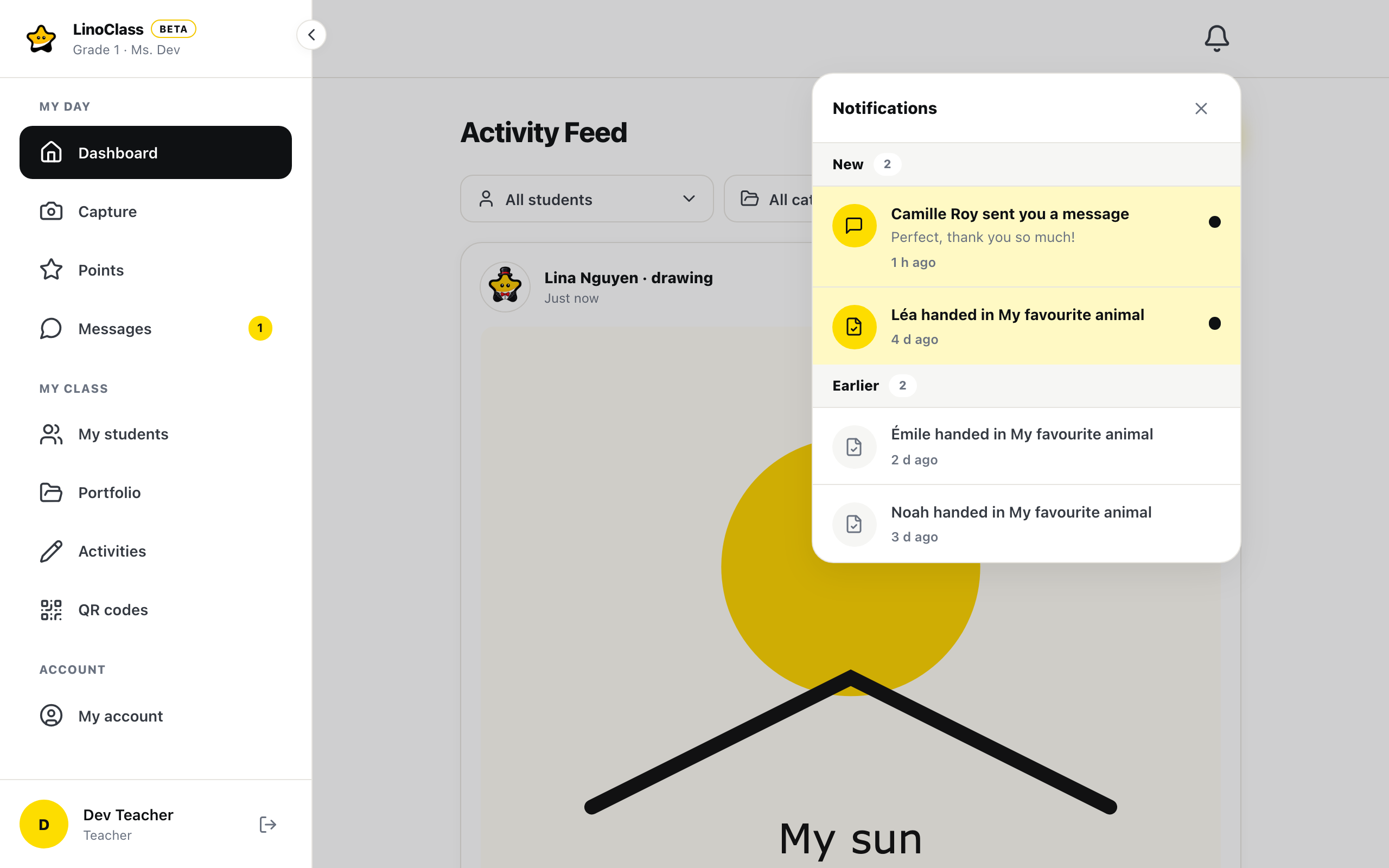
Read and unread
An unread row is bold, on a tinted background, with a dot on the right. The number on the bell counts those rows: unread parent messages, comments left on your students' work, comments awaiting your approval and work handed in. Reactions, hearts and thumbs, do not count. Past nine, the bell shows "9+".
Opening the panel marks the rows it shows as read. They stay under "New" while the panel is open, then move under "Earlier" the next time you open it. A row you read stays in the panel, under "Earlier".
A comment awaiting approval is the exception. It stays under "New", and in the number on the bell, until you approve or reject it. Opening the panel is not enough.
When there is no row at all, the panel says "Nothing new."
The bell refreshes on its own. A comment or a post in the feed reaches it right away. Messages and work handed in reach it when you come back to the tab, and at most two minutes after they are sent.
When the notification does not lead to the right place
If the feed opens at the top, with no ringed card, the card is not in the first block of the feed. Scroll down: the comment awaiting approval shows a small clock in the corner of the comment, with "Approve" and "Reject". The "All students" filter helps you find one child's card.
If a row says "Someone" instead of a name, or "some work" instead of an activity name, that person or that activity no longer exists in LinoClass. The row still opens.
If you are waiting for a notification on the device, outside LinoClass, that setting lives in "My account"; the page Choose how you are notified describes it.
Frequently asked questions
The number on the bell does not go down.
A comment awaiting approval stays counted as long as it waits. Open the row, then tap "Approve" or "Reject". The number goes down at that moment.
All the rows vanished at once.
They are under "Earlier", in the same panel. Opening the panel marked them as read, without erasing them.
The bell does not show a message that just came in.
Messages and work handed in reach the bell at most two minutes after they are sent, or as soon as you come back to the tab. The unread message count also sits on the "Messages" entry of the menu.