Choose how you are notified
LinoClass tells you through the bell in the app, through a notification on your device, and by email. The bell is always there. The other two are set in "My account", section "Preferences", card "Notifications".
Read the bell
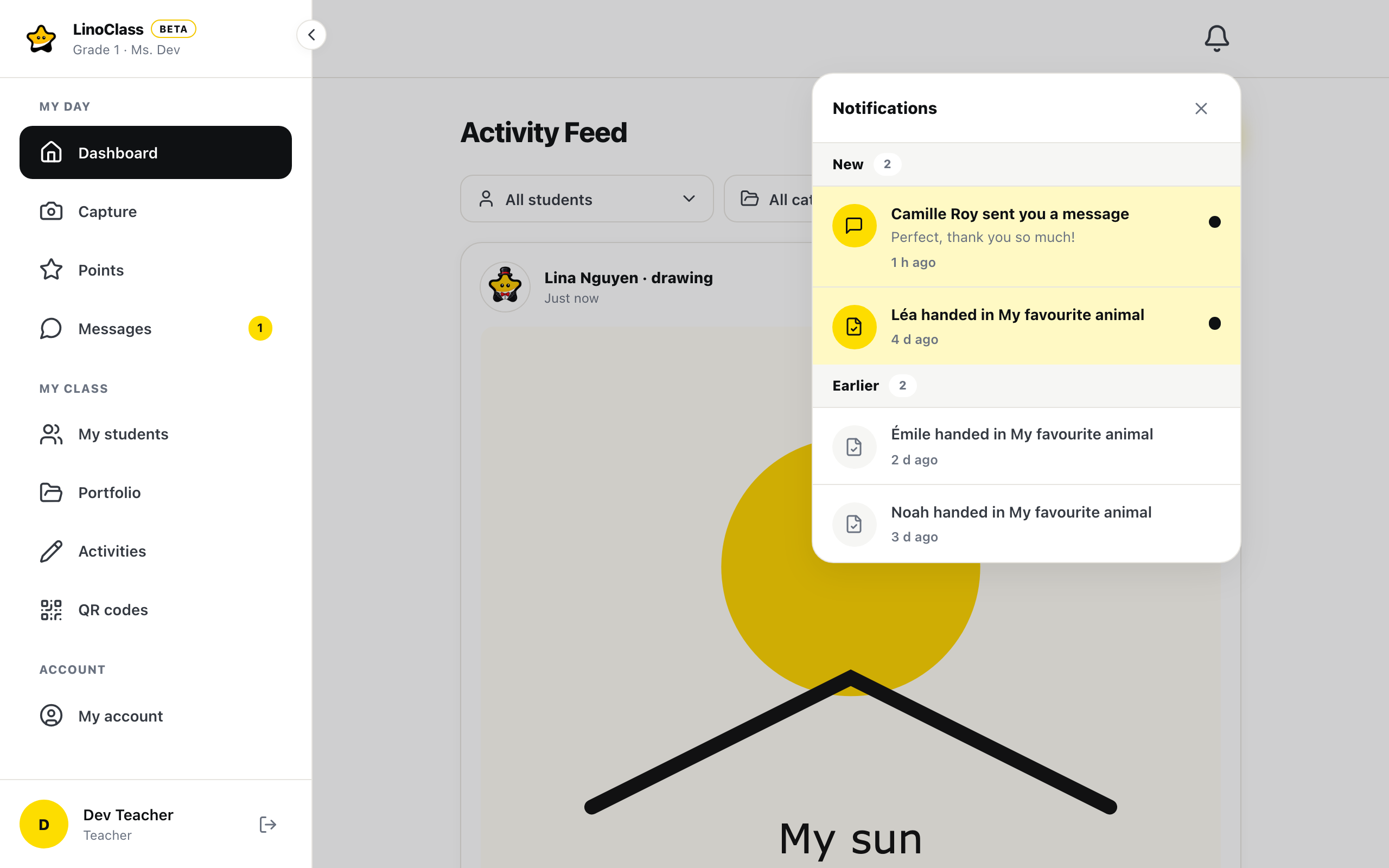
The bell sits at the top of the screen, on every page of the class. Its number counts what needs something from you: unread parent messages, comments left on your students' work, and work handed in. Reactions, hearts and thumbs, do not count.
Tap the bell. The "Notifications" panel lists each event with the person's name: a parent who wrote to you, a parent who commented on a child's work, a comment awaiting your approval, or a student who handed in an activity. Tap a row to open the conversation, the piece of work or the feed card concerned.
Opening the panel marks the rows as read. They do not disappear: they move from "New" to "Earlier", and you can find them again later. A comment awaiting approval stays under "New" until you approve or reject it. When the list is empty, the panel says "Nothing new."
Get a notification on your device
A device notification arrives even when LinoClass is closed. It only says a new message or a new comment came in, without naming the person or the child. Tapping the notification opens LinoClass at the right place.
- Open "My account", then "Preferences".
- In the "Notifications" card, under "Push notifications", tick "Get notifications on this device".
- The browser asks for permission. Accept.
The line under the box says it: "New comments and messages, even when LinoClass is closed. This setting applies to this device only." The choice holds for this device and this browser only. On your tablet, your phone and your computer, the box is ticked separately. An unticked box on one device does not mean notifications are off elsewhere.
When the box will not tick
- "Notifications are blocked in this browser's settings.": you refused the permission once. The browser does not ask again. Open the site settings in the browser, allow notifications, then come back and tick the box.
- "Push notifications are not available in this browser.": this browser cannot show them. Try an up-to-date Chrome, Firefox, Safari or Edge. On an iPhone or iPad, notifications only work from the LinoClass icon added to the home screen, not from a Safari tab.
- A red message under the box: turning it on failed. Try again. If the message comes back, check that the browser has the permission.
Get or stop the emails
In the same "Notifications" card, under "Email notifications", the box "Email me about new comments and messages" decides whether LinoClass writes to you. It is ticked to begin with.
The line under the box explains the rhythm: "One email per class, at most every 5 minutes. The in-app bell stays on. This setting follows your account, on every device." When no notification reached you, a parent's message waits five minutes before it goes out by email. If you open the conversation in that time, no email is sent. Several messages in the same conversation give one email; several comments in the same class too.
Untick the box to stop these emails. The choice holds for all your classes and all your devices. The bell and the device notifications carry on.
The notification comes before the email
For a parent's message or a comment, LinoClass first sends a notification to your devices. The email goes out only if no notification could reach you.
A notification counts as received in two cases.
- On a device where "Get notifications on this device" is ticked, the notification was accepted for delivery to that device, even if it is off.
- On a phone with the LinoClass app, the notification went out and the app was opened in the last 30 days. If the app's notifications are turned off in the phone's settings, that phone stops counting as soon as you open the app again.
If the notification does not go out, for example when no device has notifications allowed, the email follows the rhythm described above. An unticked "Email me about new comments and messages" box stops the email in every case.
If saving fails, a red message appears under the box and LinoClass puts the box back the way it was. Emails keep coming until the box stays unticked. Try again in a moment.
The "Newsletter" card, further down, is a different setting. "Receive news from LinoClass" is about product news, a few emails a year, and changes nothing about your class emails.
What a parent sets on their side
The settings above are yours. A parent chooses their own notifications in their "Notifications" tab, and they do it child by child: their choices for one child do not apply to their other child. That is where they set device notifications, the "Weekly summary" and "Instant emails".
For a parent too, the notification comes before the email. A regular announcement does not reach them by email when a notification reached them and "Announcements" is on in their "Push notifications". An important announcement goes by email even when a notification reached them. The email always follows their "Instant emails".
If a parent sees neither the notification nor the email for an announcement, the announcement stays in the class feed. To get announcements by email instead of as a notification, they turn off "Announcements" under "Push notifications", in their "Notifications" tab.
Frequently asked questions
I unticked notifications and I still get emails.
Look at which box you unticked. "Get notifications on this device" only affects this device's notifications. Emails stop with the box "Email me about new comments and messages", in the same card. That box covers comments and parent messages.
I get no notification on my phone.
Open "My account", "Preferences", and check the box "Get notifications on this device" from that phone. Each device is set separately. On an iPhone, open LinoClass from the icon on the home screen.
A message arrived with no email, and no notification showed.
One of your devices has notifications allowed, and the notification was accepted for delivery to that device. So LinoClass sent no email. On a device where "Get notifications on this device" is ticked, a notification waits one day for the device to be on and online, then it is lost. If notifications are muted there, it does not show. On a device you no longer use, open "My account", "Preferences", and untick "Get notifications on this device" from that device. On a phone with the LinoClass app, notifications turned off in the phone's settings still count until you open the app again. Open it, and the email comes back. The bell shows the message in every case.
The email arrives several minutes after the message.
That is on purpose. LinoClass waits five minutes, to group several messages into one email and to send nothing if you have already read the conversation. The bell updates right away.
A parent says they stopped the weekly report and still get it.
Their settings are per child. If they have two children in LinoClass, they turned the report off for one only. They need to open "Notifications" from each child's page.
The bell does not show hearts and thumbs.
That is expected. The bell counts what needs an action: messages, comments and work handed in. Reactions show on the card, in the feed, under "Who saw it".