Write to parents
"Messages", in the menu under "My day", holds your conversations with parents. A conversation is about one student and brings together you, the parent, and sometimes the other parent or a colleague. It is part of the free plan. On the Pro plan, a group also brings a few parents of the class together, such as the volunteers for an outing. The parent reads it and replies in their own "Messages" tab.
Open a conversation
- Open "Messages", then tap "New conversation".
- Under "About which student?", tap the child.
- LinoClass shows "Looking up linked parents...". If one parent is linked to the child and you teach alone in the class, the conversation opens right away, with "Opening conversation...".
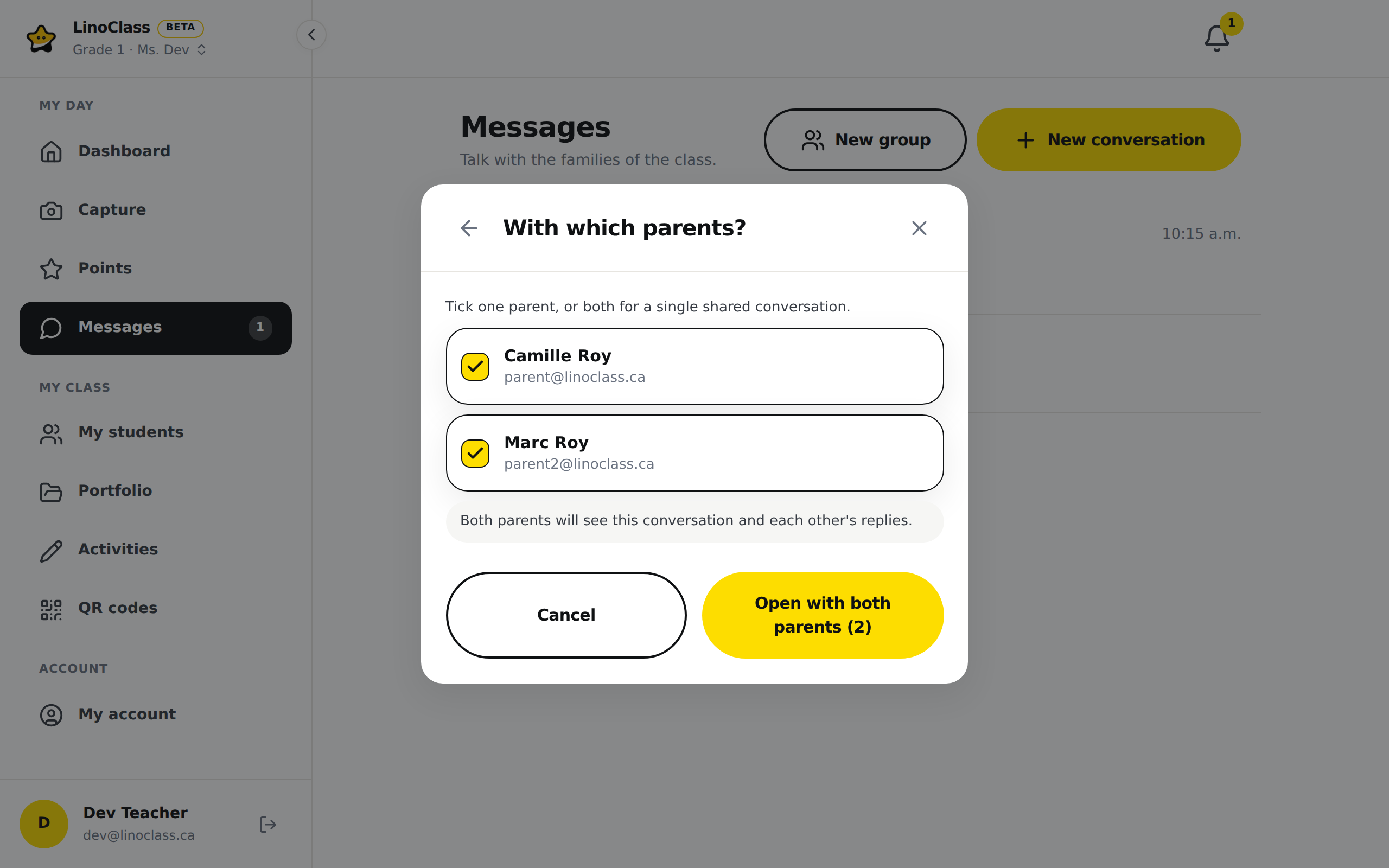
- If the child has two linked parents, the question becomes "With which parents?". Both are already ticked. Untick one to write to a single parent.
- Tap "Open with both parents (2)", or "Open the conversation" if you ticked only one parent.
When both parents are ticked, a line reminds you: "Both parents will see this conversation and each other's replies." You write once, and each reads the other's reply. The parent, on their side, sees the line "In this conversation" under the header. It names the other parent, with "Parent", and themselves with "you" in brackets. So they know, before they type, that the other parent reads the conversation. The section Know who reads the conversation describes that line.
A conversation with one parent and a conversation with both are two different conversations. If you had already written to the mother alone, opening with both parents creates a new conversation; the old one stays in the list. Only a teacher can bring both parents together; a parent cannot do it from their side.
If you share the class with a colleague, the step is called "Who is in the conversation?" and adds the "Colleagues" list under the parents, with "Tick the teachers of this class who will read and write in this conversation." A colleague is never ticked in advance. If you tick her, LinoClass adds "This colleague will see every message in this conversation, including what the parents write." The button at the bottom stays "Open the conversation" or "Open with both parents (2)"; the colleague enters the conversation at the same time as you. Inside it, she appears on the "In this conversation" line, as if you had added her later.
If you already had a conversation with these same parents, LinoClass opens that conversation and brings the ticked colleague into it. If the list of colleagues fails to load, the "Colleagues" section does not appear and the conversation still opens; you can add the colleague from inside the conversation, with "Add a colleague".
When the child has no parent
LinoClass shows "No parent is linked to {name} yet.", with the child's first name, and "Invite a parent from the classroom settings to be able to message them." The "Invite a parent" link opens the "Parent invitations" page. The page Invite parents covers the rest.
If the conversation does not open, LinoClass shows "Couldn't open the conversation. Try again." and goes back to the student list.
Write to your colleagues only
If you share the class with a colleague, a conversation can leave the parents out, to plan an outing or talk about a student between you.
- Open "Messages", then tap "New conversation".
- Under the list of students, tap "Colleagues-only conversation". The window becomes "Conversation with colleagues".
- Tick one or more colleagues. LinoClass reminds you "Pick colleagues from this class. No parent will see this conversation."
- Tap "Start conversation". The conversation opens.
There is no student to pick. No parent has a seat in this conversation: they do not see it in their list and cannot open it. It carries the names of the colleagues you ticked, separated by commas. In the conversation list, that name comes with the word "Group" and the number of members. Each time you tap "Start conversation", LinoClass creates a new conversation, even with the same colleagues. To pick up a conversation you already started, open it from the list.
The "Colleagues-only conversation" button does not appear if you teach alone in the class. The page Share the class with a colleague explains how a colleague joins the class. The button does not appear either if the list of colleagues fails to load; close the window and open it again. While no colleague is ticked, "Start conversation" stays grey. The "Back" arrow, at the top of the window, goes back to the list of students.
If the conversation does not open, LinoClass shows "Couldn't open the conversation. Try again." Your colleagues stay ticked; tap "Start conversation" again. The message keeps coming back while the class has no student: add a student to the class first. A collaborator also gets it when the homeroom teacher's Pro plan has ended.
Write and read
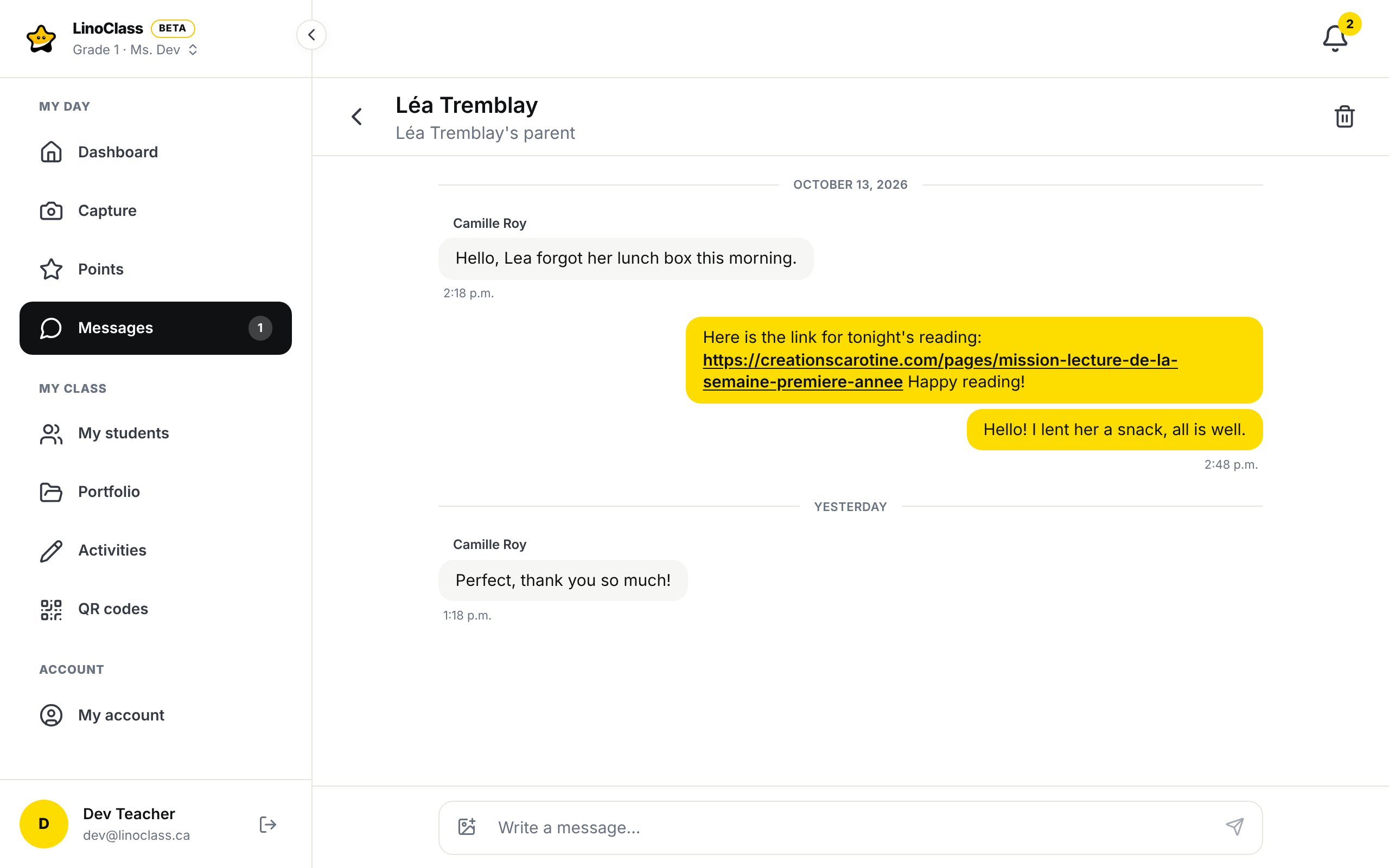
At the top of the conversation, the child's name. Under it, a line says who you are writing to.
- One parent is linked to the child: the line says "{name}'s parent", with the child's name.
- Two parents are linked, and you write to one of them: the line carries that parent's name. Each parent has their own conversation, so the two carry different names. You know which one is answering you. A parent who has not written their name yet appears as their email address.
- Both parents are in the same conversation: the line carries both names, separated by a comma. A parent without a name appears as the start of their email address.
The conversation list shows the parent's name, or the start of their email address if they have not written their name yet, on the "With {names}" line of each card. The parent, on their side, sees your name at the top, then "About" and the child's name. They do not see your email address.
The messages form a column in the centre of the screen. Your messages are on the right, on a yellow background. The parent's are on the left, on a grey background, with their name above their first message. When one person sends several messages in a row, they sit close together under a single name, and the time shows once, under the last one. A thin line separates each day, with "Today", "Yesterday" or the date.
Type in the "Write a message..." box. The "Send" button, the arrow, is in the bottom right corner of the same box. It stays grey while the box is empty and turns yellow from the first letter. The box grows with your text over several lines, and the arrow moves down with it. A message holds up to 2000 characters; a counter appears inside the box from 1800. While the message is going out, the arrow is replaced by a small spinning circle.
The Enter key does not do the same thing everywhere.
- On a computer, Enter sends the message. Shift + Enter starts a new line. Inside the box, under your text, LinoClass reminds you for your first three sends: "Shift + Enter for a new line".
- On a tablet or a phone, the Return key starts a new line. Only the button sends. A keyboard plugged into a tablet can send with Cmd + Enter or Ctrl + Enter.
The same rule applies to comments in the class feed.
While the parent is typing, a line says so, with their name.
Pro plan only On the Pro plan, "Read" appears under the last of your messages the parent has opened, next to the time. In a conversation with both parents, "Read" means both have opened it. The free plan does not show it.
When a parent writes to you, the LinoClass bell tells you, on every screen, and the "Messages" row in the menu carries the number of unread messages. Depending on your settings, your device and your email tell you too. The page Choose how you are notified explains each setting.
Send a photo
The "Attach a photo" button, the picture in the bottom left corner of the "Write a message..." box, attaches a photo to your message. On a tablet or a phone, you can pick a photo you already took or take one on the spot.
- Tap "Attach a photo", then choose the photo.
- After a moment, the photo shows small in the box.
- Write some text if you want. A photo can also go out on its own.
- Tap "Send".
To change the photo before sending, tap the X "Remove the photo" on the thumbnail. If the photo does not show in the box, choose another one.
When you attach a photo, a line shows under the box. It says "This photo will be visible only to the people in this conversation, and kept as long as the conversation exists." It comes back with each photo until you tap "Got it". After that, it does not come back on that device.
The photo shows in the bubble, above the text. Tap it to open it full size. Only the people in the conversation see it. These are the parents in it and the colleagues you brought in. A student never sees it, and neither does a class tablet. LinoClass shrinks the photo before sending and removes the place where it was taken. In the conversation list, a message with only a photo shows a small camera followed by the word Photo.
The parent has the same "Attach a photo" button and sends you photos the same way, with or without text. Their photo arrives in their grey bubble. Tap it to open it full size.
Delete a photo you sent
A photo sent by mistake can be erased. On your own bubble, a small bin "Delete this photo" sits in the top right corner of the photo.
- Tap the bin on the photo.
- LinoClass asks "Delete this photo?".
- Confirm with "Delete". While it erases, the button shows "Deleting...".
The bubble disappears at once, for you and for the other people in the conversation, without them reloading the page. The text sent with the photo disappears with it. This cannot be undone.
Only the person who sent the photo can delete it. The bin does not appear on a photo you received, or on a message without a photo. The parent has the same bin on their own photos. You cannot erase a parent's photo. To erase the whole conversation, see Delete a conversation.
If erasing fails, LinoClass shows "This photo could not be deleted. Please try again." above the writing box. The window stays open and the photo stays in place. Tap "Delete" again, or "Cancel" to keep it.
React to a message
The emoji bar stays hidden until you ask for it.
- On a computer, point at the bubble with the mouse. A bar of six emojis appears beside the bubble.
- On a tablet or a phone, press the bubble and hold your finger for a moment. The bar appears above the bubble. If your finger slides, LinoClass reads it as scrolling, and the bar does not open.
- With the keyboard, the Tab key stops on a "React" button under each bubble. Enter opens the bar, and Escape closes it.
Tap the thumbs up, the heart, the clapping hands, the party popper, the smile or the folded hands. The chosen emoji lands in a small badge hooked to the bottom of the bubble. The badge shows every emoji present on the message and, from two reactions, the total. One person puts one emoji per message: choosing another one replaces the first. To take your reaction back, open the bar again and tap the same emoji. Tapping the badge also opens the bar. The parent reacts to your messages the same way.
Reacting counts as reading. As soon as you react, the unread badge of that conversation drops, and if an email was waiting for that message, it does not go out. When a parent reacts to one of your messages, "Read" updates as if they had just opened the conversation, on the Pro plan.
You get a notification on your device if you ticked "Get notifications on this device" in "Preferences". The parent gets theirs according to their own settings. The notification says who reacted and with which emoji. It names neither the child nor the message. It only goes to the person who wrote the message, not to the other people in the conversation. It does not go out when that person has the conversation open, nor when you change emoji on a bubble where you had already reacted. The LinoClass bell does not report reactions, and no email is ever sent for a reaction.
If your emoji appears and then goes away on its own, LinoClass could not save it. No message is shown. This happens when the connection is lost, or when the conversation is paused because the homeroom teacher's Pro plan has ended. When the conversation is paused, you cannot react either. Try again when the connection is back.
On a phone
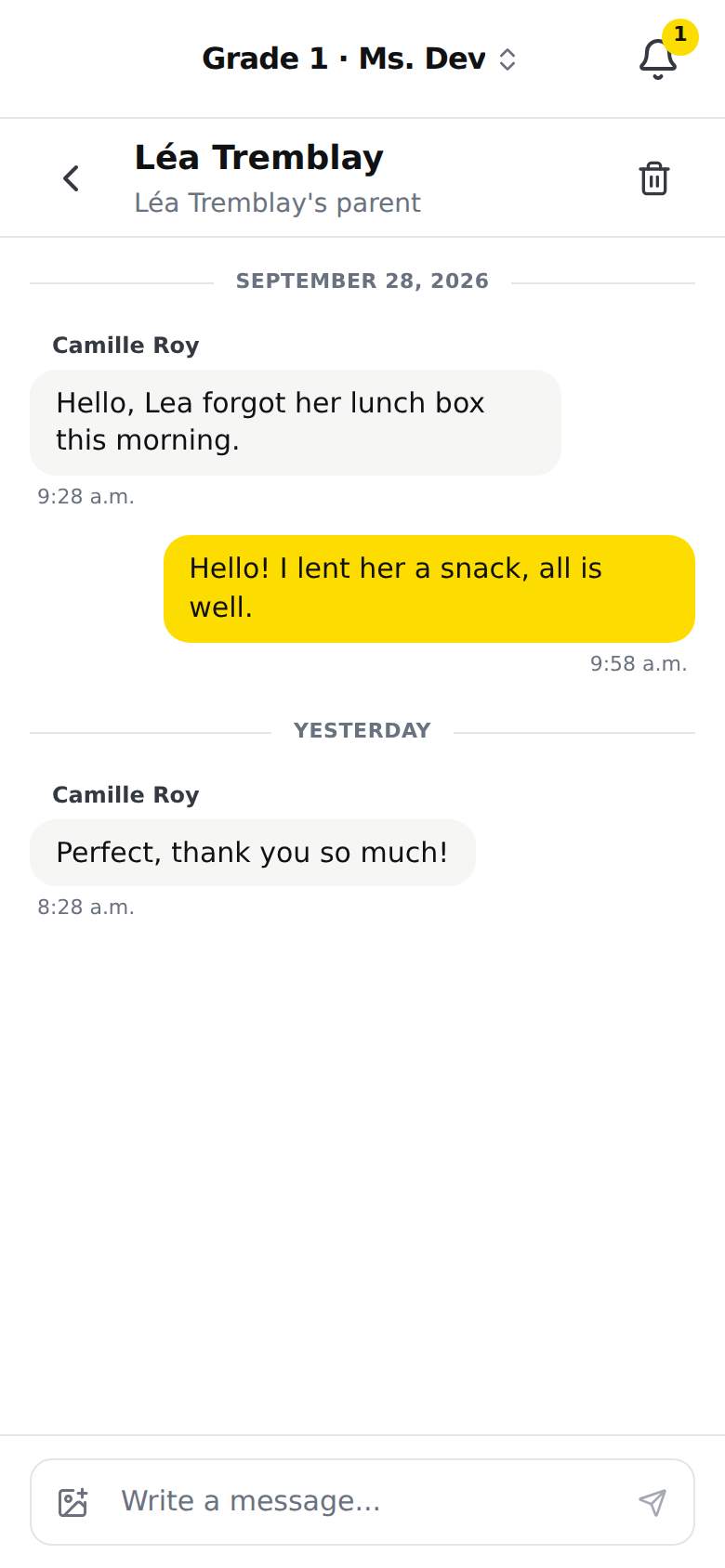
On a phone, the tab bar at the bottom goes away inside a conversation. The rest of the screen stays. It comes back as soon as you leave the conversation; the conversation list keeps it. The "Back" arrow, at the top left of the header, takes you to the conversation list. It takes you there too when you opened the conversation from an email or a notification, without going through the list. On a computer, the menu on the left stays in place inside the conversation.
Find an older conversation
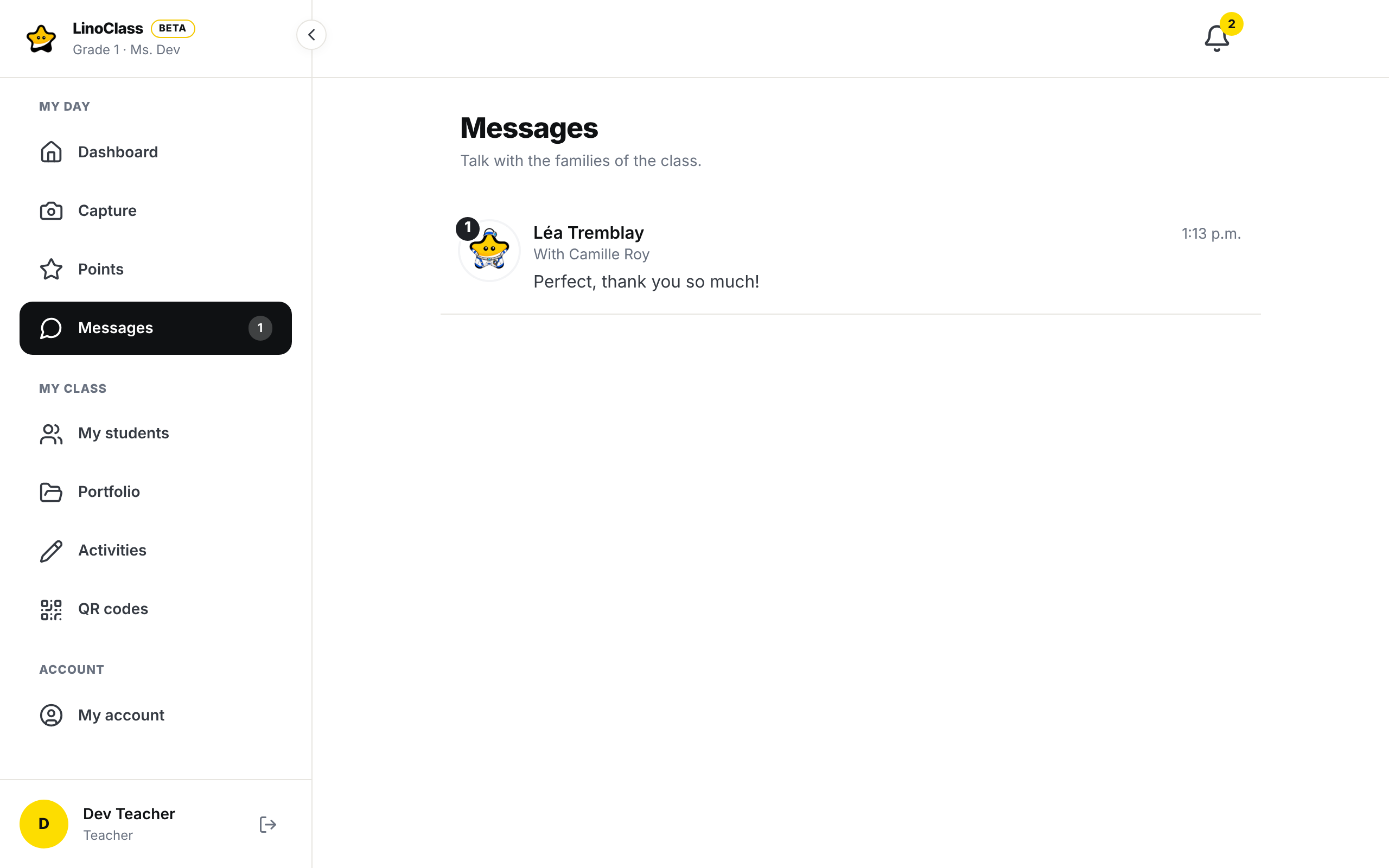
The conversation list shows, for each one, the child's name, the parents' names on the "With {names}" line, the start of the last message and its time. A badge on the picture counts unread messages. The list scrolls; under the first twenty conversations, "Show more conversations" loads the rest.
Inside a conversation, older messages load as you scroll up.
Know who reads the conversation
The line "In this conversation", under the header, names the people the header does not already name. If you teach alone, it does not appear: the header already says which parent you are writing to. It appears as soon as a colleague is in the conversation. It then names the teachers, each with their role, "Homeroom teacher" or "Collaborator", and you with "you" in brackets. On your side, the header names the parents. It also appears, with your name alone, when a colleague of the class can still be added: the "Add a colleague" link is there.
The parent has the same line, but it is written for them. Their header carries your name, then "About" and the child's name. The line appears when a second teacher is in the conversation, or when the other parent is. It then names each teacher with their role, the other parent with "Parent", and the parent who is reading with "you". A mother who opens a shared conversation sees, before she types, that the father reads what she writes. The parent cannot remove anyone, and nobody can remove them.
Add a colleague or leave the conversation
- "Add a colleague" opens "Add a colleague to the conversation" with the teachers of the class who are not in it yet. Tap a name. The button only appears when there is still a colleague to add.
- "Remove", the small X next to a name, is reserved to the homeroom teacher. LinoClass first asks "Remove {name} from this conversation? Their messages stay in it." The X only exists on a teacher. A parent is never removed from a conversation about their own child.
- "Leave the conversation" removes you. LinoClass asks "Leave this conversation? You will no longer see it, and your messages stay in it." The button only appears when another teacher stays in the conversation.
If adding fails, LinoClass shows "Could not add this person. Try again." If you are the last teacher, leaving gives "You are the only teacher in this conversation. Add a colleague before leaving."
Your colleague's conversations with parents are hers: you do not see them until she adds you. The page Share the class with a colleague details that sharing.
Write to a group of parentsPro plan only
On the Pro plan, a group brings a few parents of the class together in one conversation, such as the volunteers for an outing. You write once, and every parent in the group reads your message and the others' replies. A group is not about one student. It carries the name you give it.
Create a group
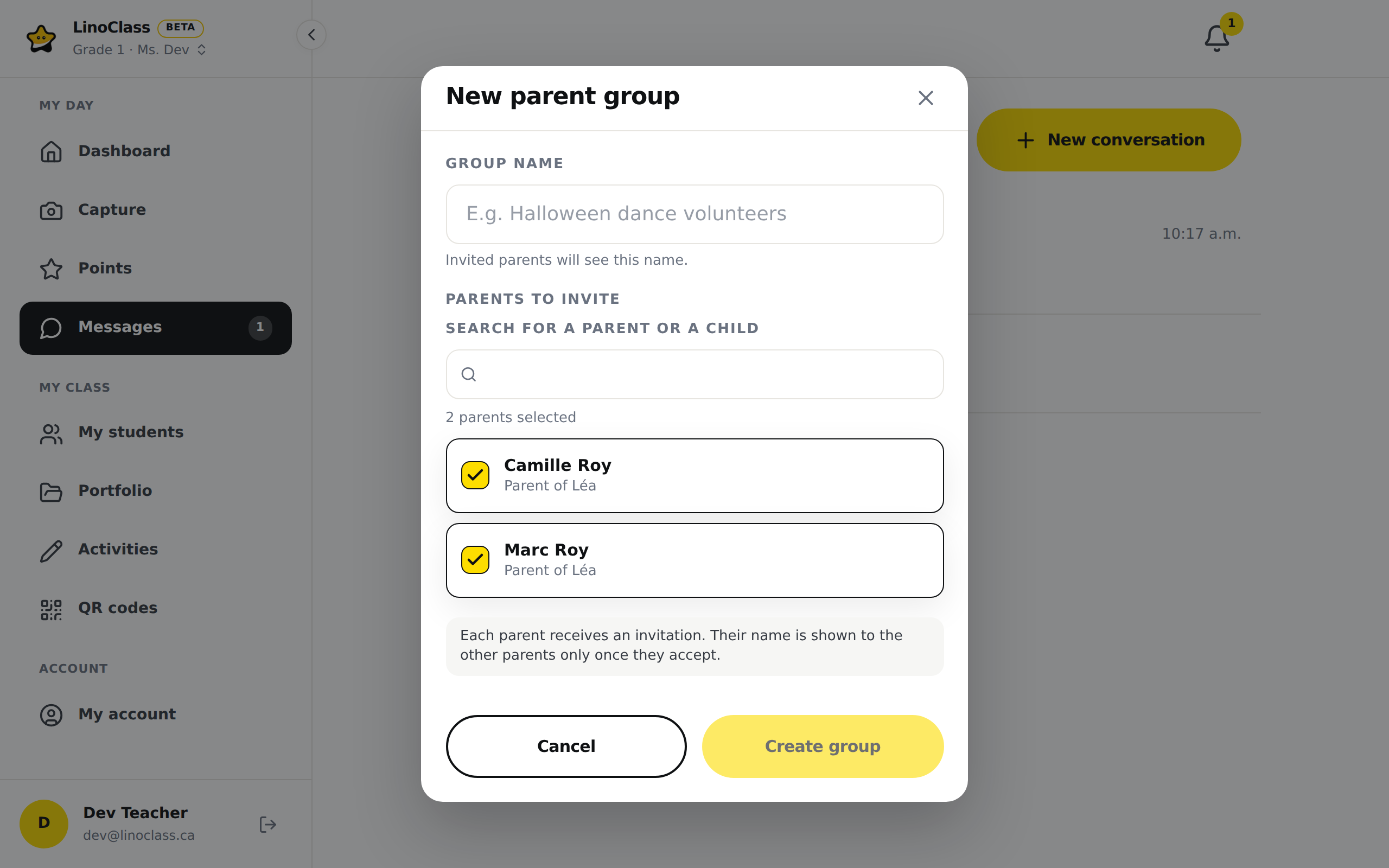
- Open "Messages", then tap "New group", next to "New conversation".
- Under "Group name", write the group's name. LinoClass reminds you under the box: "Invited parents will see this name."
- Under "Parents to invite", tick the parents. Each row gives the parent's name, then "Parent of {names}" with their children's first names. The "Search for a parent or a child" box finds a parent by name or by their child's first name.
- Tap "Create group". The group opens.
Above the buttons, a sentence says what happens next. "Each parent receives an invitation. Their name is shown to the other parents only once they accept." So nobody joins the group without choosing to. A group holds at most 30 parents.
In the conversation list, the group carries its name and the word "Group". Under it, the list gives the number of members. At the top of the group, the header also gives the number of members and, when there are any, the number of pending invitations. In the group, you write, send a photo and react as in any other conversation.
Manage the members
The "Members" icon, at the top right of the group, opens "Group members". The window sorts people under "Teachers" and "Parents". A parent who has not answered yet carries the word "Invited".
- To rename the group, change the name under "Group name", then tap "Save".
- "Invite parents" opens the same list of parents, without those already in the group. Tick the parents, then tap "Invite". If every parent is already there, LinoClass shows "Every parent in the class is already in this group."
- The X beside a parent, "Remove {name} from the group", removes them. LinoClass first asks "Remove this parent?" and adds "{name} will no longer see this group or its new messages. Messages already sent stay visible." Confirm with "Remove". The parent leaves the group at once, even if they had it open.
On the parent's side
The parent finds the invitation in their conversation list, with the word "Invitation" and the line "You are invited to join this group". Depending on their settings, their device alerts them too. When they open the invitation, they read the group's name and "{name} invites you to join this message group.", with your name. Two sentences warn them before they answer.
- "If you accept, the other parents in the group will see your name and your messages."
- "Until you answer, you cannot see the messages or the other parents, and they cannot see you."
"Accept" opens the group. "Decline" asks "Decline the invitation?" and adds "You will not be part of this group. {name} can invite you again.", with your name. The parent then goes back to their list.
In the group, the parent sees the group's name, then "With {name}" and your name. They see only the parents who accepted. To leave the group, they tap the three dots "More options", at the top right, then "Leave the group". LinoClass asks "Leave the group?" and adds "You will no longer see this group or its new messages. Messages you already sent stay visible."
When the Pro plan is missing or ends
The plan that counts is the homeroom teacher's plan for the class. On the free plan, the "New group" button does not appear. If the Pro plan ends while the page is open, the window gives way to "Parent groups are part of Pro", with the "Upgrade to Pro" button. A collaborator reads instead that the class follows the homeroom teacher's plan.
When the class's Pro plan ends, nothing is deleted and the groups carry on. You can no longer create a group, invite parents or rename a group. "Group members" says so, with the "Upgrade to Pro" button. You can still remove a parent. A parent can still accept, decline or leave the group.
When an action fails
The error message appears at the top of the window. Nothing changed, so tap the button again.
- "Could not create the group. Please try again."
- "Could not load the class's parents. Please try again." The list of parents stays empty. Close the window and open it again.
- "Could not invite these parents. Please try again."
- "Could not remove this parent. Please try again."
- "Could not rename the group. Please try again."
- "Could not answer the invitation. Please try again." The parent sees this message in the invitation, above the buttons.
- "Could not leave the group. Please try again." The parent sees this message under the group's header.
Let parents write first
By default, a parent can open a conversation with you. To change that, open "My account", section "Class", card "Messages from parents". The card is only shown to the homeroom teacher; a collaborator asks the homeroom teacher. Untick "Let parents start a conversation", then tap "Save" in the bar that appears at the bottom. The card says it: "You can always write to a parent. This setting decides whether a parent can write to you first." A parent can always reply in a conversation you opened.
Delete a conversation
At the top of the conversation, on the right, the trash icon "Delete conversation" asks "Delete this conversation?" and adds: "The messages will be erased for you and for the parents, permanently. This cannot be undone." Confirm with "Delete". A parent does not have this button.
If deleting fails, LinoClass shows "The conversation could not be deleted. Please try again." and the conversation stays.
When a message does not go out
The error shows right above the writing box. Your text stays in the box, and so does the attached photo. If a photo was attached, it shows in the conversation for a moment, then goes away when the send fails.
- "Connection error. Check your internet connection.": the message did not go out. Tap "Send" again when the connection is back. If the error comes back every time with a photo attached, tap "Remove the photo" and choose another photo.
- "This conversation is paused because the class owner's Pro plan has ended. You can still read it; sending resumes as soon as the plan is renewed.": you are a collaborator in this class, and the homeroom teacher's Pro plan ended. Nothing is lost.
- The writing box is greyed out: LinoClass is not connected to the conversation. Wait a few seconds, or reload the page.
If "Messages" is missing from the menu, your school turned messaging off. "My account" shows it under "Set by your school": "Messaging with parents is turned off for your school." That setting belongs to the school, not the class.
Frequently asked questions
I only see my last four conversations.
The list scrolls, and "Show more conversations" loads the rest under the first twenty. If the list stays stuck on a phone, reload the page: an older version of LinoClass cut the list at the height of the screen. No conversation was lost.
I have to write twice, to the mother and to the father.
Not any more. In "New conversation", tap the child, leave both parents ticked, then tap "Open with both parents (2)". Both read and reply in the same conversation.
How do I write to a colleague without a parent seeing it?
In "New conversation", tap "Colleagues-only conversation", under the list of students. Tick your colleagues, then tap "Start conversation". No parent sees this conversation. The section Write to your colleagues only has the details.
On the tablet, Enter sent my message before I was done.
On a tablet or a phone, the Return key now starts a new line. Only the "Send" button sends. On a computer, Enter sends and Shift + Enter starts a new line.
The parent shows up by their email address, not their name.
They have not written their name yet. In their "Settings", the "Your name" card lets them enter their "First name" and "Last name". LinoClass reminds them on their next visit, with the "Add my name" button.
A parent says they cannot write to me.
Open "My account", section "Class", card "Messages from parents", and check that "Let parents start a conversation" is ticked. If you tick the box, tap "Save" in the bar that appears at the bottom. The card is only shown to the homeroom teacher; a collaborator asks the homeroom teacher. Otherwise, open the conversation yourself: the parent can reply in it.
"Read" never appears.
It is part of the Pro plan. On the free plan, the conversation works without it.
On my phone, the tabs at the bottom disappear inside a conversation.
That is expected. Inside a conversation, the tab bar at the bottom goes away. Tap the "Back" arrow, at the top left, to return to the conversation list; the tabs are there again.
How do I react to a message?
The emoji bar stays hidden until you ask for it. On a computer, point at the bubble with the mouse. On a tablet or a phone, press the bubble and hold your finger for a moment. If an emoji is already on the bubble, tap its badge.
A parent reacted to my message, and no email came.
That is expected. A reaction never sends an email, and the LinoClass bell does not report it. Only a notification on the device tells you, if "Get notifications on this device" is ticked in "Preferences". If you had the conversation open, no notification goes out: the badge appears under the bubble.
Two conversations for the same child carried the same name.
An older version of LinoClass wrote "{name}'s parent" under the child's name in both conversations. When two parents are linked to a child, the line now carries each parent's name, or their email address if they have not written their name yet.
A parent did not know the other parent was reading the conversation.
In a shared conversation, the parent sees the line "In this conversation" under the header, with the other parent and the word "Parent". An older version of LinoClass only showed the teachers on that line. Ask the parent to reload the page if they do not see it.
The "Send" button is grey.
The box is empty, or it only holds spaces. The arrow turns yellow from the first letter, or as soon as a photo is attached. If it stays grey with text in the box, the box is greyed out too: LinoClass is not connected to the conversation. Wait a few seconds, or reload the page.
The "New group" button does not appear.
Parent groups are part of the class's Pro plan, the homeroom teacher's plan. On the free plan, the button does not appear. A collaborator asks the homeroom teacher. The section Write to a group of parents describes groups.
An invited parent cannot see the group's messages.
That is on purpose. Until they tap "Accept", they see only the group's name and your name, and the other parents cannot see them. In "Group members", they carry the word "Invited".
The wrong photo went out.
Tap the small bin "Delete this photo", in the corner of the photo, then confirm with "Delete". The bubble disappears for everyone in the conversation, with the text sent with the photo. A parent does the same on their own photos.