Send an announcement to parents
An announcement is a written message to every family in the class, or to some of them. It starts from the "Dashboard" and lands in the parents' feed. It does not open a conversation: to write to one parent and read their reply, see Write to parents.
Write and publish an announcementFree plan: 1 attachment. Pro plan beyond that.
- Open the class "Dashboard", then tap "New announcement". On a phone the window fills the screen. On a computer it opens over the feed.
- Fill in "Announcement title", up to 200 characters, then "Body", up to 5000 characters. The counter under each field follows you.
- Under "Attachments", tap "Add a file" if you want to attach something: "Image, video, PDF or document (max 20 MB)". On the free plan the line says "1 file max". The Pro plan takes up to 20 files per announcement.
- Under "Recipients", leave "Whole class", or choose "By group" or "By student". The next section explains those two choices.
- Under "Importance level", leave "Normal" or tap "Important". An important announcement carries the "Important" badge in the feed and sends parents an email and a notification right away.
- Under "Publishing", leave "Now", or tap "Scheduled" and fill in "Publish date and time".
- Tap "Publish". For a scheduled announcement the button reads "Schedule". While it sends, it reads "Sending...".
Under the fields, "Preview" shows the card the way parents will see it, as soon as you have typed a title or a body.
The window closes, and the feed shows "Announcement published! Parents will receive a notification." The card appears at the top of the feed, with your name and your avatar.
What parents receive
An important announcement sends an email and a phone notification to every parent, right away. The notification carries neither the title nor the text; it only says an important announcement is waiting, and opens the feed.
For a normal announcement, the first one of the day also sends an email and a notification. Later normal announcements on the same day arrive in the feed and in the weekly report, with no email and no notification. A parent may have turned emails or notifications off in their own settings.
A scheduled announcement appears in the parents' feed on the chosen date. It sends no email and no notification at that moment. If the message has to alert families, publish it yourself at the time you want.
Choose the recipients
By default, "Whole class" gets the announcement. The other two choices are part of the Pro plan. On the free plan, tapping "By group" shows "Sending an announcement to a group is part of the Pro plan." and "By student" shows "Sending an announcement to chosen students is part of the Pro plan.", with the "Upgrade to Pro" link.
To one groupPro plan only
Tap "By group". The class groups appear as cards. Tap one: the card turns yellow. One group per announcement.
If you have no group yet, the screen says "No groups yet" and "Create a first group when assigning an activity or in the class settings." The page Assign an activity explains how to create a group.
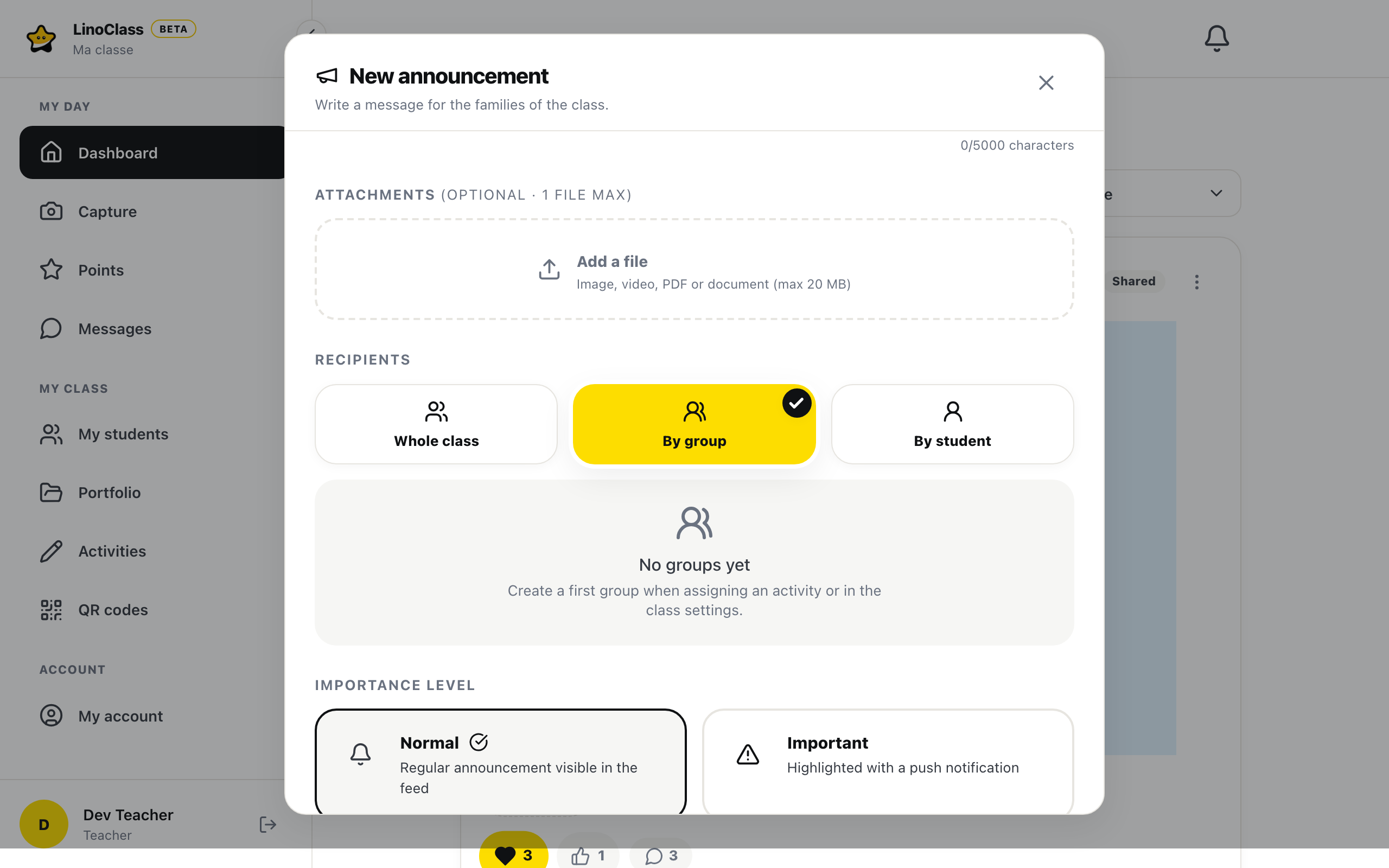
In the feed, the card carries a pill with the group name, for example "Group: The foxes". The families of the other students do not see the card.
To a few studentsPro plan only
Tap "By student". The class list appears, with a box per child. Tick the students concerned. The line above counts your choices, and "Select all" ticks the whole list. Once the whole list is ticked, the link becomes "Clear selection".
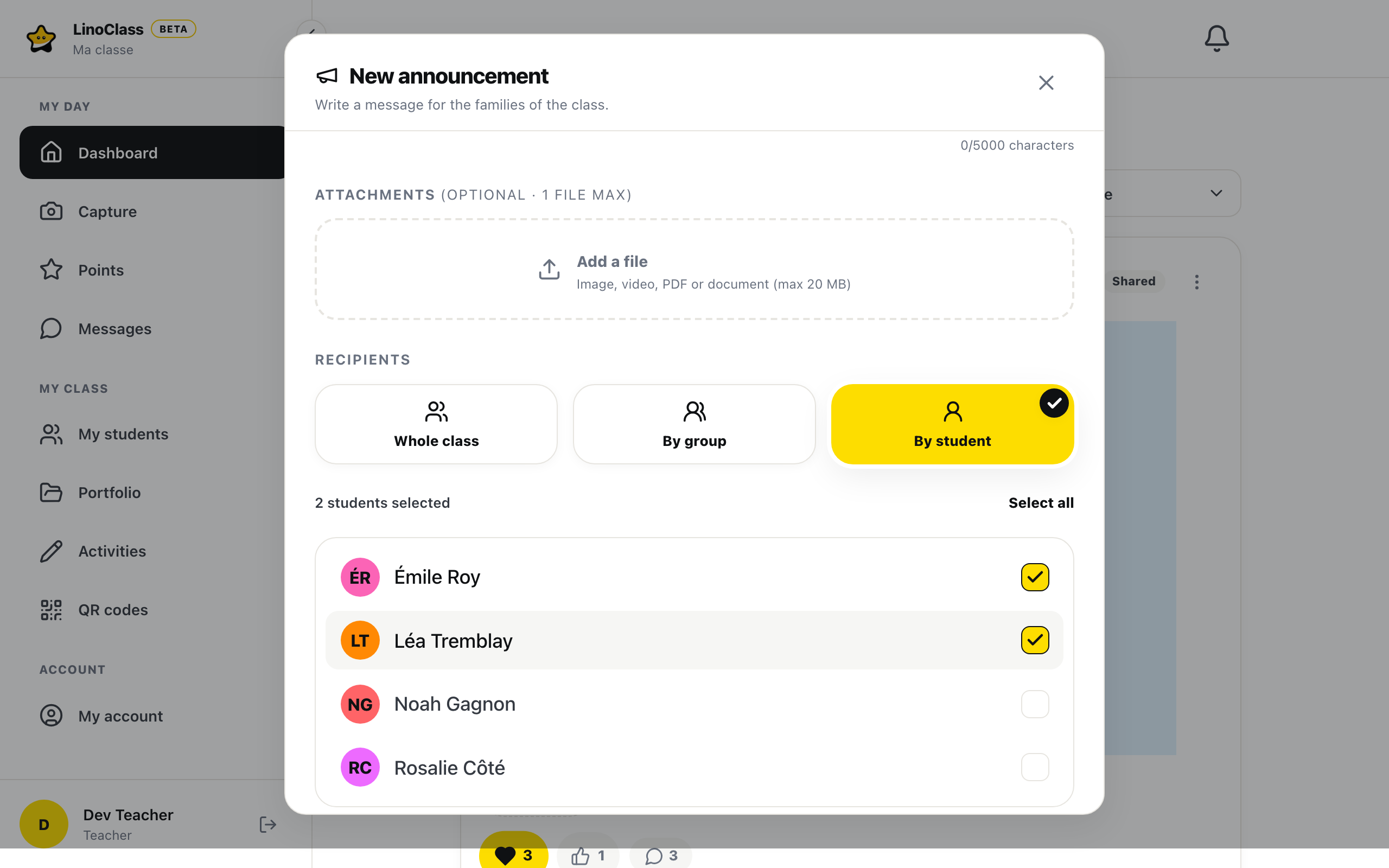
In the feed, you see the chosen first names, for example "Students: Léa, Sam". Beyond three names, the pill shows three and counts the others. A parent only sees "For your child": the other children named are not theirs to know about.
What happens to the recipients after sending
The list of families is fixed the moment you publish. If you change the group afterwards, or delete it, the announcement already sent keeps its recipients and its pill. A parent with one child in the group and another outside it gets the announcement once, in the feed of the child concerned.
Recipients cannot be changed after publishing. When you edit the announcement, the window reminds you who it went to, with no way to change it. To reach other families, write a new announcement.
Edit or delete an announcement
On the card, in the feed, tap "More options", the three dots at the top right.
- "Edit announcement" opens the same window as a new announcement, titled "Edit announcement" with the line "Update the title, body, attachments and schedule." Tap "Publish" to save. An edit does not send parents a new email.
- "Delete" first asks "Delete this post?", quoting the first words of the announcement. Confirm with "Delete permanently". There is no trash.
A scheduled announcement stays visible to you in the feed, with a band that gives the date and says parents cannot see it yet. You can edit or delete it until that date.
A colleague who shares the class can write announcements. She edits and deletes only her own; the homeroom teacher can edit and delete every announcement in the class.
See which parents saw the announcementPro plan only
Under each card you published, on the right, a button opens "Who saw this post".
On the Pro plan, the button shows the count, for example 3/12. The window lists parents under "Saw it" and under "Has not seen it yet". When everyone has, the second list says "Every parent has opened the feed." For an announcement sent to a group or to a few students, only their parents are counted.
On the free plan, the button reads "Who saw it". The "Saw it" section carries a lock and the line "The list of parents who saw a post is part of the Pro plan." The "Hearts" and "Thumbs up" sections, which list reactions, are there on every plan.
"Saw it" means the parent opened the class feed after your post. It does not say they read this card in particular. The window says so at the bottom.
When publishing fails
The message shows in the window, under the preview. Your text stays in place.
- The "Publish" button stays grey while the title is empty, the body is over 5000 characters, or a file is still uploading.
- The counter under "Body" turns bold: the text is over 5000 characters, and LinoClass refuses to publish until it is shorter.
- "A file was not uploaded correctly.": remove the file, then add it again.
- "File exceeds 20 MB.": the file is too large. For a video, send a shorter clip.
- "Upload failed" on a file's line: LinoClass did not accept the file. Remove it and add it again.
- "The publish date must be in the future.": the chosen time has already passed.
- "Please select a group." or "Please select at least one student.": you chose "By group" or "By student" without ticking anything.
- "Free plan limit": a card explains the limit you hit, most often a second attachment on the free plan. The link "View the Pro plan" follows. Trying again changes nothing; remove the extra attachment.
- "Something went wrong. Please try again.": publishing failed. Check the connection and tap "Publish" again.
When announcements are turned off for your school
The school board can turn announcements off for all its schools. Teachers do not make this choice in LinoClass, and there is no switch for one school or one class. When announcements are off:
- "New announcement" is no longer on the "Dashboard", and the empty feed no longer offers to write one.
- Announcements already published disappear from the feed, for you and for parents. They no longer count as unread, and they are left out of the weekly report.
- Parents get no email and no notification for an announcement.
- A saved link to the read receipts page of an announcement takes you back to the feed.
- In the class settings, "Class" section, the "Set by your school" card shows "Announcements are turned off for your school."
The iPhone and iPad app follows the same choice: no "New announcement", no "Announcements" filter, no announcements entry in the menu, and the card shows the same sentence.
Nothing is deleted. If the school board turns announcements back on, the announcements already published come back to the feed. To reach every family in the meantime, Write to parents describes messaging, if your school has kept it on.
Frequently asked questions
A parent says they got no email.
First look in "Who saw this post" to see whether they opened the feed. Then three causes are possible. The announcement was normal and another normal one had already gone out that day: only the first of the day sends an email. The announcement was scheduled: it sends no email on its publish date. The parent turned emails off in their own settings.
The "New announcement" button is gone.
Open the class settings. If the "Set by your school" card shows "Announcements are turned off for your school.", the school board has turned announcements off. There is nothing for you to do; talk to the person who manages LinoClass at your school. Without that sentence, check that you are in the right class.
The "By group" button does nothing.
On the free plan it shows "Sending an announcement to a group is part of the Pro plan." On the Pro plan, if no group exists, it shows "No groups yet". Create a group from an activity or from the class settings, then come back.
Can I add a family to an announcement already sent?
No. Recipients are fixed at publishing. Write a new announcement for that family, with "By student".
Where are my old announcements?
In the "Dashboard" feed. The "Announcements" filter keeps only those. If your school has turned announcements off, they are hidden and come back when announcements are turned back on.
A parent shows up as the start of their email address.
They have not written their name yet. In their "Settings", the "Your name" card lets them enter their "First name" and "Last name". Until they do, LinoClass shows you their address.