Find your way at the top of a page, from the title to the bell
Every page of the class has the same top. On a computer, a bar runs across the top of the page, with the bell on the right. Under the bar, the page starts with its title and its buttons to the right of the title. Most pages also have a grey line under the title that says what the page is for; the activity feed and "Points" have none. On a phone, the same bar carries the class name in the centre and the bell on the right. The title takes the full width, and the buttons come under it.
Read the title and its grey line
The title says which page you are on: "Activity Feed", "Portfolios", "Activities", "Messages" or "My account". The grey line under the title says what the page is for. Under "Activities", it says "Create and assign activities to your students". Under "Portfolios", "Browse what your students have made". Under "Messages", "Talk with the families of the class."
On an activity's page, the title is the activity's name, and the grey line is its description. An activity with no description shows "Submitted work". The name is never cut short to make room for the buttons: a long name runs over several lines.
On a student's page, the child's picture and name stand in for the title. When the class is yours, the name carries a small pencil; tap the name to change it. Under the name, the class name and the date the child joined.
Find a page's main button
A page's main button is to the right of its title, on the same line. "New announcement", "New activity", "New conversation", "Assign", "Capture" and "Done" are yellow; "Select", "Edit canvas" and "Add an observation" are white with a dark border.
- "Activity Feed": "New announcement".
- "Activities": "New activity".
- "Messages": "New conversation". The conversation list below it has no button of its own.
- "Portfolios": "Select". The button becomes "Done" while you pick work.
- An activity's page: "Edit canvas" and "Assign".
- A student's page: "Capture" and "Add an observation". On a computer, these two buttons sit under the student's name, one above the other, at the full width of the identity card.
"My account", "Billing" and "Class QR code" have no button to the right of the title. Everything you can do on those pages is further down.
On a phone, the button is under the title, at full width. When a page has two buttons, they sit one under the other. A narrow window on a computer gives the same layout: widen the window to get the button back to the right of the title.
Open the bell
The bell is on the right of the top bar, on every page of the class, on a computer and on a phone alike.
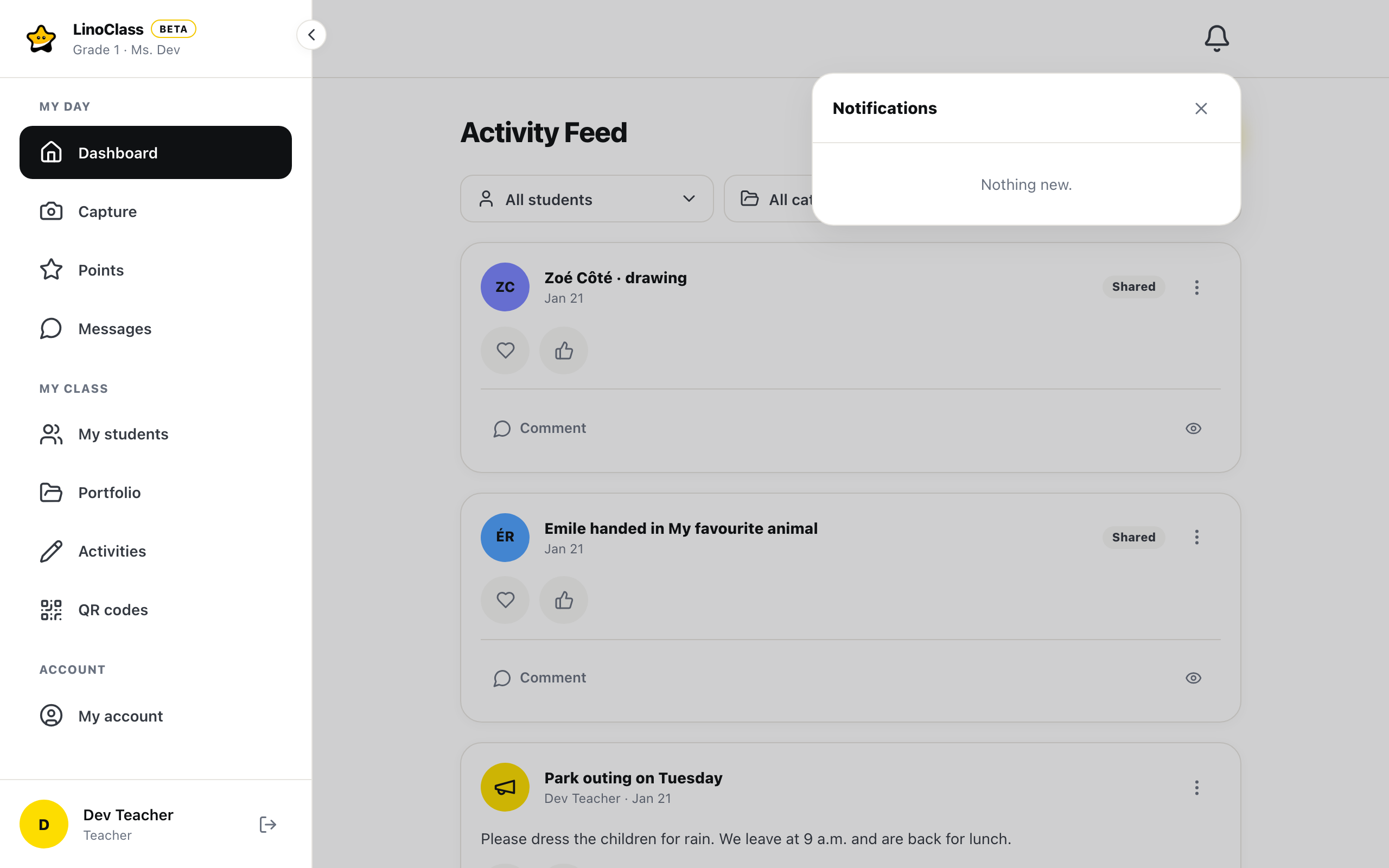
- Tap the bell. The "Notifications" panel opens under it, and the rest of the page dims.
- Tap a row to open the place it points to. To close the panel without opening anything, tap the X or tap the dimmed page.
A yellow number on the bell counts the unread notifications, and shows 9+ past nine. When there is nothing, the panel says "Nothing new." The page Open a notification from the bell describes each kind of row and what counts in the number.
On a computer, the bell lines up with the right edge of the page's content. On the activity feed, on "Messages" and on the list of students, the content is a column in the centre of the screen; the bell then sits on the right edge of that column, not in the corner of the screen.
Only the class pages have a bell. A parent has none in their feed, and the student has none on the tablet.
The top bar on a computer
While the left menu is open, the top bar carries only the bell. The class name is under the logo, in the menu. When you fold the menu with "Collapse menu", the class name moves to the left of the bar, and the bell stays on the right. The page Collapse the menu to project the screen describes the folded menu.
The bar stays in place when you scroll the page. The title and the buttons move up with the page.
The top bar on a phone
The bar carries the class name in the centre and the bell on the right. The pages are in the bottom bar and under "More". With several classes, the name in the centre opens a menu under the heading "My classes"; the page Open your class and switch to another describes it.
When something is missing
If the page says "Could not load the submitted work.", tap "Back to activities".
If the top bar is empty on the left, the left menu is open and the class name is under the logo. The name only moves up into the bar when the menu is folded.
On "Messages", the "New conversation" button appears once the page has recognized your account.
Frequently asked questions
The bell is no longer in the left menu.
It is on the right of the top bar, on every page of the class.
The "New conversation" button is not at the bottom of the list.
It is to the right of the "Messages" title. On a phone, it is under the title, at full width.
The class name is not in the top bar.
On a computer, the name is under the logo while the left menu is open. It moves up into the top bar when you tap "Collapse menu".
The title takes the full width and the button is under it.
That is the layout of a phone or a narrow window. Widen the window to get the button back to the right of the title.