Collapse the menu to project the screen
On a computer, a button collapses the left menu to a column of icons, and the page takes the room.
Collapse the menu
- Find the small round button sitting across the right edge of the menu, level with the LinoClass logo. It carries an arrow pointing left and is named "Collapse menu".
- Tap it. The menu folds down to a narrow column, one icon per page.
- To open it again, tap the same button, in the same spot. Its arrow now points right and it is named "Expand menu".
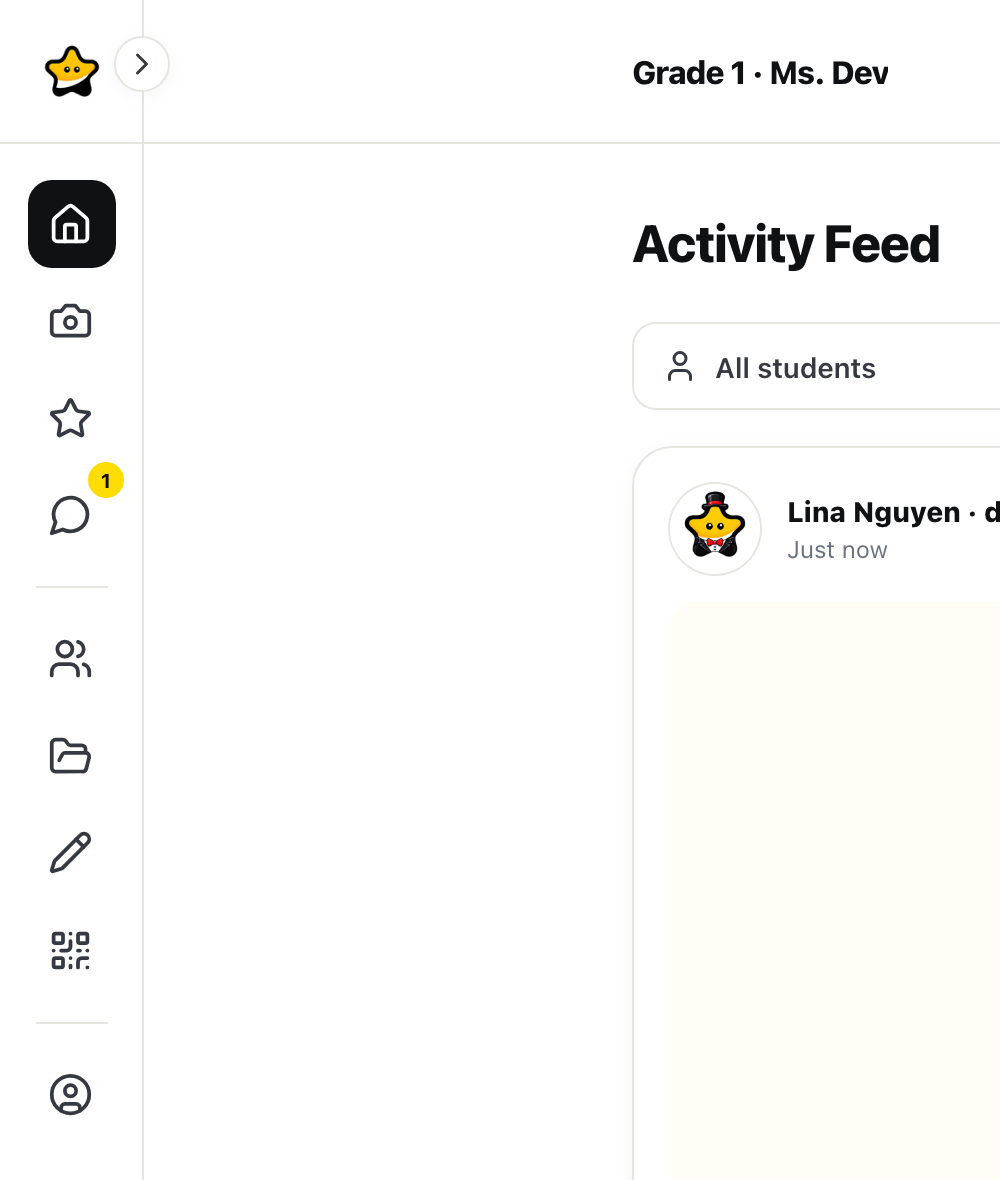
What stays within reach while the menu is collapsed
- Every page keeps its icon. Hover over it to read its name. The three menu groups, "My day", "My class" and "Account", are separated by a thin line.
- The unread message count stays on the corner of the "Messages" icon.
- The class name leaves the menu and shows in the top bar of the page. With several classes it is still a menu; the page Open your class and switch to another describes it.
- At the very bottom of the column, your picture alone leads to "My account". Hover over it to see your name and your email.
- The bell stays on the right of the top bar.
The "Log out" button is not in the collapsed column. A stray click on it, in front of the class, would close the session on the projected screen. Expand the menu to log out. The "Upgrade to Pro" card also waits for the menu to reopen.
The choice stays on this computer
LinoClass remembers the collapsed menu in this browser, on this computer. The projector laptop can stay collapsed while the desk laptop stays open. The choice does not follow your account: on another computer, the menu opens as before.
Two windows of the same browser follow the same choice. Collapsing the menu in one collapses it in the other.
When the button is not there
On a phone there is no left menu to collapse. The pages sit in the bottom bar and under "More". A window that is too narrow on the computer, or a tablet held upright, gives that same layout: widen the window, or turn the tablet, to get the left menu and its button back.
If the menu comes back open on every page load, the browser refuses to keep the choice, for example in private browsing or when site data is blocked. The menu still collapses for the page you are on.
Frequently asked questions
The menu is gone.
It is collapsed. Look for the round button on the right edge of the icon column, level with the logo, and tap it. It is named "Expand menu".
The page names no longer show.
That is the collapsed menu. Hover over an icon to read its name, or tap "Expand menu" to see every name again.
The menu is open on the other computer.
The choice belongs to each browser. Collapse the menu once on that computer; it will stay collapsed there.