Upgrade to Pro and manage your billing
The Pro plan is bought and managed from "My account", section "Subscription". Payment is by card, once a year, and the card is charged at the moment of purchase. There is no trial period: the free plan has no time limit, so you try LinoClass for as long as you want before you pay.
Upgrade to Pro
The "Subscription" card says "You're using the free version of LinoClass." and shows the "Upgrade to Pro" button. The "Upgrade to Pro" card sits at the bottom of the left menu on a computer, and at the bottom of the "More" panel on a phone.
- Tap "Upgrade to Pro". The "Pro plan" page opens, with two cards: "Free", whose button says "Current plan" and does not respond, and "LinoClass Pro", marked "Recommended".
- Read the price on the Pro card. LinoClass Pro costs $79 per year, plus tax. The tax depends on the address you give at payment.
- Tap "Go Pro". The button shows "Loading...", then the Stripe payment page opens. Enter your card and your address. A field accepts a promotion code if you have one.
- Confirm the payment. The card is charged right away. One payment per year. Nothing is billed monthly.
LinoClass then shows "Payment received" and "Thank you, your subscription is on its way", with "We received your payment. Your account switches to the Pro plan in the next few seconds." Tap "Back to my class". The page also reminds you: "Your invoice is available under Billing."
The plan follows your account, not one class. All your classes become Pro, and the "Upgrade to Pro" card leaves the menu. A colleague you invited as a collaborator benefits from the plan in your class without paying anything.
When the payment does not start
- The "An error occurred. Please try again." window opens after "Go Pro": the payment page could not be created. Nothing was charged. Close the window and try again. If the message comes back, email support@linoclass.ca; the page offers it under the cards.
- The sign-in page opens instead of the payment: your session had expired. Sign in. You land on your dashboard; open "My account" again, then "Upgrade to Pro".
- You closed the Stripe page before paying: you come back to "Pro plan" and nothing was charged. Start again whenever you want.
- A Pro feature stays locked after the payment: the confirmation page expects it. "If a Pro feature does not appear right away, refresh the page in a minute."
Read the "Billing" page
The "Billing" button appears on the "Subscription" card once you have subscribed once. It stays there even after a cancellation, so your invoices remain reachable. The sentence above it says Pro or free according to the current plan. The "Billing" page has two cards.
"Current plan" shows the state of your subscription.
- "Pro": the subscription is running. The line under it gives the next renewal date. If you canceled, it gives the date Pro ends instead.
- "Payment past due": "Your last payment failed. Update your payment card to avoid an interruption." Tap "Update card or cancel" to change the card.
- "Subscription canceled": the subscription is over. The line under it says "Your account is on the free plan. Your pupils, photos and activities stay where they are." The "Restart Pro" button opens the "Pro plan" page. Your invoices stay below.
- "Pro trial": this subscription started with a trial period, which no longer exists for a new purchase. The line under it says when the trial ends and that the card is charged on that date, unless you cancel.
"Invoices" lists each payment with "Date", "Amount" and "Status". The status reads "Paid", "Pending", "Voided", "Uncollectible" or "Draft". Tap "Download PDF" to keep the invoice. On a phone, each invoice is a row with a PDF button. If there is no invoice yet, the card says "No invoices".
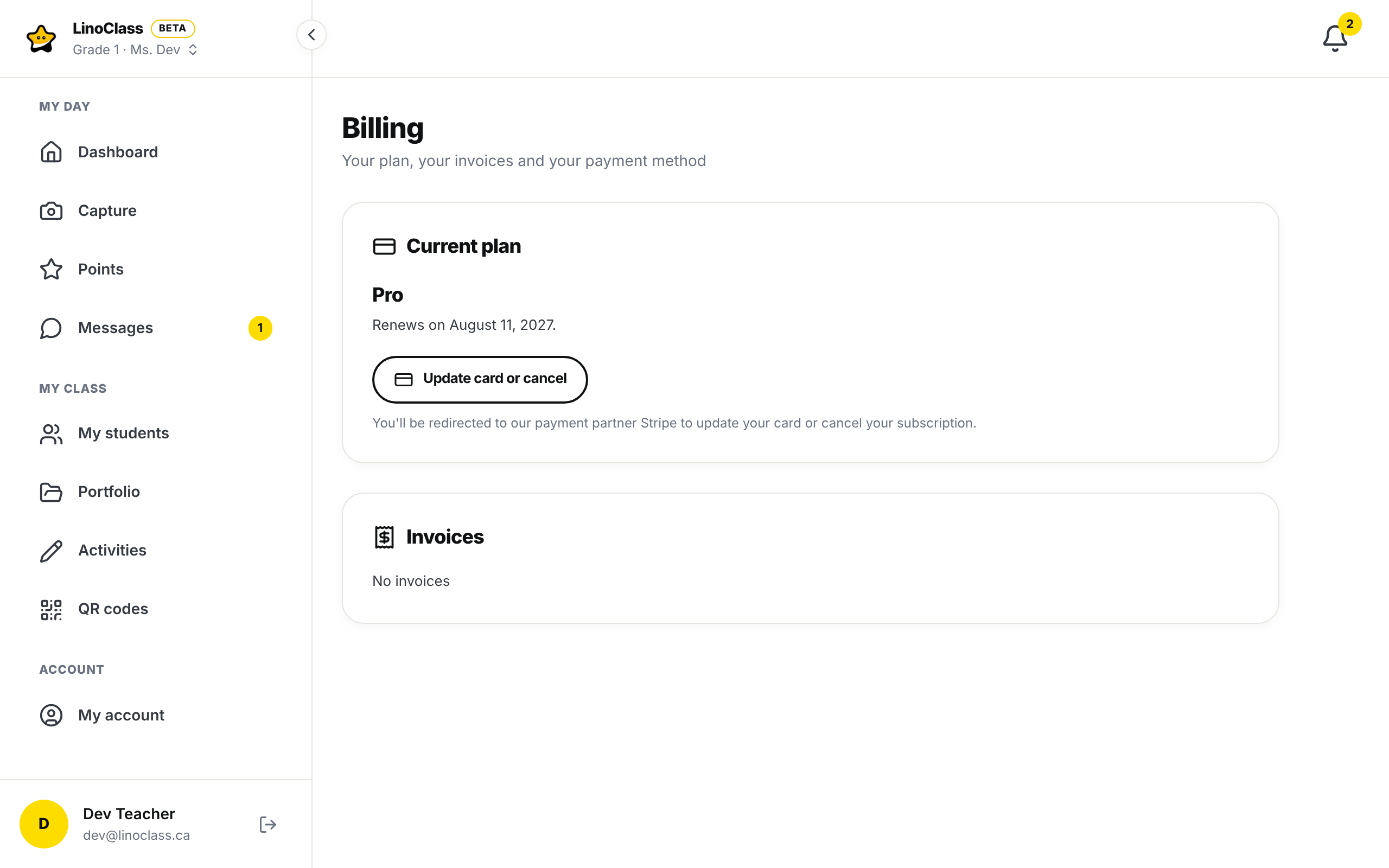
Change your card or cancel
- On the "Billing" page, tap "Update card or cancel". The line under it warns: "You'll be redirected to our payment partner Stripe to update your card or cancel your subscription."
- On the Stripe page, change the card or cancel the subscription.
- Come back to LinoClass with the return link. The "Billing" page refreshes.
If LinoClass shows "Could not open the billing portal. Try again in a moment or email support@linoclass.ca.", the Stripe page could not open. Try again in a moment.
What happens when you cancel
Pro stays active until the end of the period already paid. On the "Billing" page, "Current plan" still says "Pro", and the line under it becomes "Pro ends on {date}. No further payments will be taken.", with the end date. LinoClass also sends you an email that confirms the cancellation and gives that date.
On the end date, your account moves to the free plan, and a second email tells you so. Your pupils, photos, announcements and activities stay where they are. Nothing is deleted.
If you change your mind before the end date, tap "Update card or cancel" again and resume the subscription on the page that opens. The line "Renews on {date}." comes back. After the end date, tap "Restart Pro" on the "Billing" page. The "Pro plan" page opens, and a new purchase charges the card right away.
If the page still says "Renews on {date}." after you cancel, reload it in a moment. The confirmation email shows that the cancellation is recorded. If the page does not change and no confirmation email came, write to support@linoclass.ca.
A refund
To ask for a refund, write to support@linoclass.ca. When a payment is refunded to you, in full or in part, LinoClass sends you an email with the amount refunded. Depending on your bank, the refund can take 5 to 10 business days to appear on your statement.
When the page does not load
- "Could not load billing information. Try again later.": the "Current plan" card received nothing. Reload the page.
- "Could not load your invoices. Try again later.": the list received nothing. Reload the page. The PDF links are recreated on every load.
- The "Billing" page sends you to "Pro plan": no subscription exists for this account. Check under "Account", at "Signed in as", that you are in the account that paid.
In the iPad app
The iPad app shows no price, no "Upgrade to Pro" and no "Billing". The "Subscription" section is not in "My account". To buy or manage the plan, open LinoClass in a browser, at app.linoclass.ca, with the same account. A plan bought on the website also applies in the app.
Frequently asked questions
What amount goes in a digital budget request?
Enter $79 per year, plus tax. The price is per teacher. It is one payment per year, made at purchase. After the payment, download the invoice as a PDF from the "Billing" page.
Is there a free trial?
No. The free plan takes the place of a trial, and it has no end date. When you upgrade to Pro, the card is charged the same day, and the payment shows on the statement of the month of purchase.
My "Billing" page says "Pro trial".
Your subscription was created before trials ended, or it was given to you. It is treated as Pro. The line under "Pro trial" gives the date the card will be charged, unless you cancel before that date.
Paying for a colleague's class.
No. A class follows its owner's plan. In a class where you are a collaborator, the "Subscription" section does not exist. When a Pro feature is locked in that class, LinoClass shows, in place of the "Upgrade to Pro" link: "This classroom follows its owning teacher's plan. There is nothing for you to buy here, and a Pro subscription of your own would change nothing in this class."
Where is my receipt?
On the "Billing" page, "Invoices" card. Tap "Download PDF". The "Billing" button is in "My account", section "Subscription".
The payment went through and video is still locked.
Wait a minute, then reload the page. If the padlock stays after several minutes, email support@linoclass.ca with the date of the payment.