Find your settings in "My account"
Everything about your account and the way your class works sits on one page: "My account". Your name, the classroom name, the language, the notifications, your subscription and your other classes are all there.
Open "My account"
On a computer, the left menu has three groups. "My day" holds "Dashboard", "Capture", "Points" and "Messages". "My class" holds "My students", "Portfolio", "Activities" and "QR codes". "Account" holds one entry: "My account". Your name and email, at the very bottom of the menu, also lead to "My account". The icon next to your name logs you out.
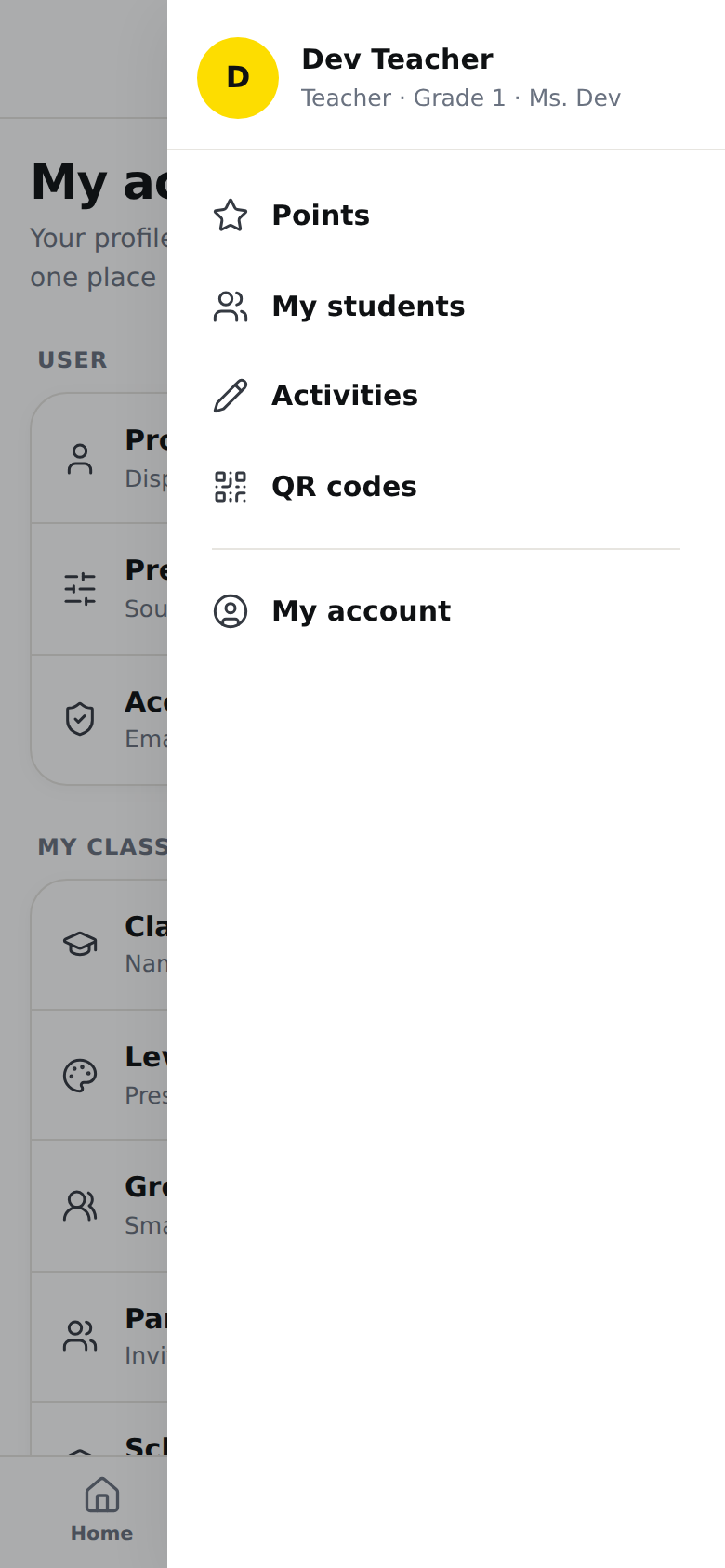
On a phone, the bottom bar holds "Home", "Portfolio", the "Capture" camera, "Messages" and "More". Tap "More". A panel slides in from the right, with your name at the top, then "Points", "My students", "Activities" and "QR codes". Below a line, on its own, is "My account". On the free plan, the "Upgrade to Pro" card sits at the bottom of the panel.
Move around the page
On a computer, a list stays on the left while you read: "Profile", "Class", "Level and domains", "Groups", "Parents", "Preferences", "School", "Subscription", "My classes" and "Account". Tap a name to jump to its section. The list follows your reading: the section in front of you stays highlighted in black.
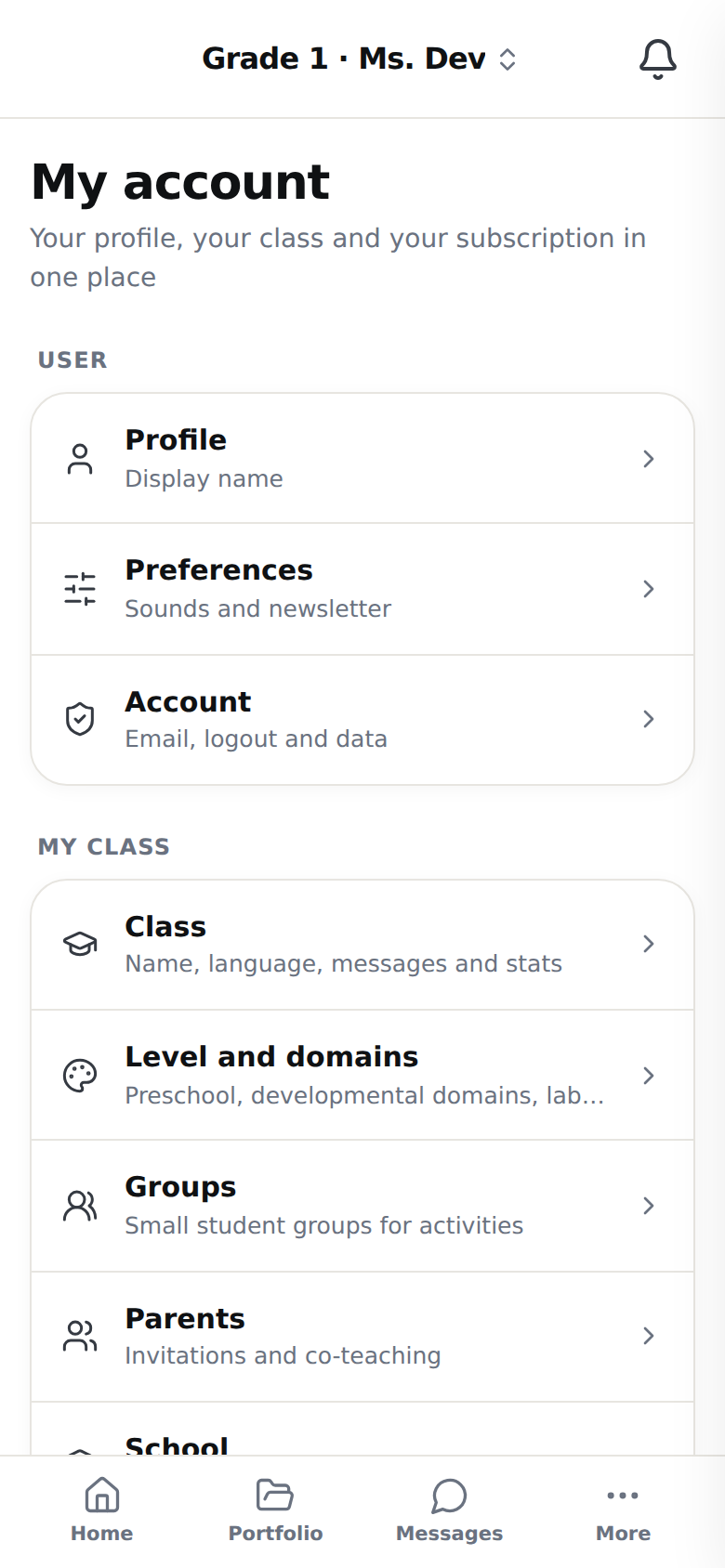
On a phone, the page starts with an index in three groups. "User" gathers "Profile", "Preferences" and "Account". "My class" gathers "Class", "Level and domains", "Groups", "Parents" and "School". "Subscription" gathers "Subscription" and "My classes". Each row carries a word of explanation, for example "Name, language, messages and stats" under "Class". Tap a row: the section opens full screen. The X at the top right, or the phone's back button, returns to the index. "My classes" is the exception: its row opens the list of your classes directly.
If you are a collaborator in a colleague's class, "Parents" and "Subscription" are not in the list. Those two sections belong to the class owner.
Save a change
Most boxes on the page save as soon as you tap them. Five fields wait for your confirmation: "Display name", "Classroom name", "Email language", "Let parents start a conversation" and "Open the whiteboard, and place the media inside a drawing".
As soon as you edit one of those fields, a bar appears at the bottom of the screen with "Cancel" and "Save". It does not exist while nothing has changed. On a phone it floats over the open section, so you save without going back to the index.
- Edit the field.
- Tap "Save". The button changes to "Saving...".
- LinoClass confirms with "Changes saved" and "Your settings were updated successfully." The bar disappears.
"Cancel" puts the name, the classroom name and the language back to their previous value.
When the save does not go through
- The "Display name" or "Classroom name" field is empty: "Save" does nothing. Type a name, then tap "Save" again.
- "Could not save" with the cause under it, or "Could not save your changes": the change was not kept. Your fields stay as you left them. Try again in a moment.
- "Renaming a classroom is coming soon. Contact your administrator to change this setting.": the server did not accept the request and the name goes back to its previous value. Try again later.
"Profile"
The "My profile" card shows your avatar and your name. Next to the disc, under "Your avatar", the card says what it is for: "Parents and students will see it next to your announcements." Until you choose one, the disc shows the first letter of your name.
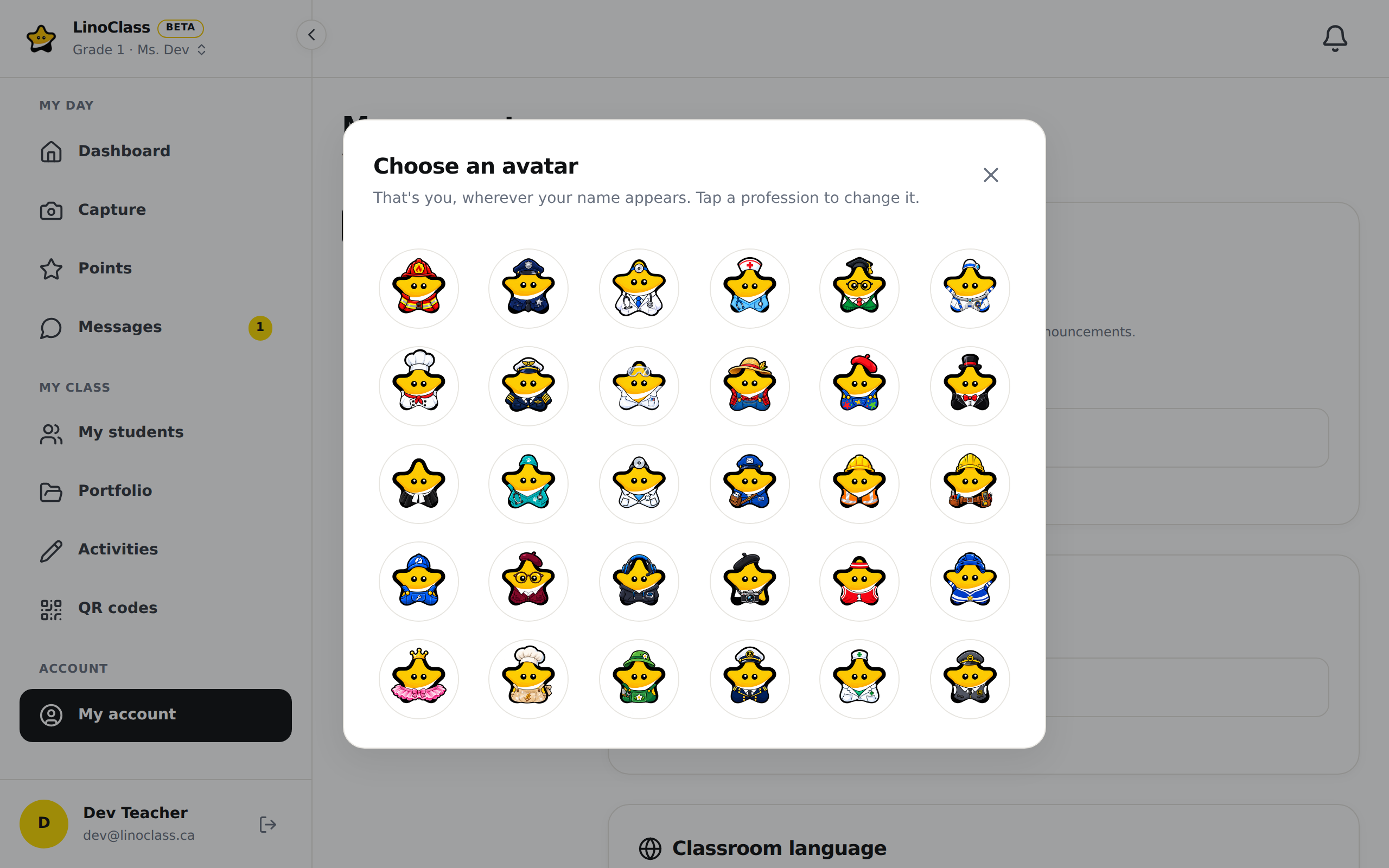
Tap your avatar, or the small pencil in its corner, to open "Choose an avatar". The window explains: "That's you, wherever your name appears. Tap a profession to change it." The grid shows the 30 professions, the same ones the students pick from: "Firefighter", "Doctor", "Astronaut", "Teacher", "Hockey player" and the rest. There is no photo. The current profession has a check mark in its corner. On a phone, the window fills the screen.
Tapping a profession saves it right away, with no "Save". The grid greys out while it saves, then the window closes. The disc changes at the same moment in the left menu, on a computer as in the folded menu. Your announcements in the class feed show the new profession the next time the feed loads. The X at the top right closes the window without changing anything.
If the avatar does not change, the window stays open: tap the profession again. If a profession in the grid shows a letter instead of a picture, its picture did not load; you can still pick it, and the picture comes back the next time the page loads.
"Display name" is the name parents and students see. The line under the field says so: "Parents and students will see this name". This field goes through the "Save" bar. The menu shows the new name as soon as the save is confirmed.
"Class"
This section gathers everything that describes the open class.
- "Classroom information": the "Classroom name" field. This is the name every family reads in its emails.
- "Classroom language": the "Email language" choice. It decides the language of the emails to parents, not the language of your screen. The page Change the language of the app explains the difference.
- "Messages from parents": the "Let parents start a conversation" box. The page Write to parents describes it.
- "Student captures": the "Open the whiteboard, and place the media inside a drawing" box. Ticked, a student's photo, video or sound opens on her canvas instead of going straight to the portfolio. The card says your own captures do not change.
- "Statistics": "Number of students" and "Classroom created on". These two values are read-only.
If you are a collaborator, the classroom name shows without a field, with "Only the classroom's own teacher can change this." The "Classroom language", "Messages from parents" and "Student captures" cards are not there. The "Leave the class" card closes the section; the page Share the class with a colleague describes it.
When the school has turned a feature off
A school can turn off points, messaging with parents, or parent comments and reactions, for all its classes. Announcements are turned off for the whole school board instead. When it has, a "Set by your school" card appears in the "Class" section, with the sentence "Some features are turned off for the whole school. This setting belongs to the school, not the classroom." and one line per feature turned off:
- "Points are turned off for your school." The "Points" entry is no longer in the menu, on the computer or under "More". If you open the old address, the page says "Points are turned off for your school" and "Your school made this choice. There is nothing for you to do." On the tablet, the student reads "Points are not turned on at your school."
- "Messaging with parents is turned off for your school." The "Messages" entry is no longer in the menu or in the bottom bar, for you and for parents. Conversations already written are hidden too. The list, the threads and the unread count disappear, and an old "Messages" address takes you back to the class home. Nobody can write. Nothing is deleted, and the conversations come back if the school turns messaging back on.
- "Parent comments and reactions are turned off for your school." A parent can no longer comment or react under a piece of work, and the comments and reactions parents had already left are hidden in the portfolio, the feed, the weekly report and the weekly email. You and your collaborators can still comment, and your comments stay visible everywhere. Nothing is deleted.
- "Announcements are turned off for your school." "New announcement" is no longer on the "Dashboard", and announcements already published are hidden in the feed, for you and for parents. Nothing is deleted. The page Send an announcement has the details.
There is nothing to tick. The card does not exist when everything is on. To change this choice, talk to the person who manages LinoClass at your school.
"Level and domains", "Groups" and "Parents"
"Level and domains" carries the class level and its developmental domains. Its index row sums it up: "Preschool, developmental domains, labels".
"Groups" lists your small student groups and the button to create one. The page Add and manage the students in your class describes groups.
"Parents" gathers the consent report, the "Invite parents" card and the "Collaborators" card. Two pages describe them: Invite parents into the class and Share the class with a colleague.
"Preferences"
Four cards, all saved as soon as you tap them.
- "Interface language": the language of your screen. See Change the language of the app.
- "Notifications": notifications on this device and emails. See Choose how you are notified.
- "Celebration sound": the "Play a sound when points are given" box. The setting applies to this device only.
- "Newsletter": the "Receive news from LinoClass" box. A few emails a year. Unticking it does not touch your classroom emails. If LinoClass shows "Could not save this choice", the box returns to its previous state; try again.
"School"
The "School" card shows "School name". This field is read-only: "To change this information, contact your administrator". Under the name, the classroom's own teacher sees the "Classroom QR code hours" card, with its "Opens" and "Closes" lists. The page Choosing your classroom's QR code hours explains those hours. The page Joining your school explains how your account gets linked to that school.
The school's window, which every classroom stays inside, can only be changed on an account carrying the school administrator role. On that account, a second pair of "Opens" and "Closes" lists follows the classroom card. Choose the hours, then tap "Save" under those lists. This button sits inside the card, apart from the bar at the bottom of the screen. LinoClass shows "Hours saved". On every other account, those lists do not appear. If nobody at your school carries that role yet, the window stays at its current value; ask the person who manages LinoClass at your school.
If saving the hours fails, LinoClass shows "Couldn't save the QR code hours". "The opening hour must be before the closing hour" means the two hours are in the wrong order.
"Subscription" and "My classes"
The "Subscription" card says where you stand: "You're using the free version of LinoClass." or "Your LinoClass Pro subscription is active." Its "Upgrade to Pro" and "Billing" buttons are described in Upgrade to Pro and manage your billing. This section does not exist in the iPad app, nor in a class where you are a collaborator.
The "My classes" card leads, with "View my classes", to the list of all your classes. That is where "+ Create a new class" lives. On the free plan, the list says "You already have your class. Upgrade to Pro to create as many as you need."
"Account"
The "Account" card shows "Signed in as" and your email. That is how you know which account you are in when you have two. The "Log out" button closes the session and returns to the home page.
Change your password
Below a line, the "Password" row says "Change the password for your teacher account." It is there only if you sign in with an email and a password. If you sign in with your school's Microsoft or Google account, or with a link sent by email, the row only says "Your account signs in with your school provider or an email link; it has no password." There is nothing to change here then. The page Sign in with your Microsoft or Google account describes that way of signing in.
- Tap "Change password". A "Password" window opens.
- Type your password in "Current password".
- Type the new one in "New password". It needs "At least 8 characters."
- Type it a second time in "Confirm new password".
- Tap "Save". The button changes to "Saving...".
The window closes and the row shows "Password changed. Your other devices were signed out." You stay signed in on the device in your hand. Everywhere else, you will need to sign in again with the new password. "Cancel", the Escape key or a tap beside the window closes it without changing anything, and the fields are cleared.
When the change does not go through, the window stays open and a red message appears above the buttons. Your old password still works.
- "The new password must be at least 8 characters.": make the new password longer.
- "The two passwords do not match.": the new password and its confirmation differ. Type them again.
- "The current password is incorrect.": the first field does not match your password. If you forgot it, log out and tap "Forgot password?" on the sign-in page.
- "Too many attempts. Try again in a few minutes.": after five tries in 15 minutes, LinoClass blocks the change for a while. Wait, then start again.
- "Could not change the password. Please try again.": the change was not kept. Check your connection, then tap "Save" again.
Sign out everywhere and download your data
Below a line, "Sign out of all devices" ends all of your open sessions, including the one on the device in your hand. Use it if you stayed signed in on a school computer or lost a phone. Tap the button, then "Sign out everywhere" in the window that opens, or "Cancel" to go back. That button shows "Signing out...", then LinoClass returns you to the home page. You will need to sign in again on each device.
If LinoClass shows "Could not sign you out of your other devices. Please try again.", nothing was closed: you are still signed in here and everywhere else. Check your connection, then tap the button again.
Below a line, "Data privacy" offers "Download my data": "Get a copy of your personal data, in JSON format." Tap the button. It shows "Preparing...", then a JSON file downloads to your device. A second click downloads the same file while it is still valid. "Your previous export has expired. Click to request a new one." means a new file will be prepared. If LinoClass shows "Could not prepare your export. Try again later.", try again in a moment.
When the page does not load
If LinoClass shows "Error" and "Could not load the classroom settings", the page received nothing. Check your connection, then reload the page.
Frequently asked questions
Where did "Settings", "Billing" and "My classes" go?
The three became one entry, "My account". "Billing" is a button in the "Subscription" section. "My classes" is a section, and a row of the index on the phone.
"Points" is no longer in the menu.
Your school turned points off for all its classes. Open "My account", section "Class": the "Set by your school" card confirms it. There is nothing for you to do.
There is no "Save" button.
It appears only when one of the five fields to confirm has changed. The notification, sound and newsletter boxes, and the avatar, save as soon as you tap them. The two boxes in "Class" wait for "Save". The hours in the "School" section have their own "Save" button, under the hours, inside the card.
The name changed and the menu still shows the old one.
Check that "Changes saved" appeared. If it did, reload the page. The name also changes in the emails sent after the save.
"Subscription" is not in the list.
Two causes. You are in the iPad app, where the subscription is managed on the website only. Or you are a collaborator in this class: it follows the owner's plan.