Install LinoClass on your phone or tablet
LinoClass installs straight from the browser, without going through an app store. Once the icon is on your home screen, LinoClass opens full screen, like an app, and you do not have to sign in on every visit: the session stays open for 30 days on that device.
On iPhone and iPad, the icon is also the only way to receive LinoClass notifications. See Choose how you are notified.
On an iPhone or an iPad
- Open Safari and go to app.linoclass.ca.
- Tap the Share button, the square with an arrow pointing up. Depending on your iOS version, it is in the bottom bar or in the ··· menu at the bottom right.
- Swipe the sheet up and tap Add to Home Screen. If it is not there, tap Edit Actions at the bottom of the list to add it.
- Leave Open as Web App on, then tap Add. The LinoClass icon appears on your home screen.
- Open LinoClass from the icon and sign in once, inside the icon. LinoClass opens full screen, without Safari's bar.
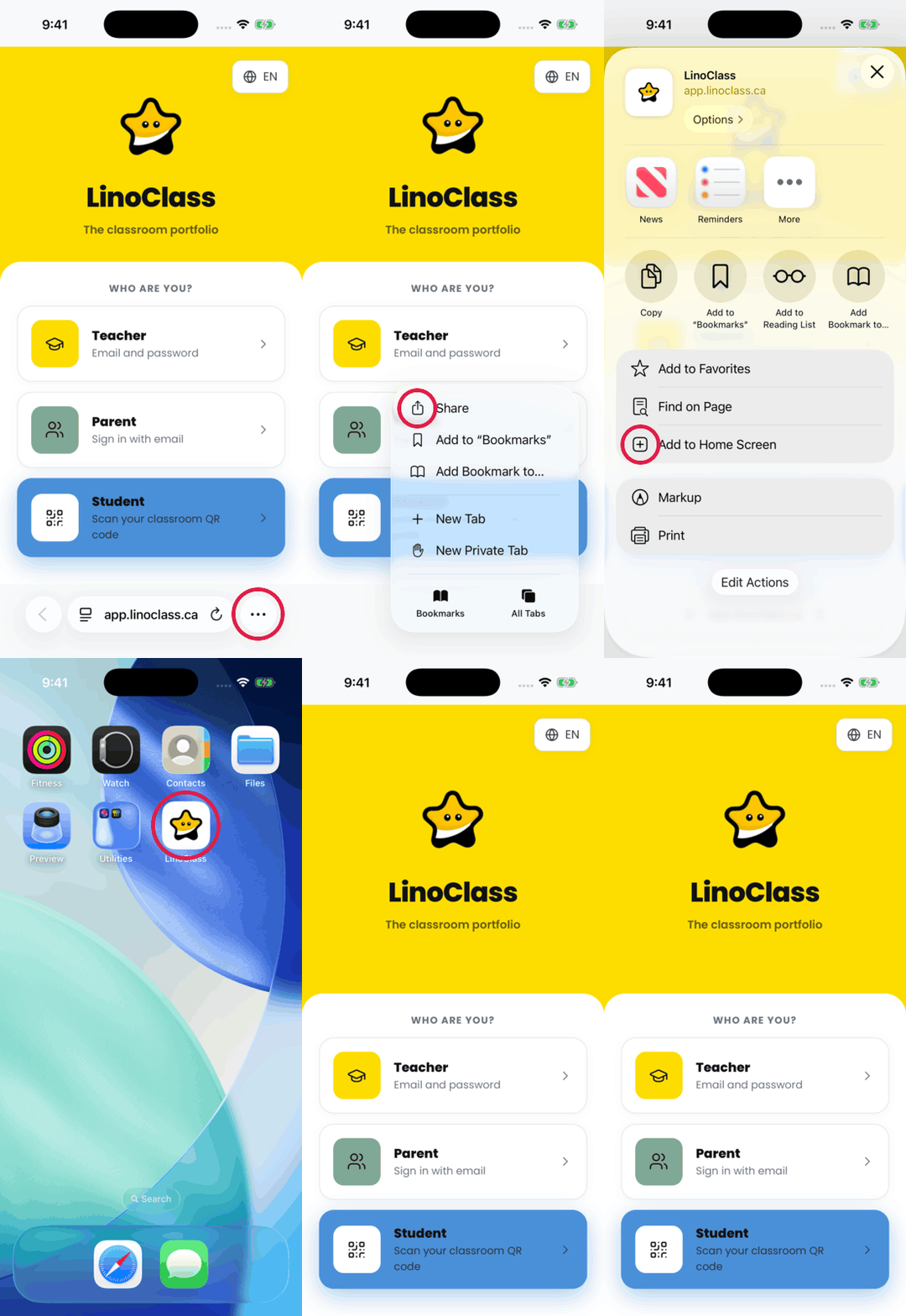
The icon has its own session, separate from Safari. Being signed in in Safari does not sign you in inside the icon: you sign in once in each.
Parents on iPhone and iPad
A parent signs in with a link received by email. On iPhone and iPad, that link always opens in Safari, never in the icon, so the icon cannot open a session for a parent yet. In the meantime, use LinoClass in Safari: the session also stays open there for 30 days, and a bookmark or a pinned tab brings you back in one tap.
On an Android device
- Open Chrome and go to app.linoclass.ca.
- Tap the ⋮ menu at the top right.
- Scroll the menu and tap the option about installing or adding to the home screen. Its name depends on your Chrome version: Add to Home screen, Install app, or Install and create shortcut.
- If Chrome offers Install or Create shortcut, choose Install. A shortcut opens LinoClass in a Chrome tab, not as an app.
- Confirm with Install. If Android then asks where to put the icon, tap Add to home screen. The LinoClass icon appears on your home screen.
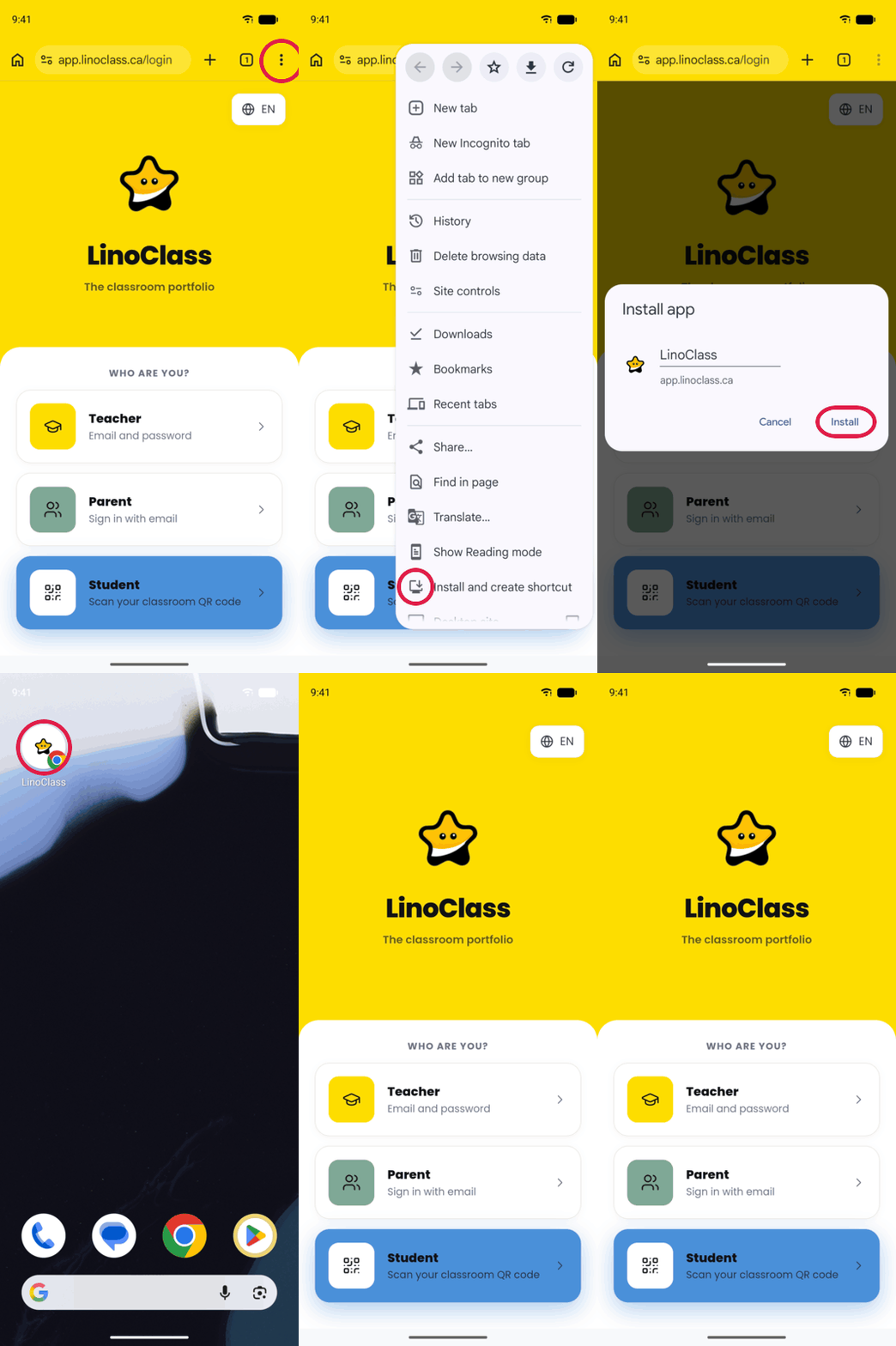
On Android, the icon shares Chrome's session. If you are already signed in in Chrome, you are signed in inside the icon too, and a parent can open their sign-in link as usual.
When the icon asks you to sign in again
- You opened it from a browser tab, not from the icon. A tab and the icon are two sessions on iPhone and iPad. Close the tab and open the icon.
- More than 30 days went by without opening LinoClass on this device. Sign in again, once.
- You signed out. Signing out closes the session on that device. Sign in again inside the icon.
- The browser clears site data. Private browsing, or a setting that clears history and website data on close, also closes the session. Install the icon from a normal window.
If the icon still asks you to sign in every day, write to us at support@linoclass.ca with the device model and its iOS or Android version.