What the student sees in their portfolio on the tablet
This page describes the student's screen in the browser, so you can help when a child hands you their tablet. Differences with the app on the tablet are noted where they exist. Nothing on these screens lets a student approve, comment on or delete a piece of work.
The student's home screen
Once signed in with the class QR code, the student lands on their home screen. At the top, their picture, a greeting and their first name. Lino asks "What would you like to do?" in a speech bubble. Tapping the bubble reads the question out loud. If the tablet has no voice, the bubble stays there, without the small speaker, and does not react to a tap.
The home screen offers three things.
- The "Draw" and "Photo" tiles. On the Pro plan, "Video" and "Voice"Pro plan only join them. On the free plan, those two tiles are absent, not greyed out.
- Three rows. "My activities" says what is waiting, for example 3 to do, or "Nothing to do right now". "My points", with "Wins and rewards", exists only if your school has not turned points off. "My portfolio" counts their work, for example "3 creations", or "No creations yet".
- "I'm done", at the top right, ends the session. It is the only place that button exists: the other screens have a back arrow.
On an iPad held in landscape, Lino and the three rows sit on the left, and the tiles fill the right. On a phone, or an iPad held upright, everything is one column: Lino, the tiles, then the rows.
The "My portfolio" grid
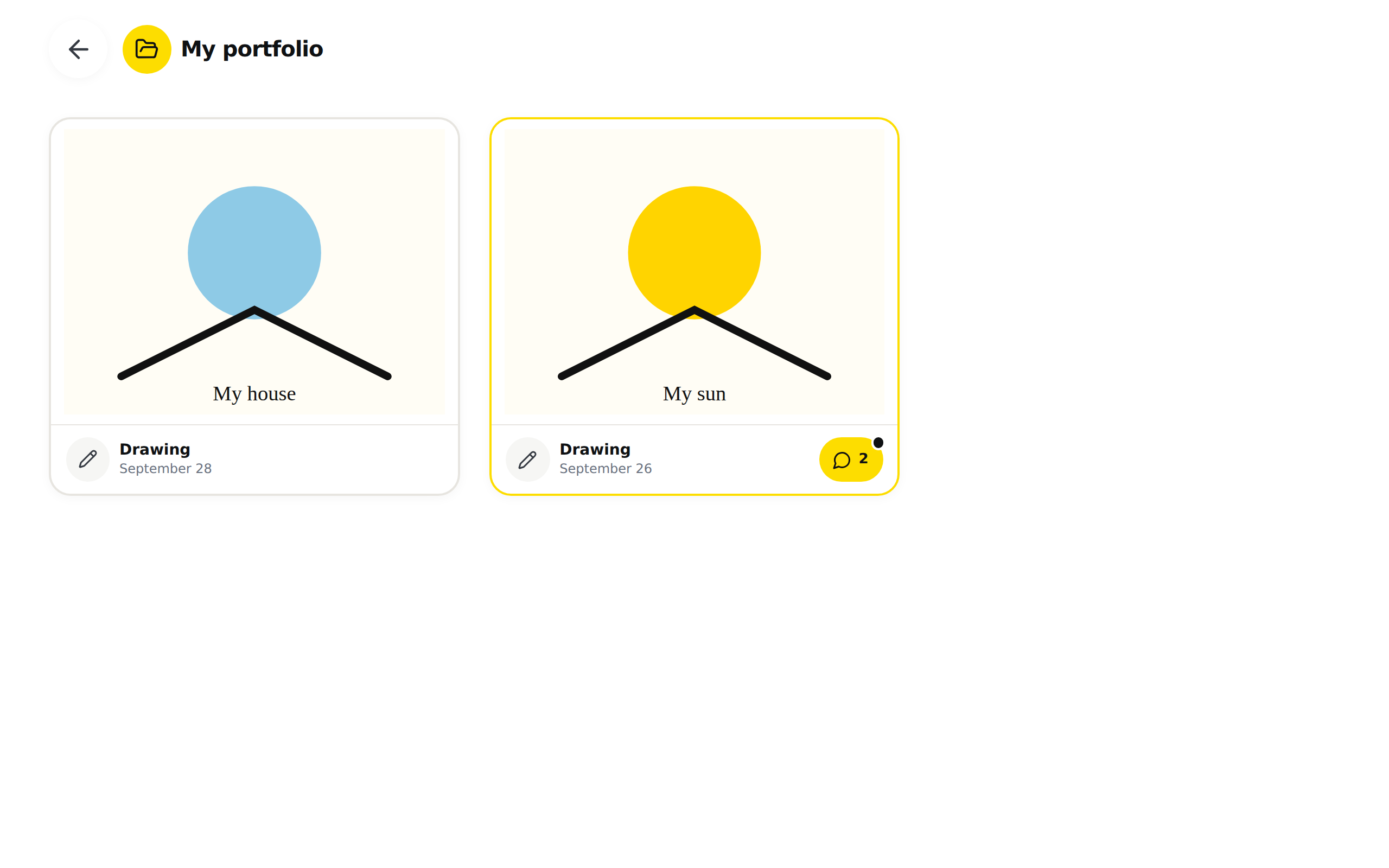
Tap "My portfolio". The arrow at the top left goes back to the home screen. The work is laid out in tiles, newest first: two per row on a phone, three on a tablet. Each tile shows a drawing whole on a white background; a photo fills its frame and its edges can be cut off. Under the work, a strip carries the type's icon, its name, "Drawing", "Photo", "Video" or "Audio", and the date. A book of several pages carries its page count in the corner, for example "4 pages".
When a piece of work has received a message, its tile gets a yellow border and a yellow chip with the number of messages. The chip carries a microphone if at least one message is a voice message, and a speech bubble otherwise. On a phone, the chip takes the place of the name and the date.
If the student has no work yet, the screen shows Lino and "No items in portfolio", then "Add your first item!".
If the screen reads "We could not load the portfolio. Ask your teacher for help.", the tablet could not reach LinoClass. The work is still there. Check the tablet's network, tap the arrow, then open "My portfolio" again. If the message stays, sign the student in again with the class QR code.
A work's page and the messages
Tap a tile. At the top, the type of work and its date. The work is shown large. Tapping a photo or a drawing enlarges it; the student has no "Save" button in that view. A video and a sound have the tablet's usual controls. The pages of a book turn with a swipe, as on the page Add work to a student's portfolio.
On an iPad in landscape, the messages sit in a panel to the right of the work, visible without scrolling. On a phone, or an iPad held upright, they sit under the work.
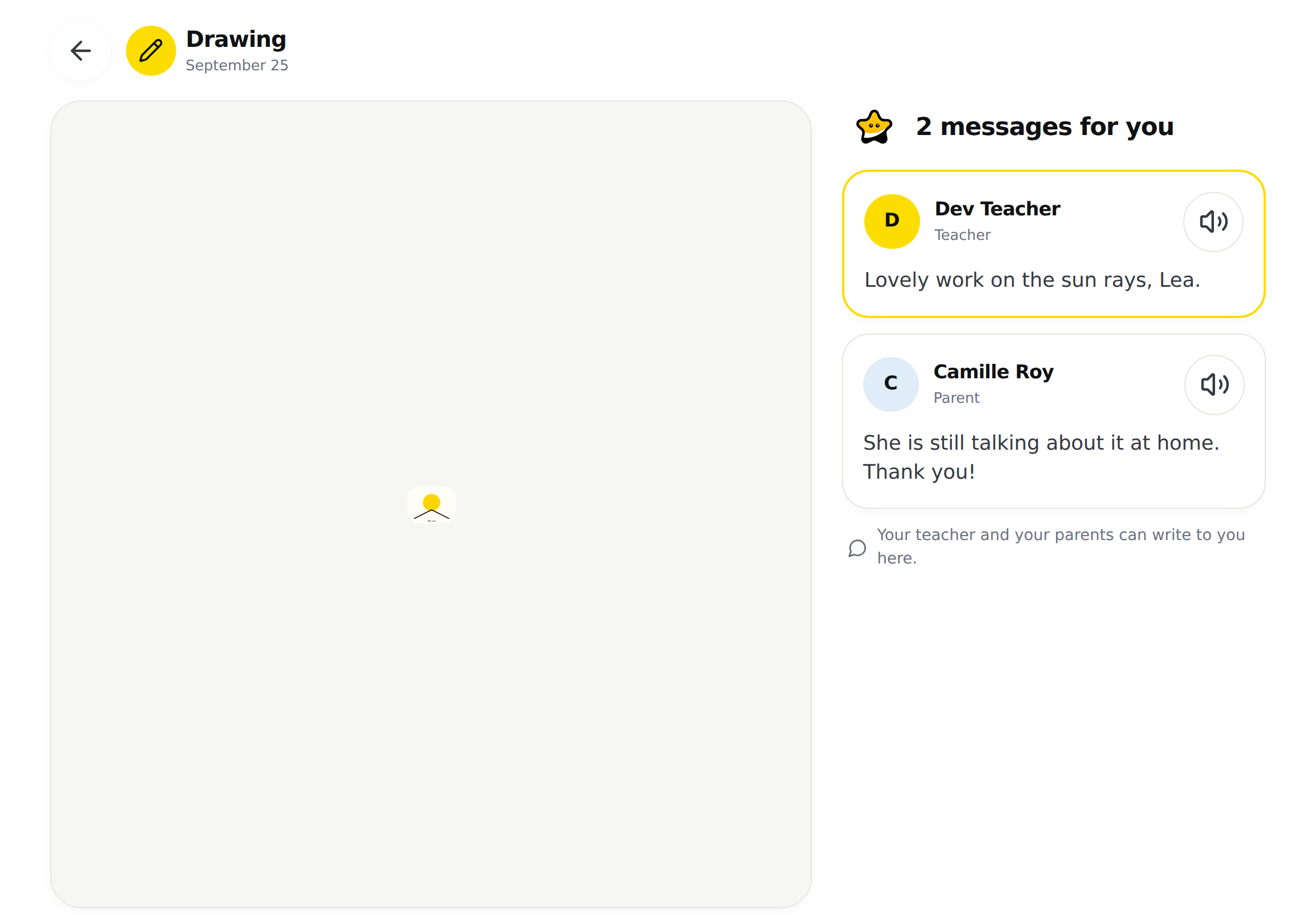
Lino introduces the messages: "A message for you", or their number, for example "2 messages for you". Your message comes first, in a card with a yellow border. The parents' messages follow. Each card carries the person's name and their role, "Teacher" or "Parent".
- A voice message plays from the big yellow "Listen" button, which shows its length. In the browser, the button reads "Stop" while it plays, and a progress line moves along the bottom of the button.
- A written message is shown in full. The small speaker to the right of the name, "Read the message out loud", has Lino read it. A second tap stops the reading. The speaker does not appear if the tablet has no voice.
Under the messages, one line reminds them: "Your teacher and your parents can write to you here."
The student sees your comments, written or voice, as soon as you send them. A parent's comment reaches the student once you have approved it. While it waits for your decision, the student does not see it.
When there is no message
Beside a piece of work with no message, a single line reads "No message yet." There is no Lino and no button.
In the browser, that same line also shows when the messages could not be loaded; the work itself still shows. In the app on the tablet, a different line says the messages could not be loaded. In both cases, tap the arrow, then open the tile again.
If the page reads "We could not load this work. Ask your teacher for help.", the tablet could not reach LinoClass. Check the network, then open the tile again.
Frequently asked questions
The student cannot find the voice message you left them.
The message sits under the work you left it on, not on the home screen. Ask the student to open "My portfolio" and look for the tile with the yellow border, the chip and the microphone. If no tile has a chip, the grid was opened before your message: tap the arrow, then open "My portfolio" again.
Lino reads nothing when the student taps the bubble or the speaker.
The tablet's browser does not offer read-aloud. In that case the speaker is not shown and the bubble does not react. The written message stays readable on screen.
Can the student reply to a message?
No. A work's page gives them neither a text box nor a microphone. They can only listen and look.
The messages are under the drawing, not beside it.
That is the layout of a phone or a tablet held upright. Turn the iPad to landscape to get the drawing on the left and the messages on the right.
A parent wrote a comment and the student does not see it.
The comment is waiting for your approval. Open the work and tap "Approve" under the comment. The page Add work to a student's portfolio describes that step.