Share the class with a colleaguePro plan only
The owner of a class is the teacher who created it. The owner can invite colleagues from the school, teachers or other staff members, to post in the class. These people are collaborators. They capture, post and award points like you, without touching the student list or the parents.
Inviting a colleague is part of the Pro plan. The invited colleague does not need Pro: in your class, they follow your plan.
Invite a colleague
- Open "My account", then "Parents".
- Under "Collaborators", type the "Email of the person to invite".
- Tap the send button.
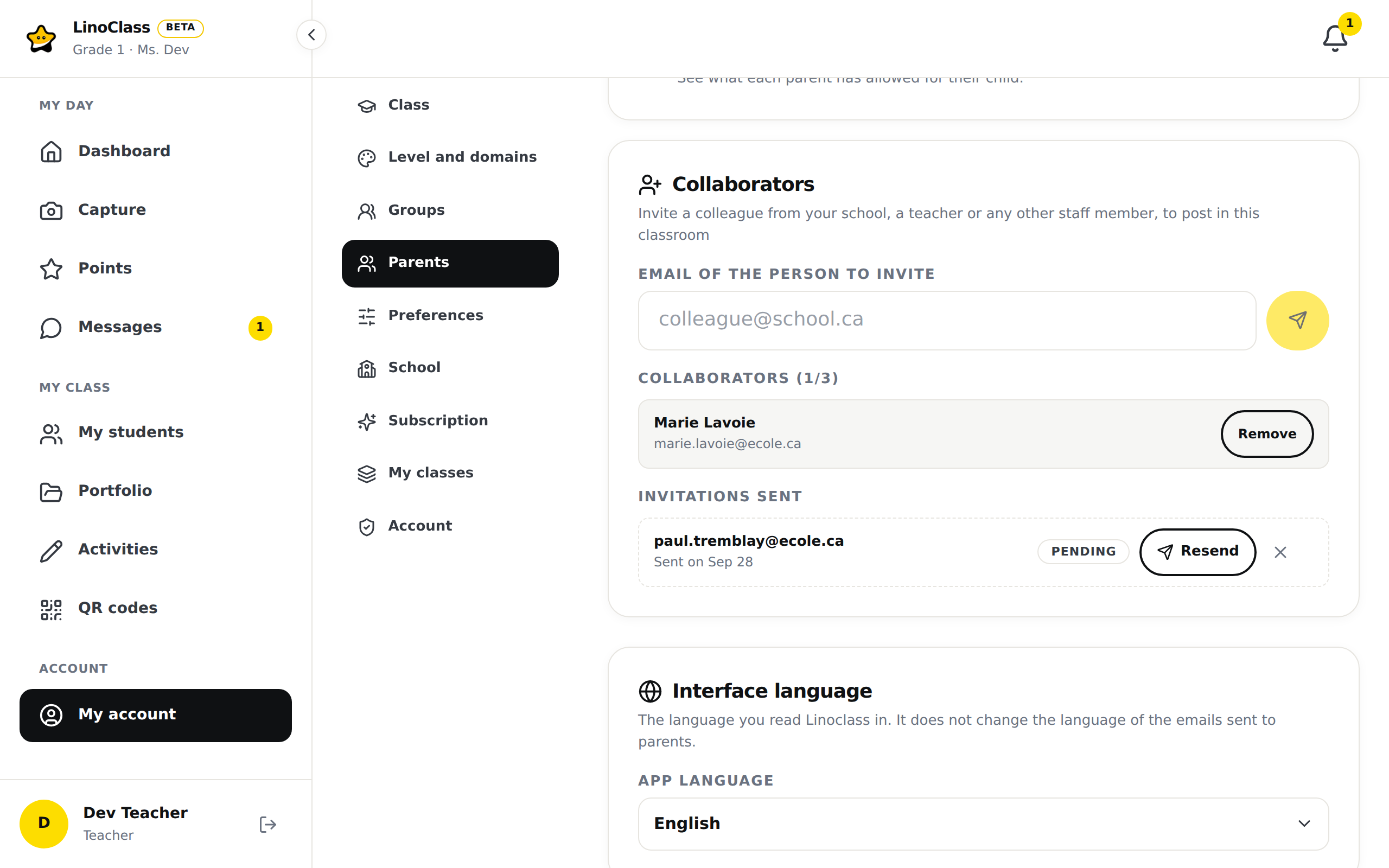
LinoClass confirms with the address that received the invitation. The link stays valid for 7 days. A class takes 3 collaborators. With a school licence, it takes 6.
The invitation appears under "Invitations sent" with its status, "Pending" or "Expired", and its date. "Resend" sends a new link to the same address. The old link stops working. "Withdraw invitation" cancels it. Once accepted, the person moves to the "Collaborators" list with their name, their address and a "Remove" button.
What your colleague sees
The email leads to the "Join the classroom" page, with your name. Two cases:
- Your colleague has no LinoClass account. The page asks for their name, as parents will see it, and a password. "Create my account" adds them to the class.
- Your colleague already has an account with that address. LinoClass sends them a sign-in link, and the class is added to the ones they already have.
The class then appears in their class list, next to their own.
What a collaborator can do
In your class, your colleague can:
- capture photos and drawings, plus videos and sound if your class is Pro;
- post to the feed and write announcements;
- approve what students hand in and moderate parent comments;
- award points with your behaviours and privileges;
- create groups and assign activities;
- view and print QR codes;
- message parents. Their conversations are their own: you do not see them, and they do not see yours.
They edit and delete what they created themselves. What you captured or wrote stays yours. Work a child handed in stays open to both of you.
The rest belongs to the owner. Only the owner can add, rename or remove a student, invite parents, open the "Parental permissions" page, change the class name, set the behaviours and privileges, reset the points, generate a new class QR code, and manage billing. Under the class name, your colleague reads "Only the classroom's own teacher can change this." The other settings are not shown to them.
Remove a collaborator
- Open "My account", then "Parents".
- Under "Collaborators", tap "Remove" on the person's row.
- Read the confirmation, then tap "Remove".
The confirmation says what happens: "They lose access to the class immediately. Their messages with this class's parents will be deleted, on both sides. Their photos, announcements and the points they awarded stay in the class." No email goes out: you made the change yourself.
Leave a class where you are a collaborator
You can leave a class a colleague shares with you on your own.
- Open "My account" in that class, then the "Class" section.
- At the very bottom, tap "Leave the class".
- Confirm with "Leave the class".
Your messages with this class's parents are deleted, on both sides. Your captures, your announcements and the points you awarded stay in the class. The owner gets an email.
When it does not go through
"Pro feature"
You are on the free plan. The message reads: "Inviting a colleague is only available on the Pro plan. Upgrade to Pro to add collaborators to your classroom." On the web, tap "Upgrade to Pro", then send the invitation again.
"Limit reached"
"This classroom already has the maximum number of collaborators." Remove someone who no longer works in the class to free a seat.
"This person is already a collaborator on this classroom."
Your colleague already has access. There is nothing more for them to do.
"An invite is already pending for this email."
Do not send again from the form. Find the row under "Invitations sent" and tap "Resend".
"You cannot invite yourself."
The address is your own. Type your colleague's.
Your colleague sees "This invite link has expired. Ask the person who invited you to send a new one."
The 7 days have passed. Tap "Resend" on the invitation's row.
Your colleague sees "This invite has already been used."
They have already joined the class. They need to sign in, not join a second time.
Your colleague is signed in with a different address
The page shows them the address that received the invitation and offers "Sign out and continue". They sign back in with the invited address, or ask you for an invitation to the address they normally use.
"This class is paused"
Your Pro plan has ended. Your collaborators see this message instead of the class, with your name. Nothing is deleted, but they cannot do anything in it until the plan is renewed. On your side, the "Collaborators" section reads "Your collaborators are paused", each name carries the "paused" tag, and the form disappears. On the web, the "Reactivate Pro" button replaces it. You can still remove someone.
Conversations between a paused collaborator and parents stay readable, with no sending. They resume as soon as the plan is renewed.
Frequently asked questions
Are parents told that a colleague joined the class?
No. LinoClass sends nothing to parents. Announce it yourself, with an announcement in the feed for example. In messages, a parent sees each person's role: "Homeroom teacher" or "Collaborator".
Does my colleague have to pay for Pro?
No. In your class, they get what your plan gives. Their own class stays on their own plan. LinoClass tells them: "This classroom follows its owning teacher's plan. There is nothing for you to buy here, and a Pro subscription of your own would change nothing in this class."
Can a colleague manage the students?
No. There are two roles only, owner and collaborator. The student list and the parents stay with the owner.
Can a collaborator regenerate the class QR code?
No. They see "Only the classroom's own teacher can create or replace the QR code. You can print it and share it."