Find a student in the list and open their page
The "Students" page is the list of your class, in alphabetical order. You open it from "My students" in the menu. Under the title, one line repeats the name of the school and the name of the class. On a computer, the list sits in one column in the middle of the screen, the same width as the class feed.
Search a student by name
- Open "My students".
- Tap the "Search student..." field, under the header.
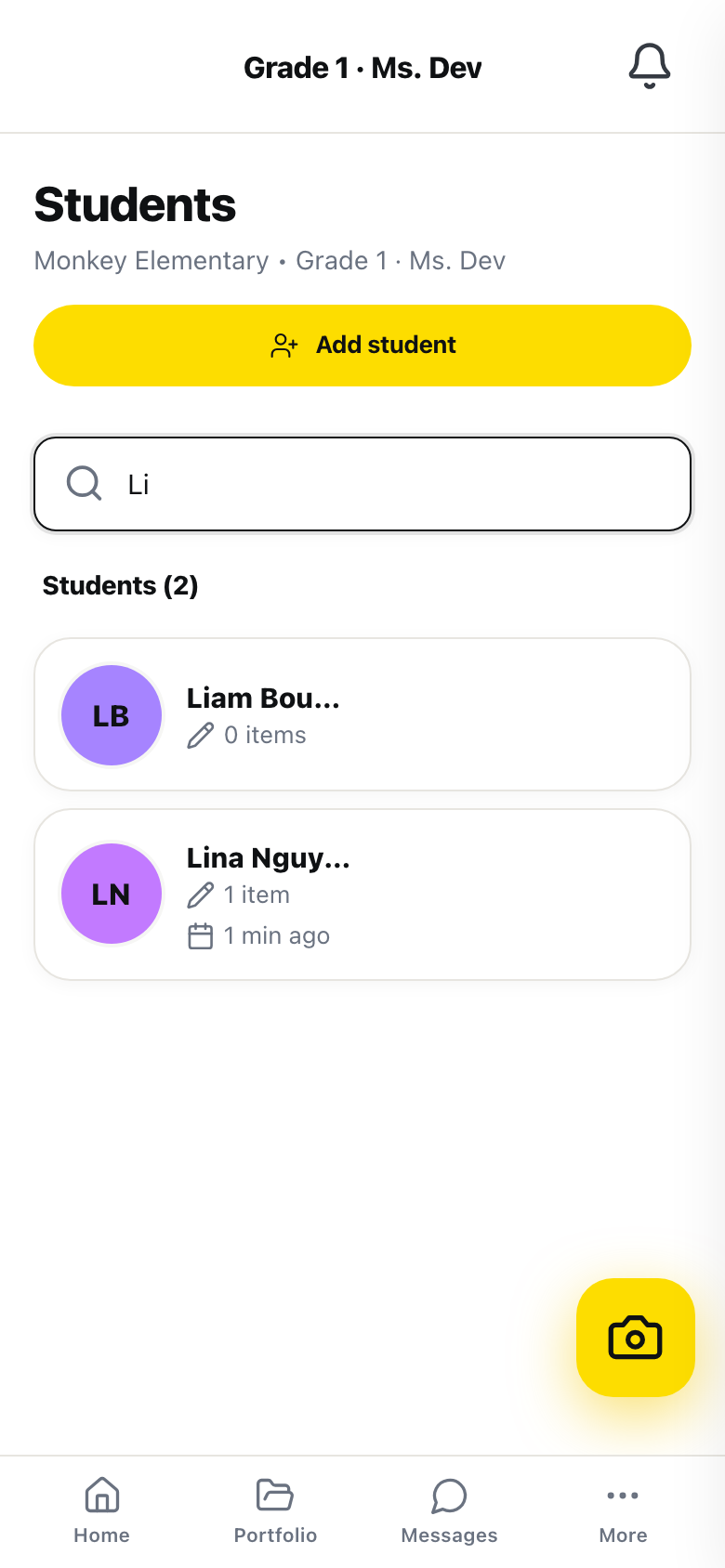
- Type a few letters of the first name or the last name.
The list gets shorter with each letter. Capital letters do not matter. Accents do: Zoe does not find Zoé. The Students line, between the field and the cards, counts in brackets the students on screen, not the whole class.
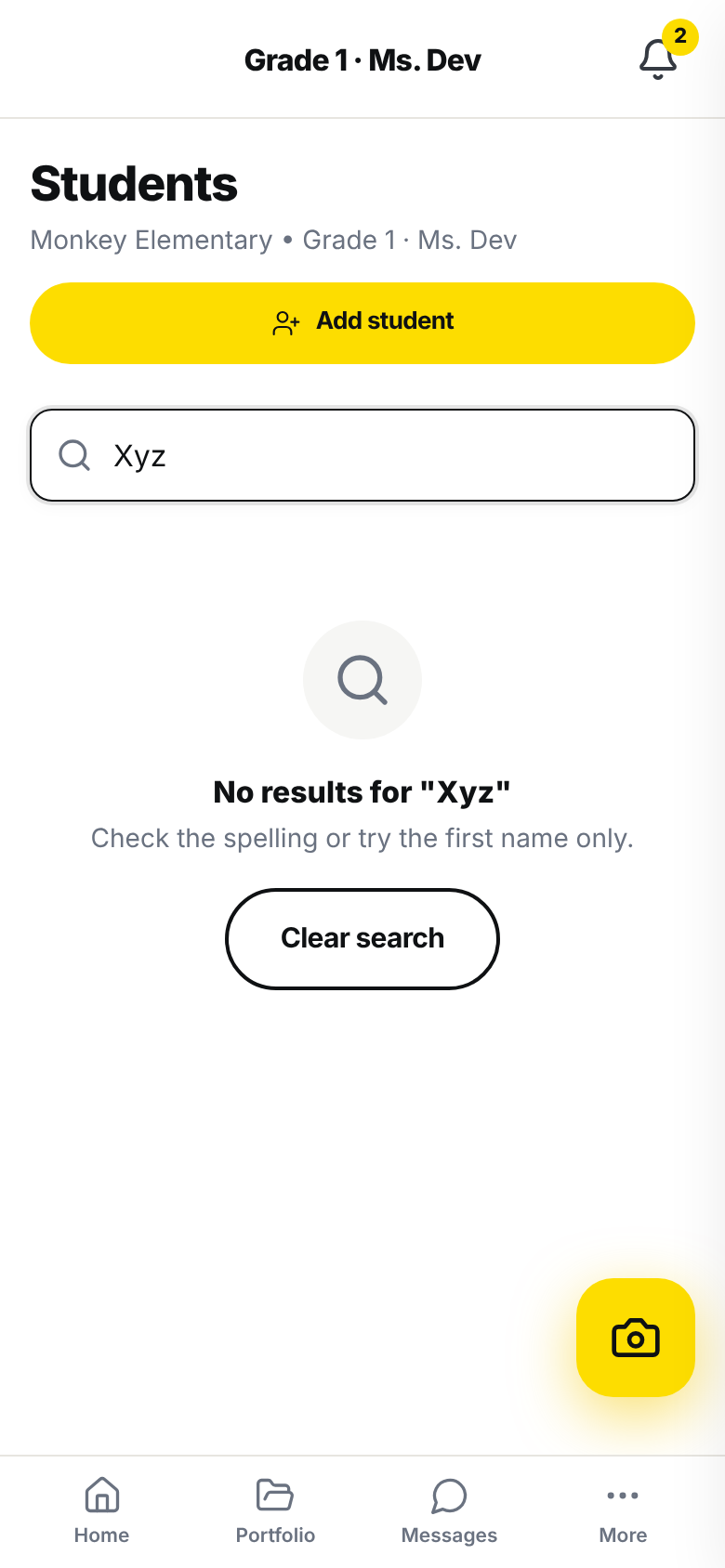
If no name matches, the Students line disappears and the page shows a magnifying glass, "No results for "{query}"", where what you typed replaces {query}, then "Check the spelling or try the first name only.". Tap "Clear search" under that message: the field empties and the whole class comes back.
Read a student's card
Each child has a card. On the left, their avatar: the picture of their métier, or their initials on their colour if they do not have one yet. Then their first name and last name. Under the name, two grey markers.
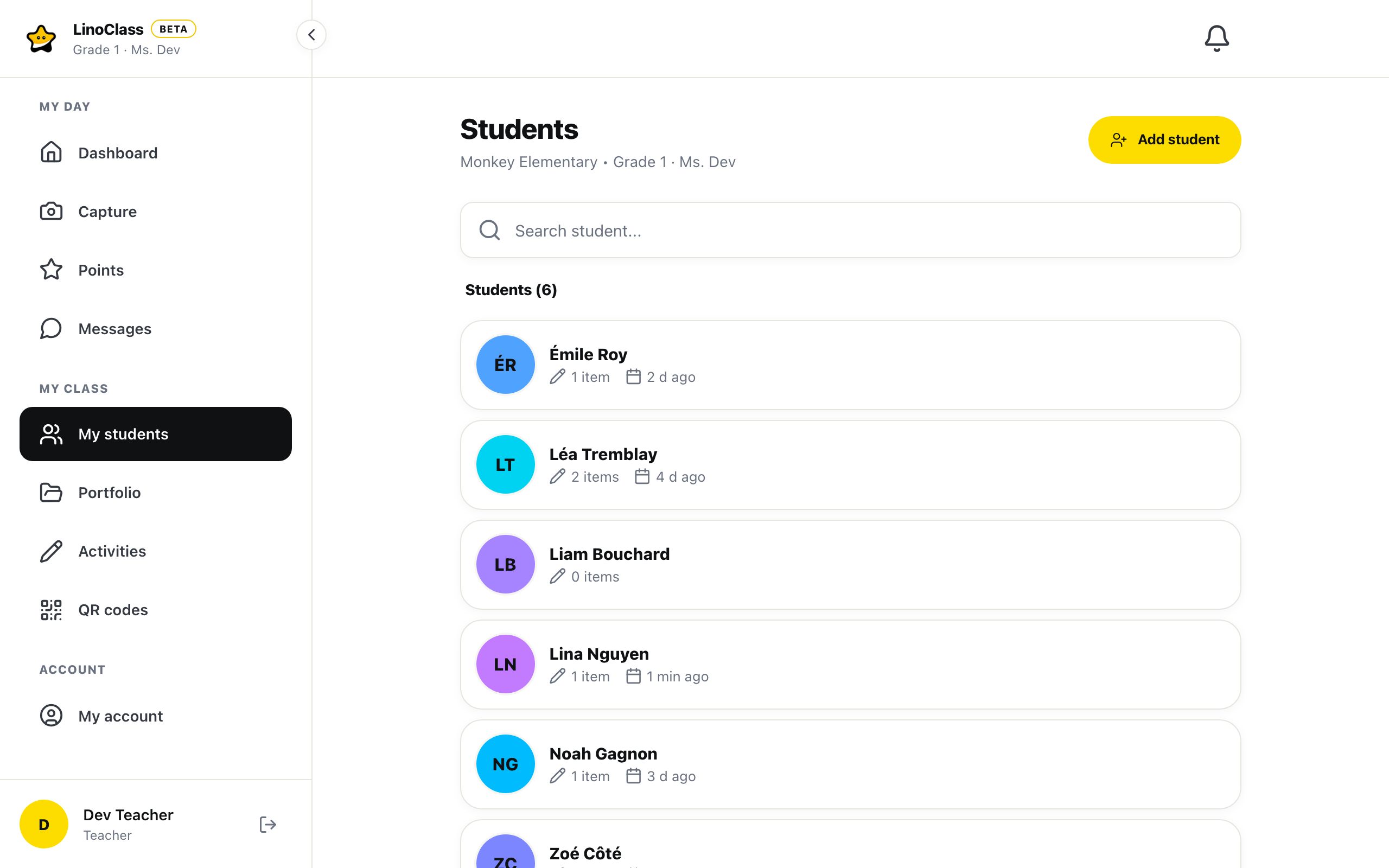
- A pencil and the number of items in their portfolio, for example 12 items. A book of several pages counts as one item. The count includes work that is still waiting for your approval.
- A calendar and the time of the last addition: "Just now", then "{count} min ago", "{count} h ago" or "{count} d ago", where the number replaces {count}. After a week, the date replaces this delay.
A child with nothing in their portfolio yet shows 0 items and no calendar.
Open a student's page
Tap the card, on the avatar or on the name. On a phone, the whole card opens with one tap, and the small grey arrow to the right of the name only shows that it leads further. On a tablet or a computer, the arrow is a separate round button, "View {name}'s portfolio", that does the same. The child's page opens, with their whole portfolio grouped by week. The page Follow a student's portfolio over the year describes it. "Back to students", at the top of that page, brings you back to the list.
Capture for a student from the list
On a tablet or a computer, the round yellow button with the camera, "Quick capture for {name}", opens the Capture page with that child already chosen. You do not have to find them again in the grid of faces. The page Quick capture describes what comes next.
On a phone, the card has no camera button. Tap "Capture", the yellow button with the camera at the bottom right of the screen, then the child's face.
On a computer, the camera, the arrow and the trash can appear when the mouse passes over the card. On a tablet, they are always visible. On a phone, only the trash can stays, always visible. The trash can only exists in your own class; the page Add and manage the students in your class explains what it does.
The same list when you choose students elsewhere
In "Messages", the "New conversation" button opens this same list under the question "About which student?". The search field is there too. The cards show only the avatar and the name, without the number of items or the date: here, you are choosing which parents to write to. The page Write to parents continues.
When you tick several students, for a group, to assign an activity or for the audience of an announcement, the list is also in alphabetical order. Each row has a box on the right. Tap the row, anywhere, to tick or untick the child. The box of a chosen student fills in yellow, with a black check, and their name goes from grey to black. The row itself does not change colour.
When it does not work
"No students"
The class is empty. The page adds "Add students to your class to get started". Tap "Add student" at the top of the page. In a colleague's class, this button does not exist: only the class owner adds students.
A student is missing from the list
Look at the search field first. If it still holds letters, the list is filtered: clear it, or tap "Clear search" if the page says "No results for "{query}"". If the number in brackets is right and the child is not there, they were not added to this class, or they were removed. The page Add and manage the students in your class explains how to add them.
The camera button is not there
On a phone, the card no longer has a camera button. Go through "Capture", the yellow button with the camera at the bottom right. On a computer, the buttons stay hidden until the mouse is over the card. Move the pointer onto the child's card. On a tablet, they are always shown, to the right of the name.
Frequently asked questions
Can you change the order of the list?
No. The list follows the alphabetical order of first names, then last names. The search field is the fastest way to reach a child.
The number of items does not match what you see in the feed.
The card counts everything in the child's portfolio, including work waiting for your approval and what you added yourself. A book of several pages counts once.
The search does not find a first name with an accent.
Type the first name with its accent, as it was saved. A few letters from the middle of the first name also work. When nothing matches, the page reminds you: try the first name only.