Create class labels and put them on work
A class label is an observation marker you create yourself: a red, yellow, green, blue scale, a garden project, a workshop. It goes on a photo, a drawing, a video, a sound or a written observation, next to the five domains of the program. The five domains are described in Tag work with the developmental domains. This page is about the labels the class adds on top.
Have your school turn labels on
Class labels are a setting of the school. They are off to begin with, for every school. Until your school turns them on, the "Class labels" section does not exist under "Level and domains", and the picker on a piece of work offers the five domains only. Nothing in your account switches them on.
To have them turned on, write to us at support@linoclass.ca with the name of your school. Once the setting is made, the section appears under "Level and domains" for every class of the school, for the lead teacher and for collaborators alike.
Create a label
- Open "My account", then "Level and domains".
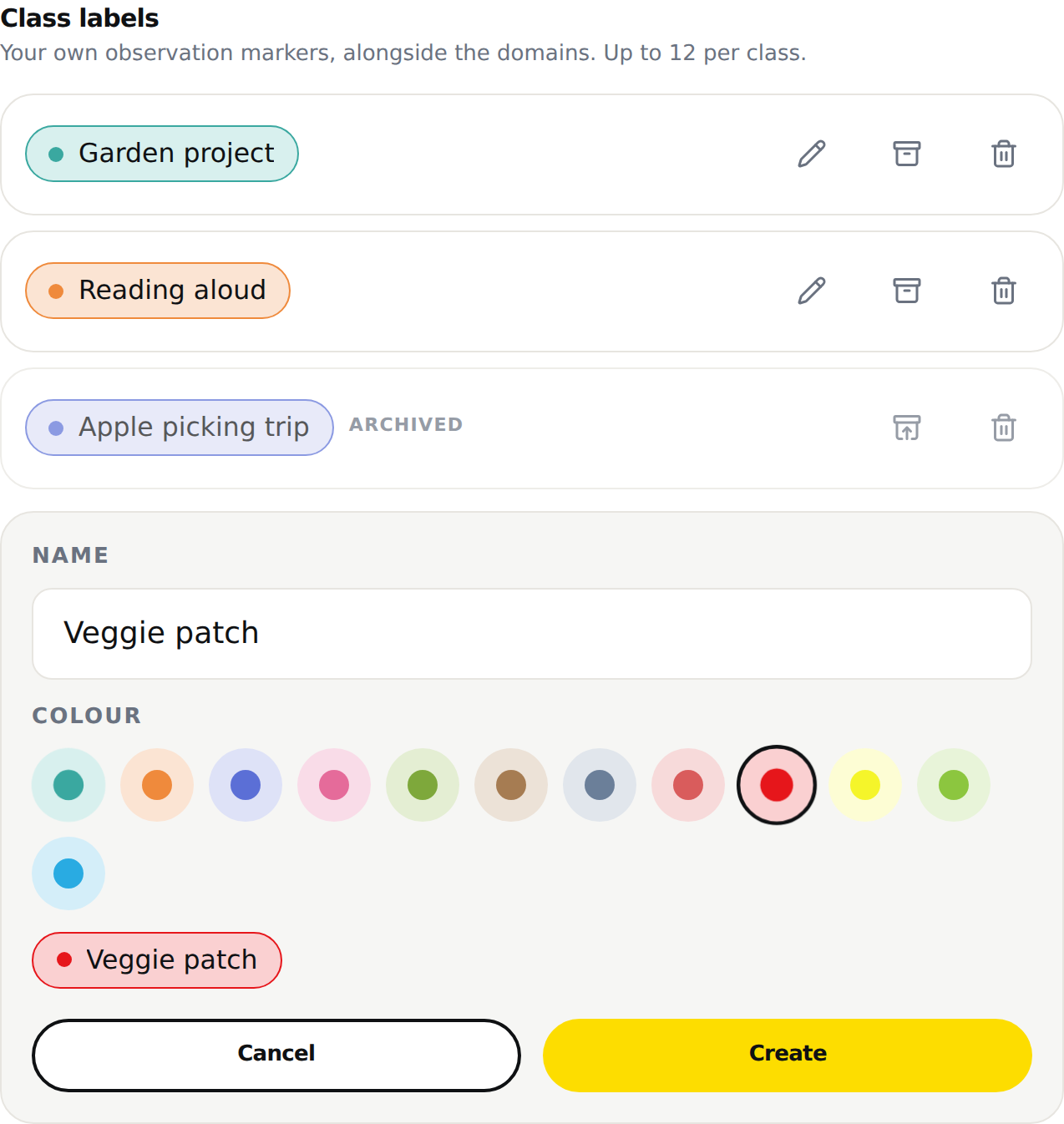
- Under "Class labels", tap "Add a label". While the class has none, the section reads "No labels yet."
- Type the "Name". It holds 60 characters.
- Under "Colour", tap a swatch. The chosen swatch grows and takes a dark ring. As soon as the name is typed, a preview of the label appears under the palette, in the chosen colour.
- Tap "Create".
The label takes its place in the list, and the picker of every piece of work offers it right away. A class can have 12 labels.
A red, yellow, green, blue scale
The palette has 12 colours. The first eight are muted. The last four are a true red, a yellow, a green and a sky blue: the colour scale many Quebec primary schools use to read a portfolio. To reproduce it, create four labels, one per colour, with the name your school gives each level.
In the picker, a chosen label fills with its colour. On the red, the text and the check are white; on the yellow, the green and the blue, they are dark.
Rename, archive or delete a label
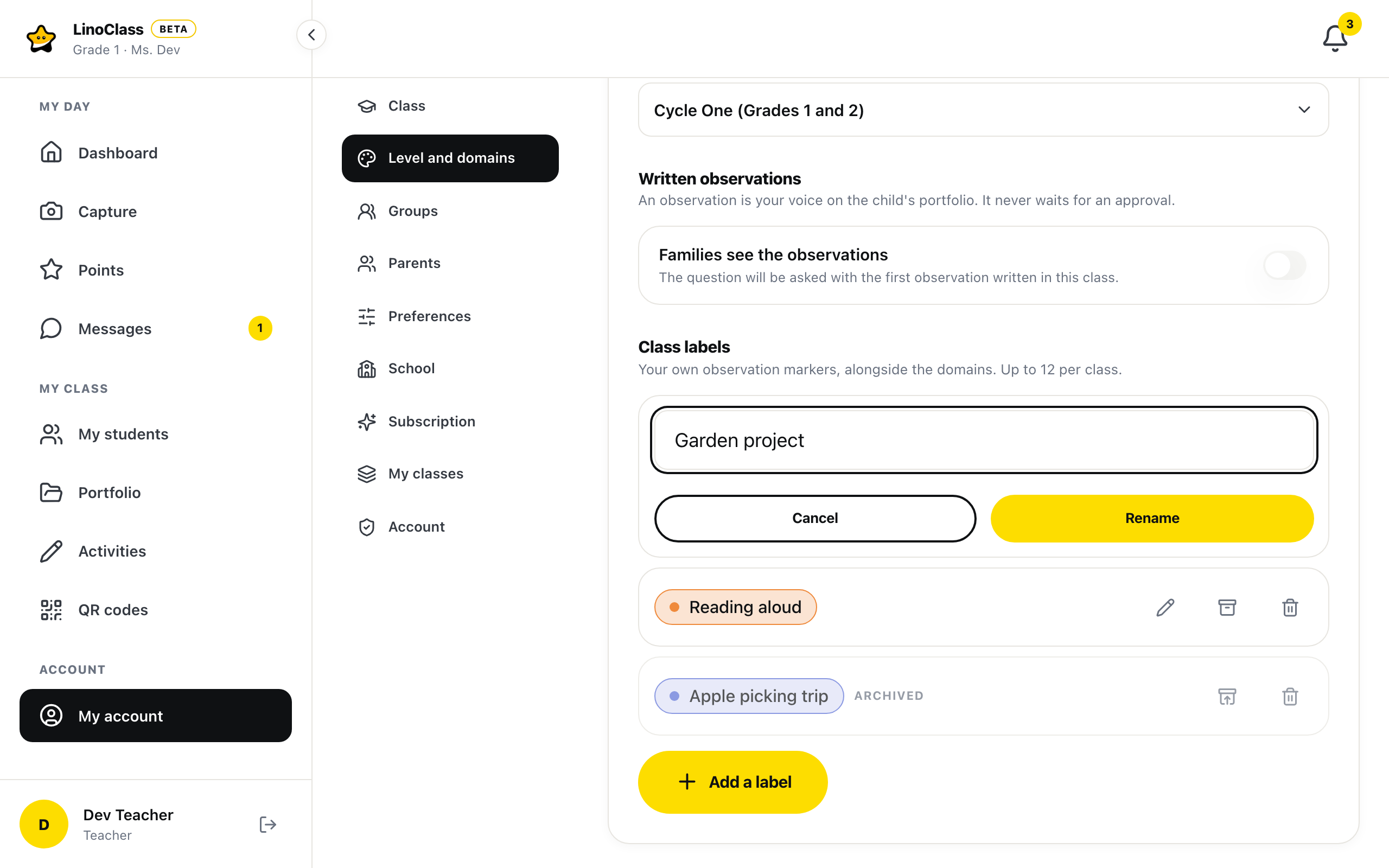
An active row carries a pencil, an archive box and a bin. An archived row has no pencil.
- The pencil opens the name in a field. Correct it, then tap "Rename". "Cancel" closes the field without changing anything.
- The box archives the label. The row fades and reads "Archived". The label is no longer offered for new work, but it stays on every piece that already carried it. The same button restores it.
- The bin deletes it. LinoClass asks "Delete the label {name}?", where the name of the label replaces {name}, and adds: "It will be removed from every entry that carries it. Archive it instead to keep it on existing entries." Confirm with "Delete".
An archived label still counts in the 12. When the class has reached the limit, "Add a label" is greyed out. Delete a label to free a place.
Pick the domains and labels of a piece of work
The same picker serves everywhere a piece of work gets its markers: on the page of a piece of work, under "Developmental domains"; in the form of a written observation; in "Quick capture" with the "Note" tile; and in the "Domains of the selection" window, for several pieces at once.
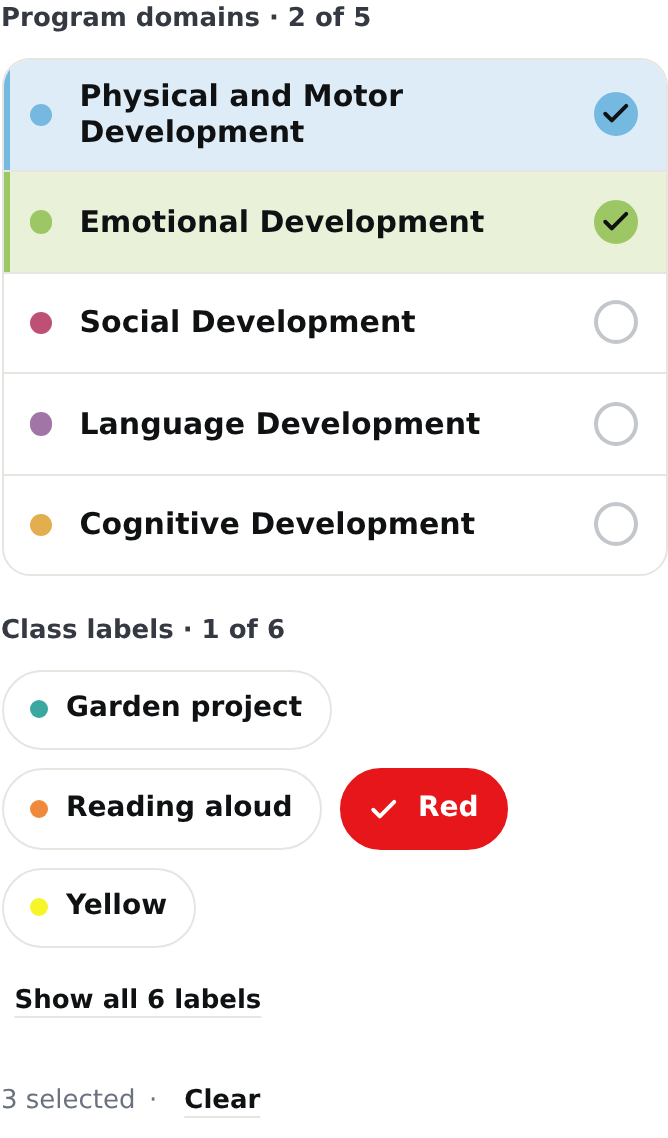
It has two groups, one under the other, and each title counts what is ticked.
- The first group is titled Program domains, with the count, for example 2 of 5. The five domains are five fixed rows: the coloured dot, the full name, and a circle on the right. Tap the row. It tints with the domain's colour and the circle fills with a check. Tap it again to untick it.
- The second group is titled Class labels, with its own count. The labels are chips. A ticked chip fills with its colour, with a check in place of the dot.
On the page of a piece of work, in the observation form and in "Quick capture", a line under the two groups reads "Optional. Pick one or more domains." while nothing is ticked. As soon as a row or a chip is ticked, the line counts the choices, and "Clear" removes them all at once. The "Domains of the selection" window has no such line: it shows the picker twice, under "Add" and under "Remove".
On the page of a piece of work, every tap is saved right away. While it saves, a small circle spins in place of the check. In the observation form and in "Quick capture", the choices leave with "Save".
When the class has many labels
Past four labels, the group shows only four, plus the ones already ticked, which always stay visible. The link "Show all {count} labels", where the number of labels replaces {count}, unfolds the whole group. "Show fewer" folds it back.
Past eight labels, the unfolded group gains a "Filter labels..." field. Type a few letters: the chips that do not match disappear. With no result, the group reads "No label matches." The Enter key does nothing in this field; it does not save the observation.
An archived label that is still on the piece of work appears after the two groups, as a pale chip in its colour, without a check. It can be read, but no longer tapped.
When it does not work
The "Class labels" section is not there
Your school has not turned labels on, or has turned them off. "Level and domains" then shows the level, the five domains when the class is set to "Preschool (ages 4 and 5)", and "Written observations", without the section. The picker on a piece of work offers the five domains only. Write to us at support@linoclass.ca to have them turned on.
The labels vanished from the work
Your school turned labels off. Nothing is erased: the labels and the work that carries them are kept, but they no longer appear in the portfolios, on the page of a piece of work or in the counts by domain. When the school turns them back on, everything returns as it was.
"Give the label a name."
The "Name" field is empty. Type a name, then tap "Create" or "Rename" again.
"This class has reached its limit of {max} labels."
The number 12 replaces {max}. The class has its 12 labels, archived ones included. Delete one, then start again.
"That colour is not offered. Pick one from the palette."
The colour sent is not one of the 12 swatches. Tap a swatch of the palette, then tap "Create" again.
"The label could not be saved. Please try again."
The save did not go through. The form keeps the name and the colour: tap "Create", "Rename" or the archive button again. If the message comes back while the section was visible a moment ago, your school may have just turned labels off. Reload the page to see.
"The labels could not be loaded. Please try again."
The list did not arrive. Reload the page. The labels still exist.
"The domains could not be saved. Please try again."
On the page of a piece of work, the row or the chip goes back to its earlier state. Tap it again. If the message comes back for a class label only, and not for a domain, a colleague may have just archived that label, or your school has turned labels off. Reload the page.
Frequently asked questions
Can a collaborator create labels in my class?
Yes. The "Class labels" section is open to collaborators, like groups. They create, rename, archive and delete labels as you do.
The class is set to "Other". Does the picker still show the labels?
Yes, if your school has turned labels on. The picker then shows the labels group alone, without the five domains. With no label and no preschool level, the page of a piece of work reads "No domains for this class yet." with the link "Pick the level in Settings".
Do parents see the labels?
Only if your school chose to show the domains to families. In that case the labels follow the domains: parents see the coloured dots and the chips on their child's portfolio. Students never see them on the tablet.
Archive or delete?
Archive a label the class no longer needs this year. It stays on old work and comes back with one tap. Delete only a label created by mistake: it leaves every piece of work that carried it.
Can I change the colour of a label?
No. The pencil changes the name only. For another colour, create a new label and archive the old one.