Give points to a student or to the whole class
The "Points" page is a board of faces. You tap one or more students, then a class challenge, and the points are given. Every child carries their total on their card. The total on the card and the history always agree.
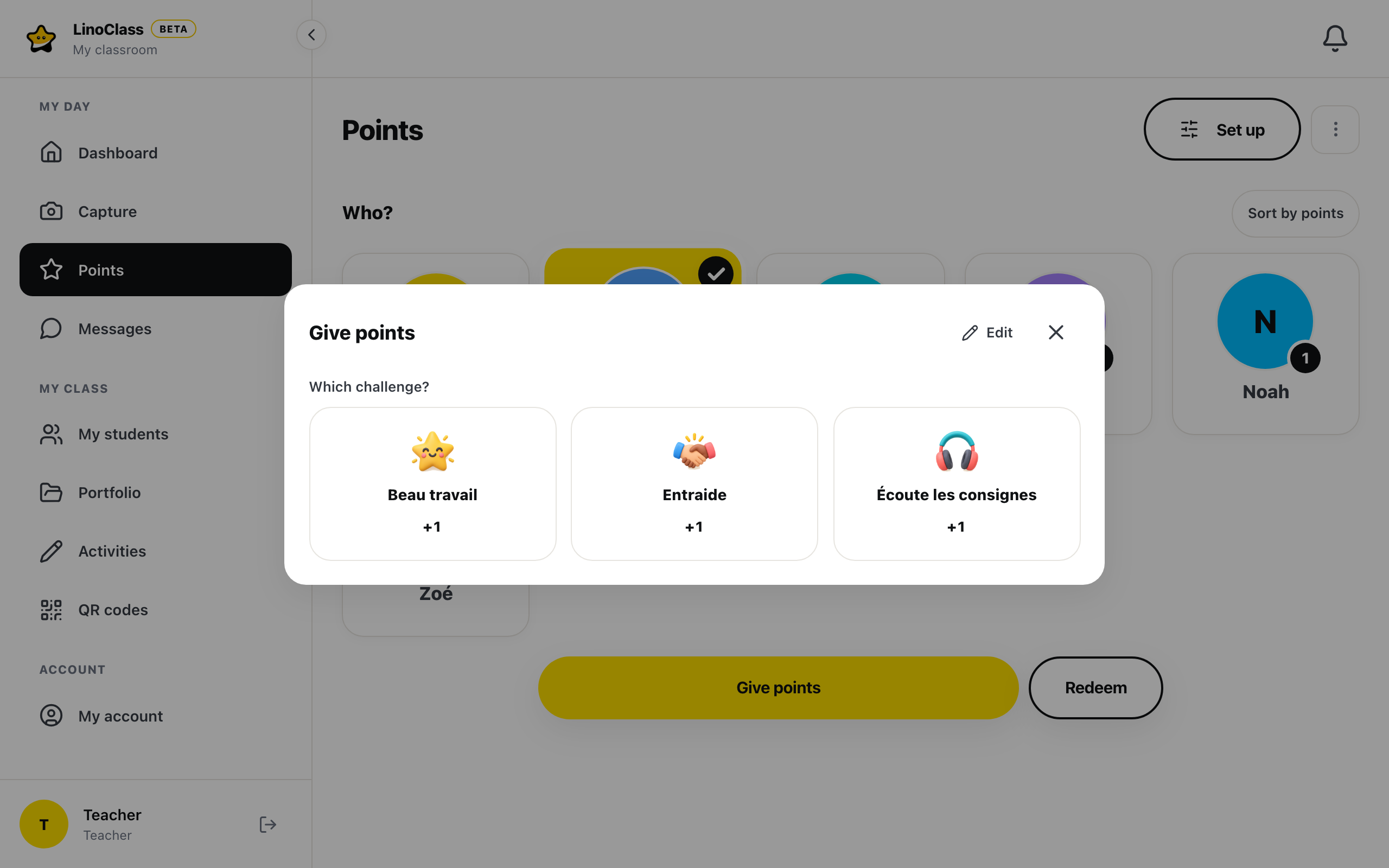
A classroom starts with three challenges worth +1: Beau travail, Entraide and Écoute les consignes. Their names are in French. You can rename or replace them. The page Create and edit class challenges and privileges shows how.
Give points
- Open "Points" in the classroom menu.
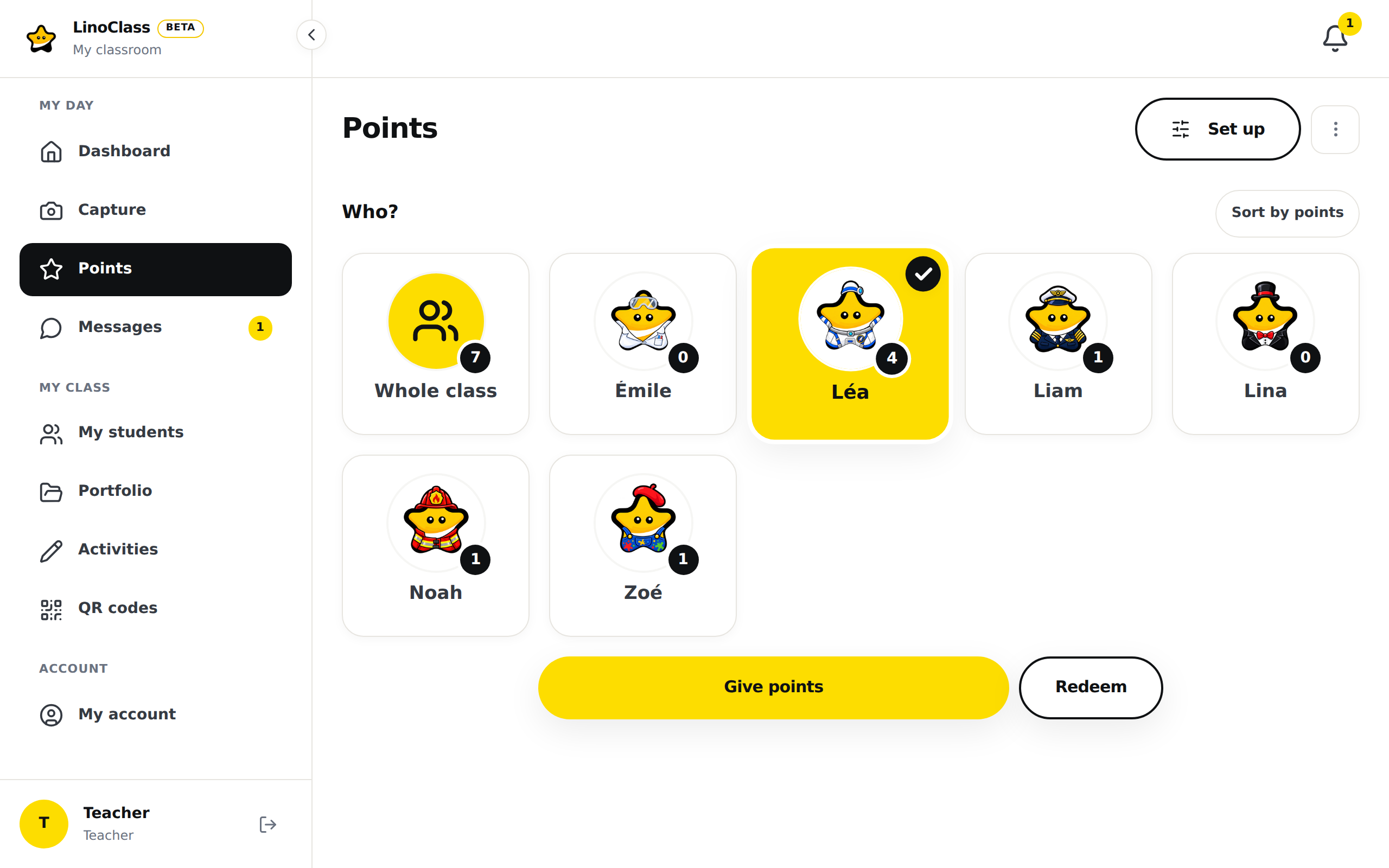
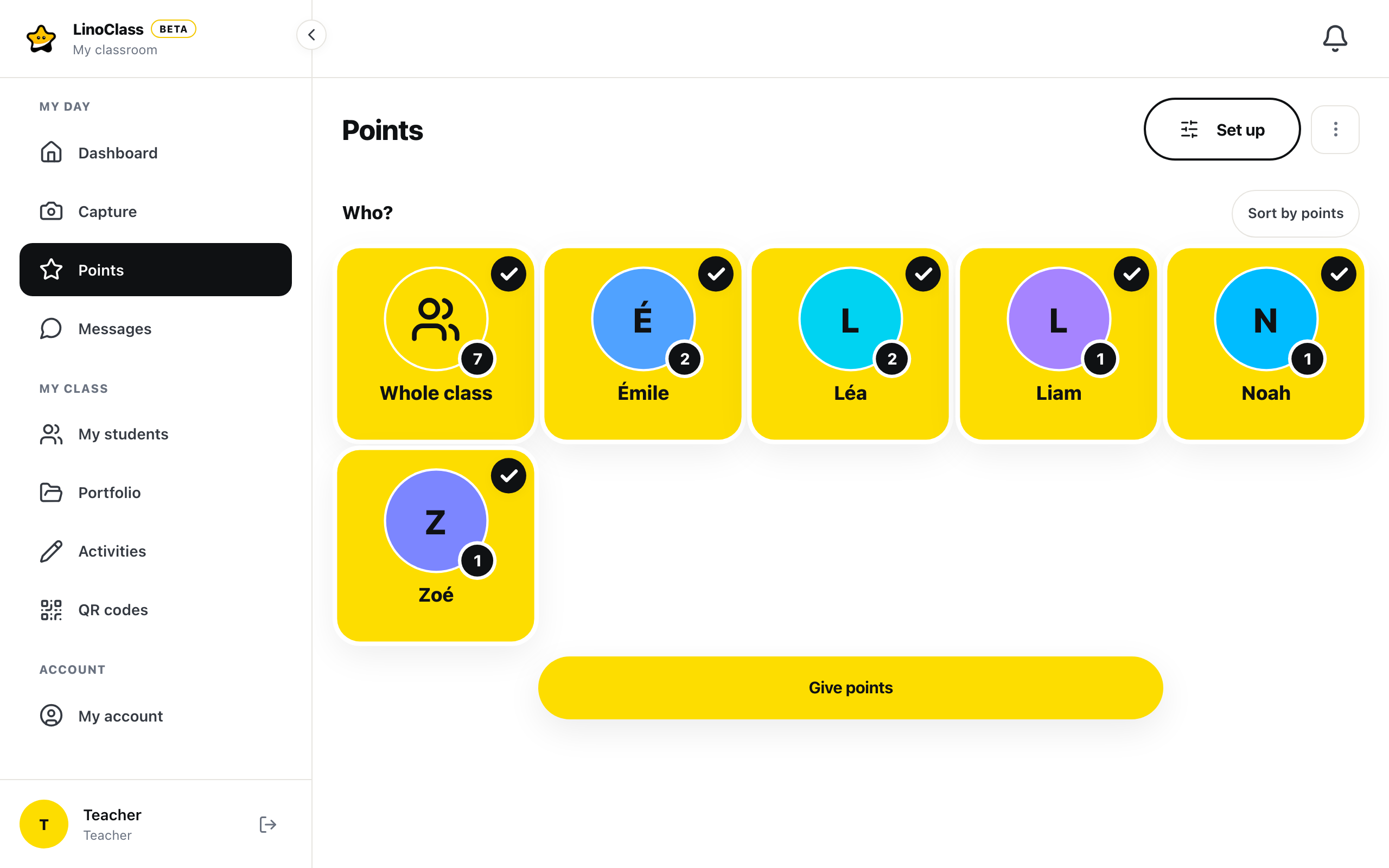
- Under "Who?", tap the faces. A tapped face stands out, with a check mark. Tap it again to remove it. The first tile, "Whole class", picks everyone at once.
- The "Give points" button appears under the grid as soon as one face is picked. It stays in view while you scroll. Tap it.
- The "Give points" dialog opens on the question "Which challenge?", with your challenges as cards. Each card shows its badge, its name and its value, for example +1 or -2.
- Tap a challenge. That tap gives the points. There is no confirm button.
The dialog closes on its own. A green bar at the bottom of the screen confirms with "Points given to {count} student(s)", where the number replaces {count}. For a positive challenge, stars burst and a short sound plays. A negative challenge makes no stars and no sound. The faces clear, ready for the next student.
On a phone, the dialog slides up from the bottom. On a computer, it opens in the centre. The "Close" X at the top right, or the Escape key, closes it without giving anything.
Take back points given by mistake
The green bar stays for six seconds and carries an "Undo" button. Tap it if you hit the wrong face or the wrong challenge. LinoClass writes the exact opposite of what was given, with the same challenge name, and confirms with "Undone". The child's total goes back to what it was.
Both lines stay in the history. The line that takes the points back is tagged "Undone". On the tablet, the child keeps the challenge line under "My wins"; the retraction is not shown there, but their total counts it.
Once the bar is gone, there is no "Undo" button anymore. To correct it later, give the student a challenge with the opposite value.
Read the board
Every card carries a bubble with the child's total, at the corner of their face. A child with no points shows 0. A total below zero sits on a pale red background. The "Whole class" tile carries the total for the whole room.
The grid is in alphabetical order by first name every time you open the page. The "Sort by points" button, at the top right of "Who?", orders the faces from the highest total to the lowest. It then reads "Sort by first name", which puts the alphabetical order back. The choice is not saved: the page always reopens by first name.
On a projector or a large screen, the grid adds columns and every face keeps its size. A very wide screen keeps the board centred, with a margin on each side. A phone shows two or three faces per row, depending on its width. A long first name wraps onto two lines at most. The "Give points" and "Redeem" buttons stay centred under the grid, even when it is wide.
The celebration sound
The sound plays on every positive challenge. To turn it off on one device:
- Open "Settings", then "Preferences".
- Under "Celebration sound", untick "Play a sound when points are given".
The line "This setting applies to this device only." says the rule: the sound is off on this device only. A classroom tablet and your laptop each keep their own setting. The stars still burst, with or without sound.
What a co-teacher can do
A collaborator on the classroom gives and redeems points the same way you do. She does not see the "Set up" button or the "Edit" link. A line under the title tells her: "The behaviours and the privileges are set by the classroom's own teacher. You can award points from this list." She does not have "Reset to zero" in the three-dot menu either. She does have "Full history".
When something goes wrong
"Saving failed. Try again."
The points were not given. The dialog stays open with this line at the top, and the faces stay picked. Check the connection, then tap the challenge again.
"No students in this classroom."
The grid is empty because the classroom has no students yet. Add them under "My students", then come back.
"Points are turned off for your school"
Your school turned points off for all of its classrooms. The page explains: "Your school made this choice. There is nothing for you to do." In that case "Points" is not in the classroom menu. You only see this page by following an old link.
The "Give points" button does not appear
No face is picked. Tap at least one student, or "Whole class". The button appears under the grid.
Frequently asked questions
Can I give a different number of points than the challenge's value?
No. Each challenge carries its own value, chosen when you create it. To give +5, create a +5 challenge in "Manage points".
Can I take points away?
Yes. Create a challenge with a negative value, for example -1. You tap it like any other. It makes no stars and no sound, and the child does not see it under "My wins". Their total counts it.
The sound does not play.
Check the device volume first. Then open "Settings", then "Preferences", and tick "Play a sound when points are given". The setting applies to this device only. A negative challenge never makes a sound.
Do last week's points still count?
Yes. A child's total adds up everything received and spent since the start. Nothing fades with time. Only "Reset to zero" brings the totals back to zero; the page Read the history and reset points to zero covers it.
Do parents see the points?
No. Points show on your page and on the student's "My points" page, on the tablet.