Create and edit class challenges and privileges
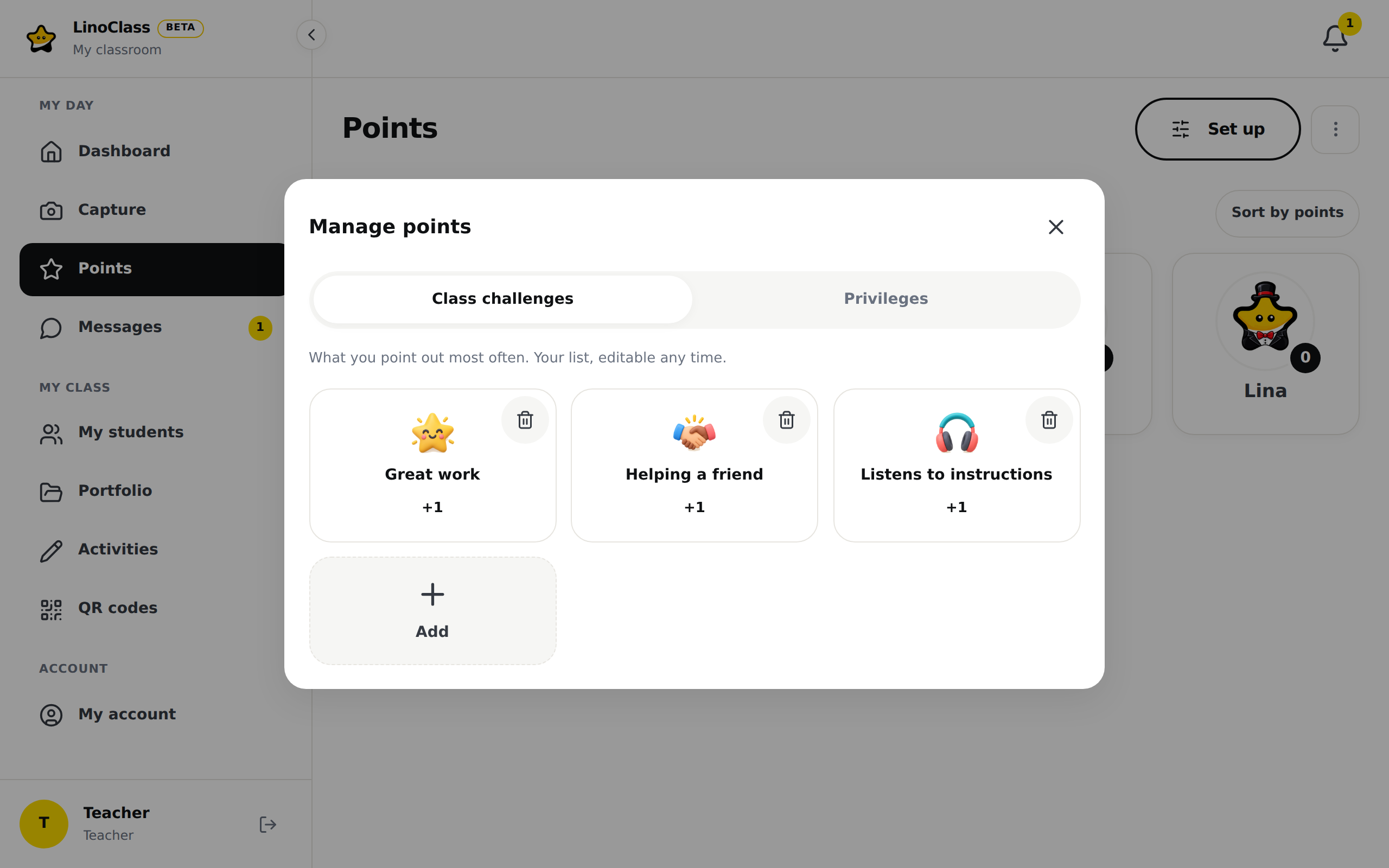
Points rest on two lists you write yourself. The "Class challenges" say what you point out and how much it is worth. The "Privileges" say what points can buy and at what price. Both are set in the same place, the "Manage points" dialog. This dialog is for writing the lists. It does not give points and does not redeem anything.
Only the classroom's own teacher can open it. A collaborator gives points from the list as it is.
Open "Manage points"
You can open this dialog in two ways.
- On the "Points" page, tap "Set up", at the top right. The dialog opens on the "Class challenges" tab.
- In the "Give points" or "Redeem" dialog, tap "Edit", next to the X. The dialog you are leaving closes, and "Manage points" opens on the matching tab: challenges from "Give points", privileges from "Redeem". When you close "Manage points", the first dialog comes back, with the same faces still picked.
The dialog has two tabs, "Class challenges" and "Privileges". A line under the tabs reminds you what the list is for. The cards have the same shape as in the dialog where you tap them to give points: the badge, the name, the value or the cost.
Add a challengeFree plan: 3 challenges. Pro plan beyond that.
- On the "Class challenges" tab, tap the dashed "Add" card at the end of the grid.
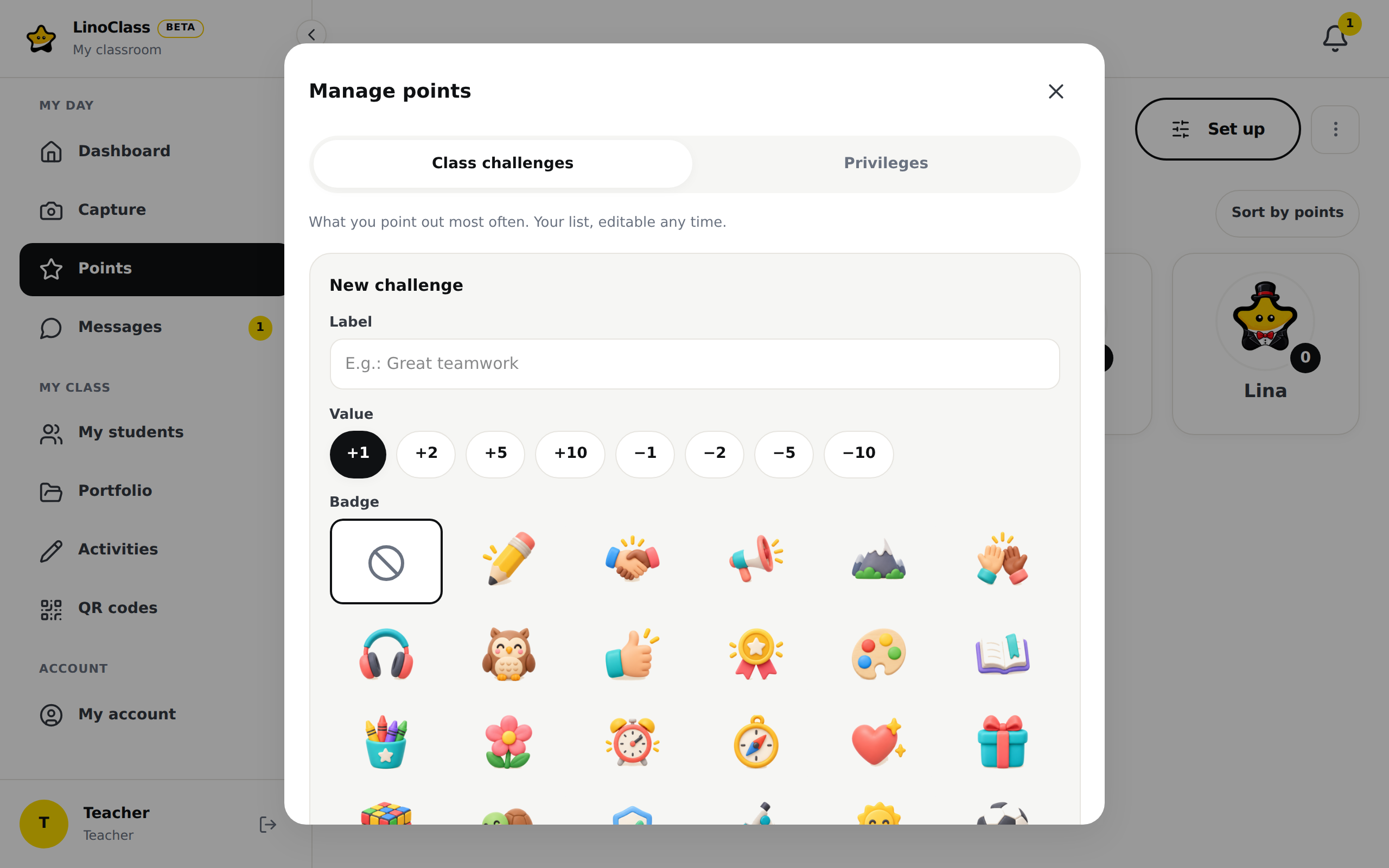
- The "New challenge" form opens. Under "Label", type the challenge's name, up to 60 characters. The field suggests "E.g.: Great teamwork". The "Save" button stays grey while the field is empty.
- Under "Value", tap a pill: +1, +2, +5 or +10 to give points, -1, -2, -5 or -10 to take some away. +1 is picked in advance.
- Under "Badge", tap a sticker. The first tile, the one with the crossed circle, leaves the challenge without a picture. Tap a picked sticker to remove it.
- Tap "Save". The button reads "Saving…", then the card appears in the grid.
"Cancel" closes the form without creating anything.
The badges
There are 24 stickers, one per classroom behaviour, on a transparent background. Each one is a small object in relief, as if shaped in clay: a pencil, a turtle, an open book. There is no text on the sticker. The same sticker serves the challenge, the card in "Give points" and the line under "My wins" on the student's tablet. A challenge without a badge shows a star with the first letter of its name.
Under "Badge", the stickers form a grid with four per row on a phone and six on a wider screen. The grid scrolls inside the form. The tapped tile gets a black frame.
Here is the object on each sticker and the behaviour it stands for.
| Object | Behaviour |
|---|---|
| Pencil | On task |
| Handshake | Helping others |
| Megaphone | Participation |
| Mountain | Perseverance |
| High five | Teamwork |
| Headphones | Listening |
| Owl | Working quietly |
| Thumbs up | Raises hand |
| Medal | Great effort |
| Paint palette | Creativity |
| Open book | Reading |
| Crayon cup | Tidying up |
| Flower | Politeness |
| Alarm clock | On time |
| Compass | Independence |
| Heart | Kindness |
| Gift | Sharing |
| Colour cube | Focus |
| Turtle | Calm |
| Shield with a check mark | Responsibility |
| Microscope | Curiosity |
| Smiling sun | Good mood |
| Soccer ball | Active |
| Smiling star | Wow! |
The sticker is copied onto every point given. If you change a challenge's badge later, the points already given keep the old one. If LinoClass redraws a sticker, the points already given show the new picture. The behaviour they point out does not change.
Add a privilegeFree plan: 3 privileges. Pro plan beyond that.
- On the "Privileges" tab, tap "Add".
- The "New privilege" form opens. Under "Label", type the privilege's name. The field suggests "E.g.: Pick your seat".
- Under "Cost", type the number of points, from 1 to 1000. The field suggests 5.
- Under "Badge", pick a sticker, or the first tile, the one with the crossed circle, to leave the privilege without a picture.
- Tap "Save".
An empty cost, a zero or a decimal gives "Enter a valid number of points." under the form. Fix the number, then save again.
Edit or remove a card
Tap a card to open it. The form is called "Edit challenge" or "Edit privilege" and shows the current values. Change what you want, then tap "Save".
The trash can, in the corner of every card, removes the card right away. There is no confirmation question and no button to bring it back. To have it again, create it again.
Editing or removing a challenge changes nothing about points already given. Every point keeps the name, the value and the badge the challenge had when it was given. A challenge renamed in January leaves December's history as it was. In the same way, a removed privilege stays readable in the history and under "My trades" on the student's tablet.
The free plan's limitFree plan: 3 challenges, 3 privileges. Pro plan beyond that.
The free plan allows three challenges and three privileges. When a list reaches three, the "Add" card is replaced by a card with a lock: "The free plan includes 3 challenges. Upgrade to Pro to create your own." or "The free plan includes 3 privileges. Upgrade to Pro to add more." The "Upgrade to Pro" link sits under it.
You can still edit or remove the three cards you have. Removing a card frees a slot. Values, badges and negative challenges are part of the free plan.
The limit is the classroom's. On a shared classroom, the plan of the classroom's own teacher is the one that counts.
When saving does not go through
"Saving failed. Try again."
The card was not created or changed. The form keeps what you typed. Check the connection, then tap "Save" again.
The free plan sentence appears under the form
The challenge was not created. Close "Manage points" and open it again: the grid shows the current list.
"Set up" is not on the page
You are a collaborator on this classroom. The line under the title says so: "The behaviours and the privileges are set by the classroom's own teacher. You can award points from this list." Ask the classroom's own teacher to make the change.
Frequently asked questions
Can I get the three starter challenges back?
Yes. If you remove all three, they come back at once, as soon as the third card is removed: Beau travail, Entraide and Écoute les consignes, at +1 each. If one or two remain, create the missing one again.
Can I use a value other than the eight pills?
No. The possible values are +1, +2, +5, +10, -1, -2, -5 and -10.
Can I reorder the cards?
No. The cards keep the order they were created in.
I removed a challenge by mistake.
Create it again with the same name, value and badge. The points already given with the old challenge did not move.