Read the history and reset points to zero
The three-dot button, "More actions", at the top right of the "Points" page, holds two items. "Full history" shows what was given and redeemed, day by day. "Reset to zero" brings every total in the classroom back to zero without deleting anything.
Read the full historyPro plan only
- On the "Points" page, tap the three-dot button, to the right of "Set up".
- Tap "Full history".
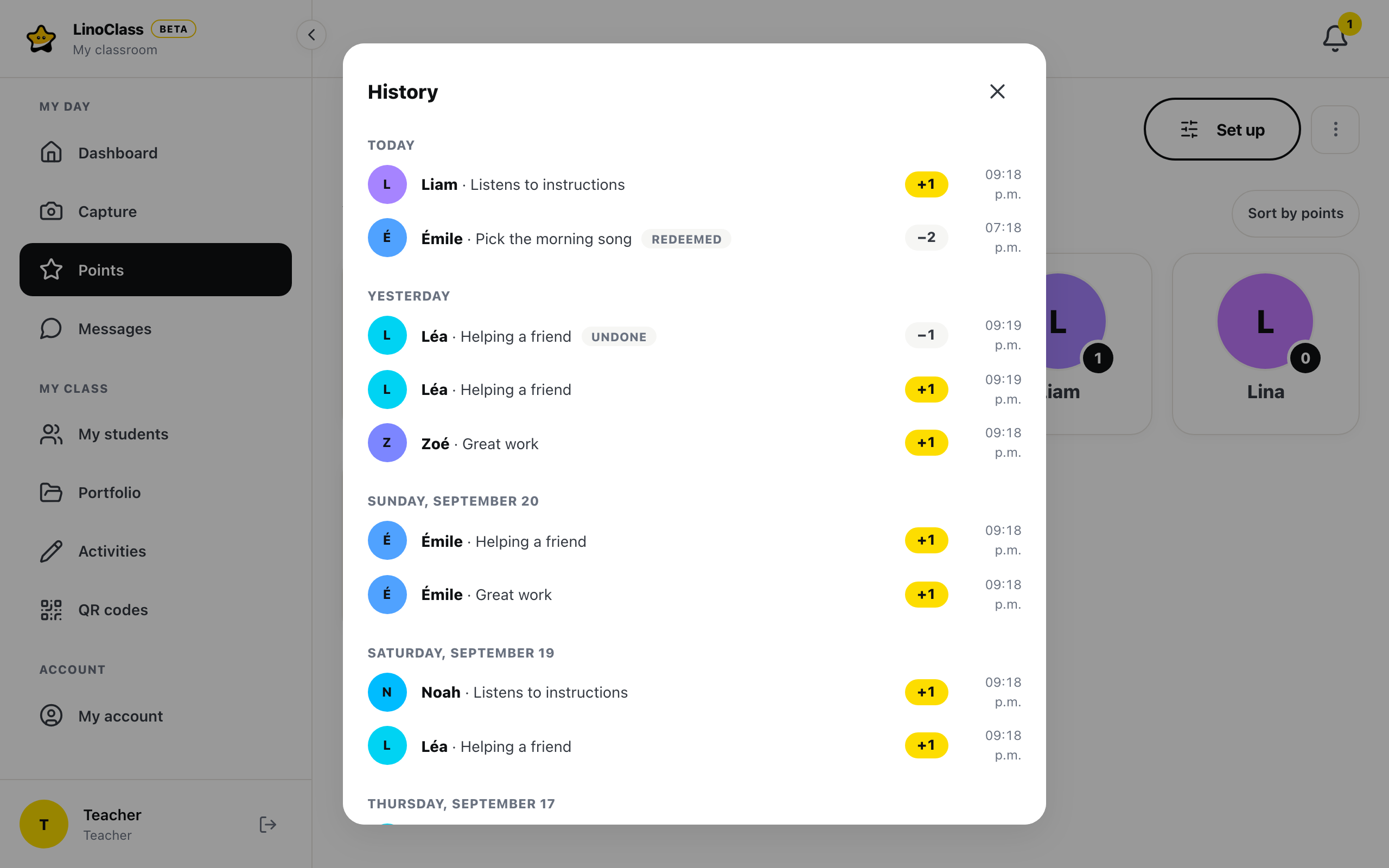
The "History" dialog opens on the last 100 moves, newest first, grouped by day. The day is called "Today", "Yesterday", then the date written out. Each line shows the child's face and first name, the challenge or privilege name, the value and the time.
If the dialog says "No points given yet.", the classroom has no moves at all.
A line that is not a point given carries a tag.
- "Redeemed": the student spent points on a privilege.
- "Undone": you tapped "Undo" on the green bar after a challenge. The challenge's own line sits right below it.
- "Reset": the move that brought this student's total back to zero.
- "Reset undone": a reset undone within six seconds.
There is no filter by student. For one child's own story, open their "My points" page on the tablet; the page What the student sees under "My points" covers it. There is no "Undo" button in the history either: the six-second green bar is the only moment to take points back.
On the free plan
The dialog shows a card with a lock: "The detailed history comes with Pro. Totals stay free." For the classroom's own teacher, the "Upgrade to Pro" link sits under it. The bubbles on the cards and the six-second "Undo" stay on every plan. On a shared classroom, the plan of the classroom's own teacher opens the history, for her and for her collaborators.
Reset every total to zero
At the start of a term, you can bring everyone back to zero. LinoClass deletes nothing: for every student, it writes one move that cancels their total. The student starts at zero and their history stays complete.
- Tap the three-dot button, then "Reset to zero".
- LinoClass asks "Reset all points to zero?" and explains: "Every student starts fresh at zero. The history is kept, nothing is deleted."
- Tap "Reset to zero". "Cancel" closes the dialog without changing anything.
A green bar confirms with the number of students reset. It stays for six seconds and carries an "Undo" button. Tap it if this was not the moment: every total goes back to what it was, and the bar reads "Undone". After six seconds, there is no way back.
If every total was already at zero, the bar reads "All balances are already at zero." and nothing is written.
On the tablet, the student sees their total at zero. Their "My wins" list starts over from the reset: what they received before is no longer there. An undone reset gives the list back.
"Reset to zero" is only offered to the classroom's own teacher, and only when the classroom has students. A collaborator does not see it in the menu.
When something goes wrong
"Saving failed. Try again."
Reopen the "Points" page to see the current totals, then start again from the menu if needed.
"Undo" does not respond on the green bar
The button is greyed out while LinoClass writes the undo. Wait a second. If the bar disappears first, the six seconds are over and the reset stands.
Frequently asked questions
Can I reset a single student?
No. "Reset to zero" applies to the whole classroom. For one child, give them a negative challenge down to zero, or let them spend their points on a privilege.
Does the reset erase the challenges or the privileges?
No. Both lists stay as they are. Only the totals change.
Why does the history stop at 100 lines?
The dialog shows the classroom's 100 most recent moves. Older ones are not deleted, but they do not show here.