Give a student a home code
The home code lets a student look at their own portfolio from home, on the family's phone or tablet, with no parent account. At home everything is view only: the student sees their work and your comments, and cannot add, change or delete anything.
Each student has their own code. The class QR code does not change: it now reads "Class code" and "In class only", and it never shows a home code.
Create a student's code
- Open "My students".
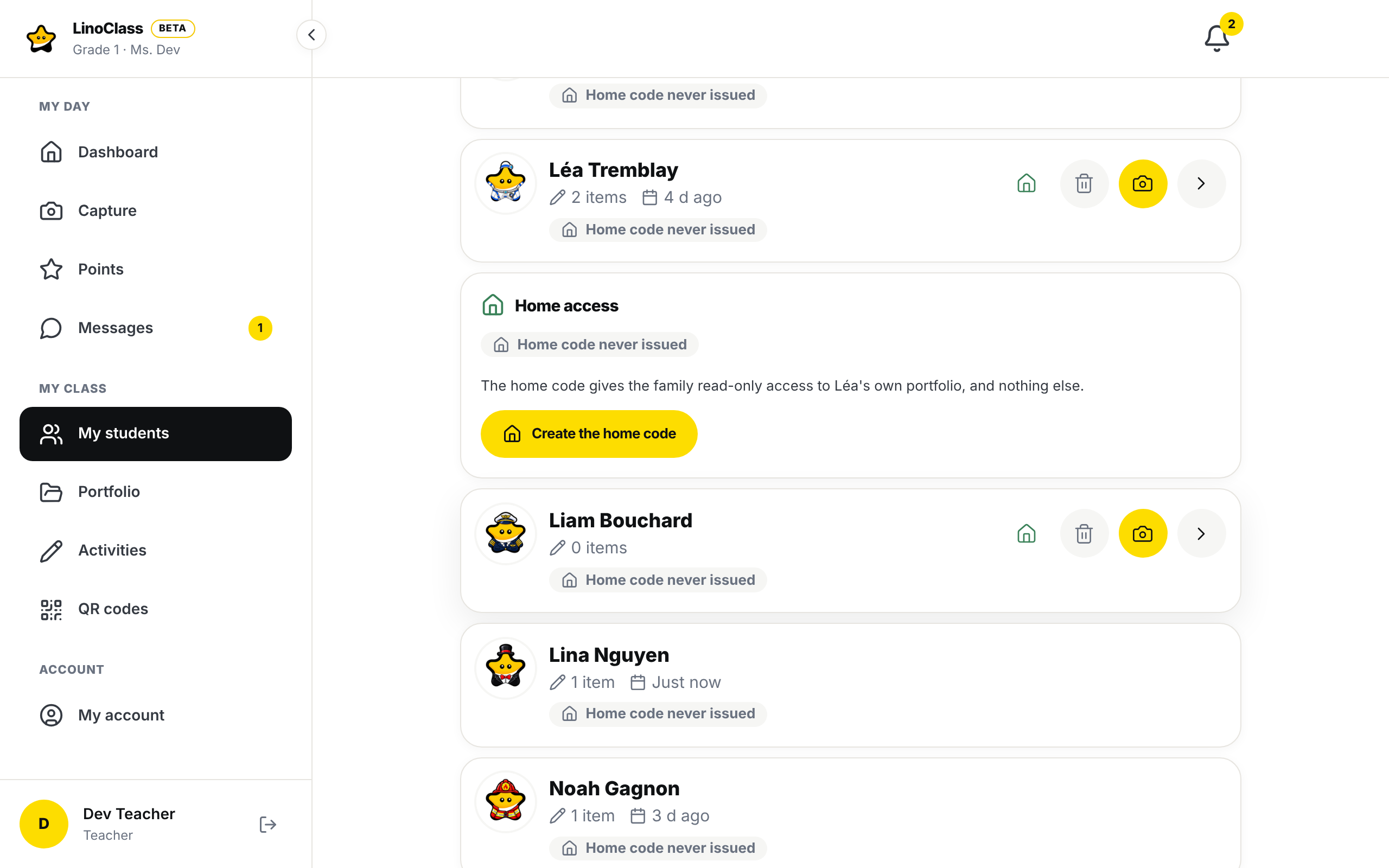
- Tap the house icon at the end of the student's row. The "Home access" panel opens under their name. The same panel is also on the student's page.
- Tap "Create the home code".
- The QR code appears in the panel. Tap "Print". Your browser's print dialog opens: pick the printer and the paper size, then print.
The code is shown only once. LinoClass says so under the QR code: "The code is shown only once, right after it is created: print it now." While the panel stays open, "Print" opens the print dialog again. If you close the panel without printing, the code does not come back and the panel says "To reprint, regenerate the code."
What gets printed
Each student gets their own page, with the same layout as the class code poster: the LinoClass logo, the student's full name (first and last name) as the title, the label "Home code" with "At home, view only", a large QR code and three numbered steps in yellow circles for the family. The bottom of the page shows the class name and the end date, for example "Valid until June 30, 2027". The code stays valid until June 30 of the school year.
The page prints in the classroom's language, whatever language your screen is in. If you read LinoClass in French and the class is in English, the page comes out in English only, and the other way around. You set that language in "My account", "Class", on the "Classroom language" card (see Change the language). Change it before you print if the families need the other language.
Print the codes for the whole class
- In "My students", tap "Print home codes".
- LinoClass asks "Create and print the home codes?". Tap "Create the codes".
- The codes are created, then your browser's print dialog opens with one page per student. Choose the paper size, then print.
- A small window stays open in LinoClass, titled with the number of codes, for example "24 codes ready". Tap "Print" to print again, for instance if the printer jammed. Tap "Close" only once everything is printed: these codes are shown only once, and after "Close" you have to create all the codes again to reprint.
This button creates a new code for every student. Every home code already handed out stops working right away, and each family needs the new card. For one student, use their "Home access" panel instead.
The button stays greyed out while the class has no students.
See where each code stands
On each student's row in "My students", a badge gives the state of their code: "Home code active since" followed by the date, "Home code revoked", "Home code expired" or "Home code never issued".
What the student sees at home
The family opens the camera on their phone or tablet, scans the card and taps the LinoClass link. The student's portfolio opens directly, with no name to pick, and the banner "Home mode: view only" at the top of the page. Photos, drawings, audio recordings, videos and your comments open as usual. No button to add or change work appears.
The home code does not depend on school hours, and the family's device is not signed out at the end of the day the way the class tablets are. To leave, the family taps "Sign out" in the banner.
Regenerate a lost code
A lost card, or one shared by mistake, can be replaced. In the student's "Home access" panel, tap "Regenerate", then confirm. The old code stops working right away and the family's device is signed out. The panel shows the new card once: print it and give it to the family.
Revoke a code
To cut off access from home, tap "Revoke" in the "Home access" panel, then confirm. The code stops working right away and the family loses access to the portfolio at home. The badge changes to "Home code revoked". To give access again later, tap "Create a new code".
When the code does not work
At home, the student sees "Your home code no longer works". The screen adds "Ask your teacher for a new code." The code was regenerated, revoked, or it expired. Check the student's badge in "My students", then create or regenerate the code and hand over the new card.
On a class tablet, the screen says "This code is for home". A home card was scanned in class. In class, the student uses the class code; tap "Scan a new code" and scan the class poster.
At home, the screen says "This code is for the classroom. Ask your teacher for your home code." The family scanned the class poster outside school hours. Give them the student's home card.
The screen says "Too many tries. Wait a little and try again." Too many scans were made in a short time. Wait a minute before scanning again.
In the panel, "That did not work. Try again." Creating, regenerating or revoking did not go through. Tap the button again.
For the whole class, "The home codes could not be created. Try again." The message shows in the confirmation window, which stays open, and nothing prints. Tap "Create the codes" again.
The printed page is in the wrong language. It follows the "Classroom language", not the language of your screen. Change the classroom language, then create and print the code again.
Nothing comes out of the printer. The print dialog is the browser's own. If you cancelled it, tap "Print" again, in the student's panel or in the small window that says the codes are ready, before you close it.
The panel says "Home code status unavailable". It adds "Could not load the home code status." LinoClass could not read the code's state. Reload the page.